---
title: Flow editor
description: "The Flow section of a flow agent: a canvas of nodes and edges, a toolbar, a settings panel for variables and global tools, and Save."
---
Flow agents
The flow editor is where a flow agent's conversation is designed. It replaces the
three prompt fields of a single-prompt agent with a canvas: each **node** carries
its own instructions, and each **edge** decides when the conversation moves from one
node to the next. It lives under **Flow** in the agent workspace, at
`/agents/edit//flow`.
:::note[Only flow agents have it]
The **Flow** section appears only for agents created as a **Conversation Flow**. A
single-prompt agent cannot be switched to a flow; create a new agent instead. See
[Choosing a prompt type](/build/choosing-a-prompt-type).
:::
## How it works
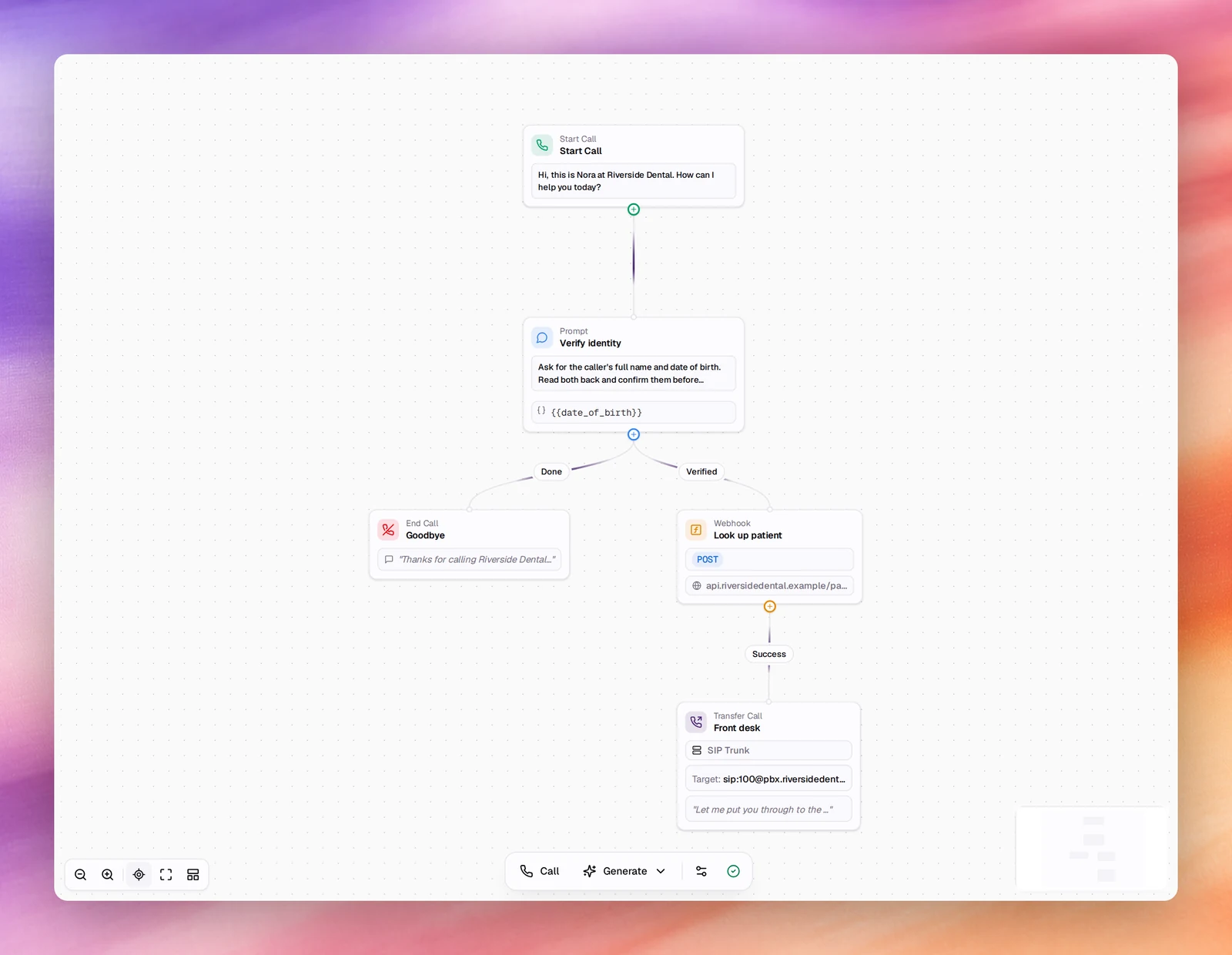
A new flow agent opens with 3 nodes already on the canvas: **Start Call**, one
**Prompt** node and **End Call**. A conversation always begins at **Start Call**,
follows edges whose conditions are met, and ends when it reaches an **End Call**
node, when a **Transfer call** node hands the call over, or when a tool such as
[End Call](/build/tools/end-call) fires.
At every node the agent is given the node's own instructions on top of the agent's
general settings (language, voice, first message rules, [Advanced](/build/speech-pipeline/turn-detection)
tuning). It talks to the person until one of the outgoing edges' conditions is
satisfied, then moves on. The prompt of a flow agent is therefore the sum of its
nodes, read one at a time, not one long text.
## The canvas
- **Drag** a node to move it. Positions are saved with the flow.
- Every node except **End Call** has a **+** handle at its bottom. Choosing it opens
**Add node**, which lists the node types and connects the new node to the one you
started from. See [Nodes](/build/flow-agents/nodes).
- Choosing a node opens its editor in a panel on the right. **Save Changes** applies
the panel to the canvas; **Cancel** discards it; **Delete Node** removes the node
and its edges.
- Choosing an edge's label opens **Configure Edge Connection**. See
[Edges and conditions](/build/flow-agents/edges-and-conditions).
- The mini map at the bottom right shows where you are in a large flow.
Changes made in a panel are held in the editor until you choose **Save** at the top
of the page. The indicator at the right end of the toolbar reads **Flow Saved** when
nothing is pending.
## The toolbar
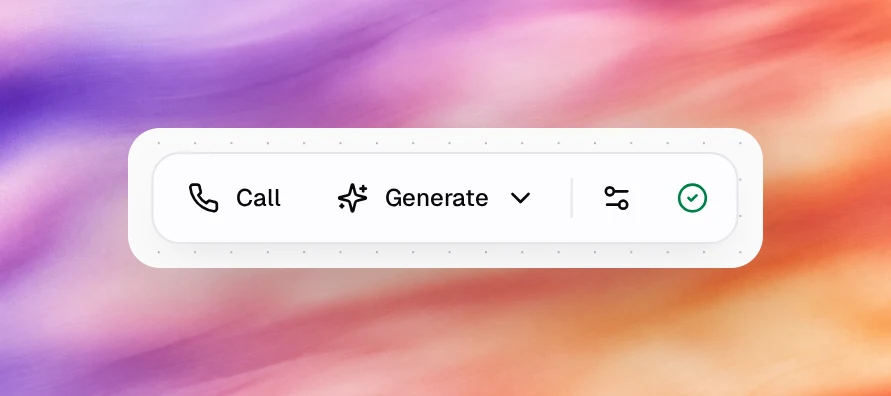
| Control | What it does |
|---|---|
| **Zoom Out**, **Zoom In** | Change the canvas scale. Scrolling on the canvas does the same. |
| **Fit View** | Zooms and pans so every node is visible. |
| **Fullscreen** | Expands the canvas to the whole browser window. Press Escape to leave. |
| **Auto Layout** | Rearranges the nodes top to bottom along their edges. Useful after generating or after adding branches by hand. |
| **Call** | Starts a browser test call with this flow. Same as **Call** under **Testing**. |
| **Generate** | Opens a menu with **Custom Instructions** and **Enhance Current Flow**. See [Generate a flow](/build/flow-agents/generate-a-flow). |
| **Global Tools** (sliders icon) | Opens the **Settings** panel with **Variables** and **Global Tools**. |
| **Flow Saved** (tick icon) | The save state of the flow. |
## The Settings panel
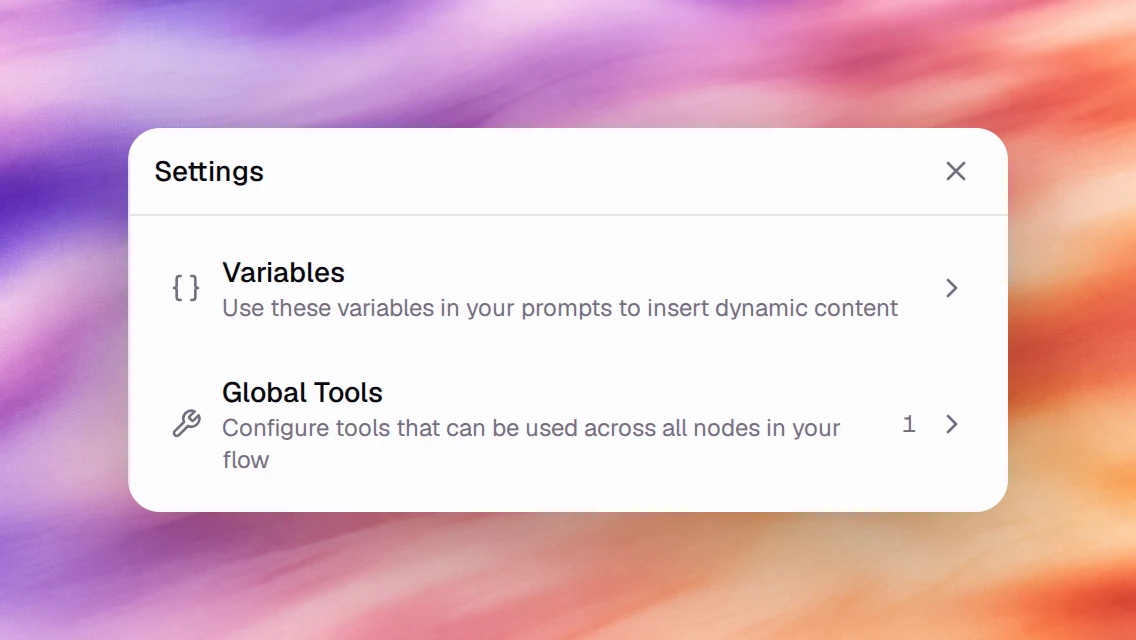
The sliders icon opens a panel with two sections.
**Variables** lists the predefined dynamic variables you can write into any node's
instructions, each with a **Copy** button: `{{now}}`, `{{date}}`, `{{time}}`,
`{{month}}`, `{{day}}`, `{{year}}`, `{{call_from_number}}`, `{{call_to_number}}` and
`{{sip_headers}}`. Below them the panel lists the custom variables it finds in your
flow; write `{{variable_name}}` in any prompt to create one. Variables extracted by
a **Prompt** node's **Extract** tab also become available to later nodes. See
[Dynamic variables](/build/dynamic-variables).
**Global Tools** holds the tools available at every node of the flow. It works
like the **Tools** section of a single-prompt agent: **Add Tool** opens
the same picker, and each tool has **Edit** and **Remove**. A **Prompt** node can
add tools of its own on its **Tools** tab and can opt out of the global ones with
**Include Global Tools**. See [Tools overview](/build/tools/overview).
## Saving and versions
**Save** at the top of the page writes the whole flow as a new version of the agent,
the same as saving **Settings** does. The version counter in the sidebar moves and
the change is listed under **Versions**, so a flow can be compared and rolled back
like any other change. See [Versions](/test-and-improve/versions).
Leaving the page with unsaved panel changes discards them.
## Behaviour and limits
- A flow needs exactly one **Start Call** node. It cannot be deleted; the **Add
node** menu does not offer another.
- A node with no outgoing edge keeps the conversation at that node until the call
ends by other means. Give every **Prompt** node a way out, even if it is a single
**None (Always)** edge to **End Call**.
- Everything outside the flow (voice, language, [Outcomes](/build/outcomes),
[Advanced](/build/speech-pipeline/turn-detection), [Widget](/deploy/widget-and-embed/widget-designer))
is configured the same way as for a single-prompt agent.
- Testing works the same too: **Chat** and **Call** under **Testing** run the flow.
The [Launch Checklist](/test-and-improve/launch-checklist) refuses to publish a
flow with no start node.
## Related
- [Nodes](/build/flow-agents/nodes)
- [Edges and conditions](/build/flow-agents/edges-and-conditions)
- [Generate a flow](/build/flow-agents/generate-a-flow)
- [Choosing a prompt type](/build/choosing-a-prompt-type)
- [Tools overview](/build/tools/overview)