---
title: Campaign details
description: "The campaign list and a campaign's page: statuses, call counters, its Overview, Dashboard, Call Logs, Advisor and Settings, and the actions on it."
---
Voice agents
**Launch AI Voice**, at `/campaigns`, lists every campaign in the workspace, and
each campaign has a page at `/campaigns/` with its counters, configuration and
calls.
## The list
Four tiles count **Total Campaigns**, **Running Campaigns**, **Scheduled
Campaigns** and **Completed Campaigns**. Below them a search box, an **All**,
**Outbound**, **Inbound** switch and a **Filter by status** select narrow the
cards.
Each card shows the status and type, the campaign name, its description if it
has one, the **Agent** with a **View Agent** link, the **Number**, the
**Schedule** (a window and zone, as in `9:00–17:00 Europe/Paris`, or `Anytime`)
and the **Audience** as a tag count. Inbound cards show only the agent and
number. **View Details** opens the page, and a `stopped` or `draft` campaign
also shows **Edit**. The card menu has **Pause** or **Resume** where it applies, and **Archive**.
### Statuses
| Status | Meaning |
|---|---|
| `draft` | Created without everything it needs to run, such as a number. |
| `scheduled` | Complete, waiting for its start date or calling window. |
| `running` | Dialling, or answering, now. |
| `stopped` | Paused by you. **Resume** on the page continues it. |
| `done` | Every contact in the audience has been handled, or the end date passed. The status filter calls it **Completed**. |
| `archived` | Hidden from the default list. Filter by **Archived** to see it. **Unarchive** restores it as `draft`. |
## The campaign's page
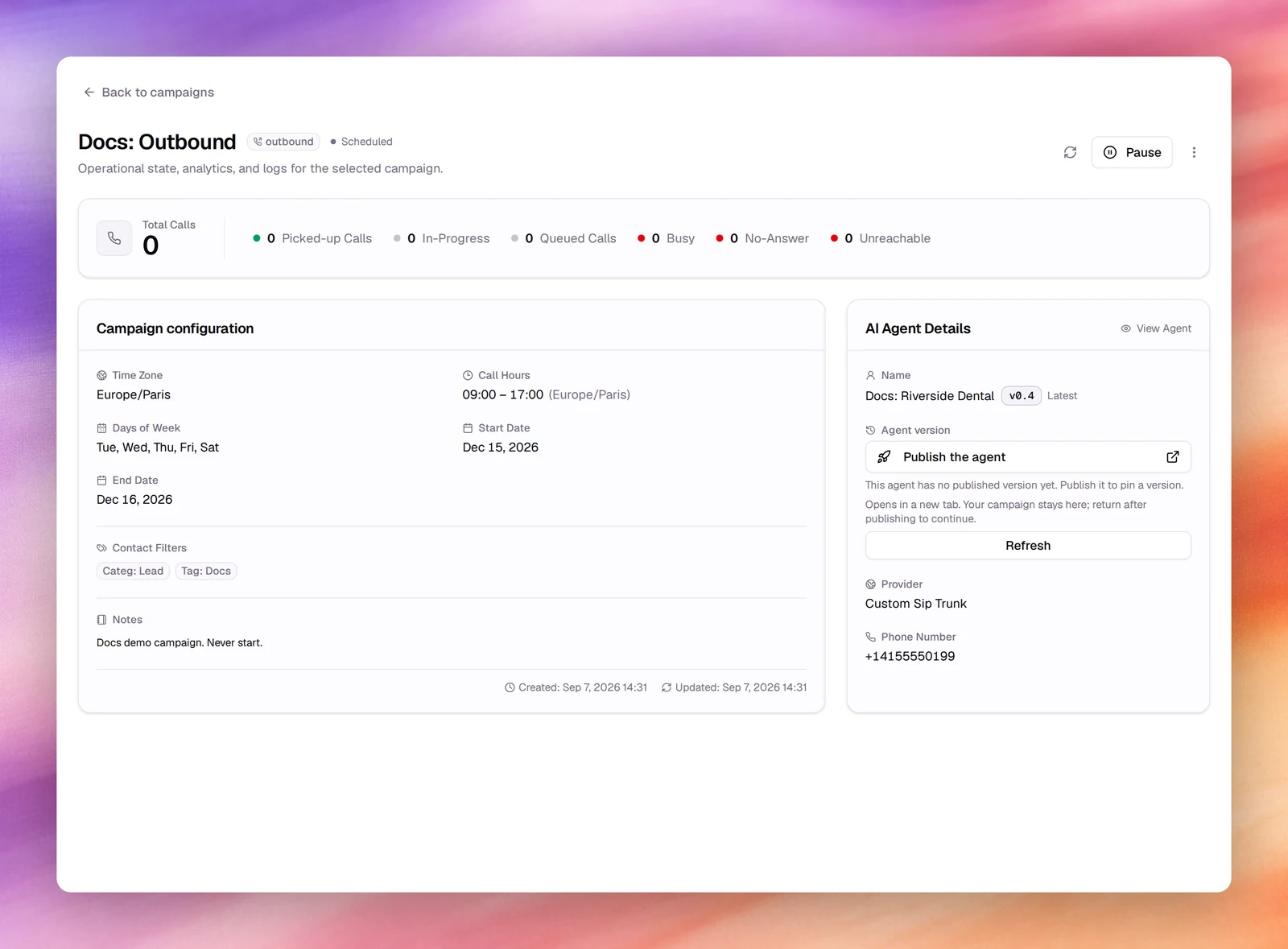
Opening a campaign swaps the main sidebar for the campaign's own. At the top, a
card shows the campaign's **Name**, **Type** and **Status** under a **Back to
campaigns** link. Below it the sections are grouped:
| Group | Section | Address |
|---|---|---|
| | **Overview** | `/campaigns/` |
| **Monitor** | **Dashboard** | `/campaigns//dashboard` |
| **Monitor** | **Call Logs** | `/campaigns//call-logs` |
| **Improve** | **Advisor** | `/campaigns//advisor` |
| **Configure** | **Settings** | `/campaigns//settings` |
Every section sits under the same header and counters. **Back to campaigns**
above the header also returns to the list. The header carries the name, its
type and status, and the line *Operational state, analytics, and logs for the
selected campaign.* Its actions are **Edit** (only on a `stopped` or `draft`
campaign), a refresh button, **Pause** while the campaign is `scheduled` or
`running` (**Resume** once it is stopped), and a menu with **Archive**.
A band of counters follows: **Total Calls**, then **Picked-up Calls**,
**In-Progress**, **Queued Calls**, **Busy**, **No-Answer** and **Unreachable**.
Picked-up is the number that reached a person or a machine; the last 3 are the
ones retries act on.
### Overview
**Campaign configuration** lists **Time Zone**, **Call Hours** (with the
equivalent in your local time when your zone differs), **Days of Week**, **Start
Date** and **End Date** when set, **Contact Filters** (the selected tags and
categories, as `Tag: Renewal` and `Categ: Customer`), **Notes** (the
description) and the created and updated timestamps. **AI Agent Details** shows
the agent's **Name** with a **View Agent** link and its version, marked
**Latest** or **Pinned**, the number's **Provider** and the **Phone Number**.
With permission to update campaigns, an **Agent version** picker there pins the
campaign to a published version, or back to **Follow latest published**; the
change saves at once.
### Dashboard
Charts of this campaign's calls over a date range that starts at the last 7
days. The default layout has **Total Calls**, **Avg Call Duration (sec)**,
**Success Rate** and **Total Talk Time (min)**, then **Call Duration Over
Time**, **Success Counts Over Time**, **Disconnection Reasons** and **AI Agent
Outcomes**. Some charts link through to **Call Logs** with the matching filter
applied.
Above the charts, **Build this dashboard with AI** offers to lay the dashboard
out from the agent's post-call outcomes. **Generate AI Dashboard** replaces the
charts with ones built for this campaign; the agent needs
[post-call outcomes](/build/outcomes), or a notice, **No Outcomes
Defined**, says so. A generated dashboard is marked **AI Dashboard Active**, and
**Reset Dashboard** returns to the default layout; you can generate again at any
time.
If your role can export calls, the **Export** menu has **Export Call Logs**, the
calls in the selected range as a CSV file, and **Export Report as PDF**, the
dashboard for that range as a PDF report.
### Call Logs
The same table as the global [Call logs](/operate/call-logs), limited to this
campaign: **Date**, **From**, **To**, **Direction**, **Duration**, **Status** and
**Details**, with a search box, a **Date Range** select, **Status** and
**Direction** filters and **Add filter**. Open a row for the transcript,
recording and outcomes; see [Call details](/operate/call-details).
### Advisor
Automated checks and recommendations for this campaign: misconfigurations and
best-practice findings, grouped as **Errors**, **Warnings**, **Suggestions**
and **Ignored**. **Re-check** runs the checks again. On a finding, **Fix it**,
where offered, opens [Atlas](/operate/atlas) with a prompt to fix it, ready to
send, and **Ignore** dismisses it. With nothing to report the section
shows *Everything looks healthy*.
### Settings
Where a campaign is edited. The name at the top is renamed in place: click it,
type at least 3 characters, press Enter. A side list picks what to edit:
**Campaign info**, **Schedule**, **Contact filters**, **Agent variables** and
**Webhook** on an outbound campaign, **Campaign info** and **Webhook** on an
inbound one. Each section holds the wizard's fields with the current values and
its own **Save**, enabled once something in it changes. **Contact filters**
adds a **Contact Preview** with the total and the first 10 contacts.
Only a `stopped` or `draft` campaign can be changed. On any other the section says
*This campaign is read-only. Only stopped or draft campaigns can be edited.* and
every field is disabled.
## Edit
**Edit** is offered only while the campaign is `stopped` or `draft`, on its card
and in the page header; pause a running campaign first. It opens the campaign's
**Settings** section. There, **Agent variables** maps the agent's dynamic variables
to contact data and **Webhook** picks a post-call automation; an inbound
campaign's **Campaign info** also holds **Timezone**, **Queue** and **Sync with
contact**. Edits to the audience or window take effect on the next call, not on
calls in progress.
## Verify
- After a change, the **Campaign configuration** card shows the new values and
**Updated** moves.
- Counters add up: **Picked-up Calls** plus **Busy**, **No-Answer** and
**Unreachable** approach **Total Calls** as calls finish.
## Troubleshooting
- **The card says `No number assigned` and the status is `draft`.** The number
was deleted or never set. **Edit**, pick an **Outbound Phone Number**, save.
- **There is no Edit button, or Settings is read-only.** The campaign is
`scheduled` or `running`. **Pause** it, then **Edit**.
- **Resume does nothing.** The campaign is outside its window; it resumes at the
next **Call Time**.
- **An archived campaign is missing.** Set **Filter by status** to **Archived**.
## Related
- [Create an outbound campaign](/deploy/campaigns/create-an-outbound-campaign)
- [Calling windows and retries](/deploy/campaigns/calling-windows-and-retries)
- [Call logs](/operate/call-logs)
- [Dashboard](/operate/dashboard)