---
title: Phone numbers overview
description: "Voice agents need a number you connect yourself: a SIP trunk, a Twilio number you own, or a Go Auto Dial extension. How the three compare."
---
Voice agents
Callab AI does not sell phone numbers. Under **Phone Numbers** in the main sidebar,
at `/phone-numbers`, you connect a number you already have, and campaigns then
call from it or answer on it. **Add Phone Number** offers 3 types.
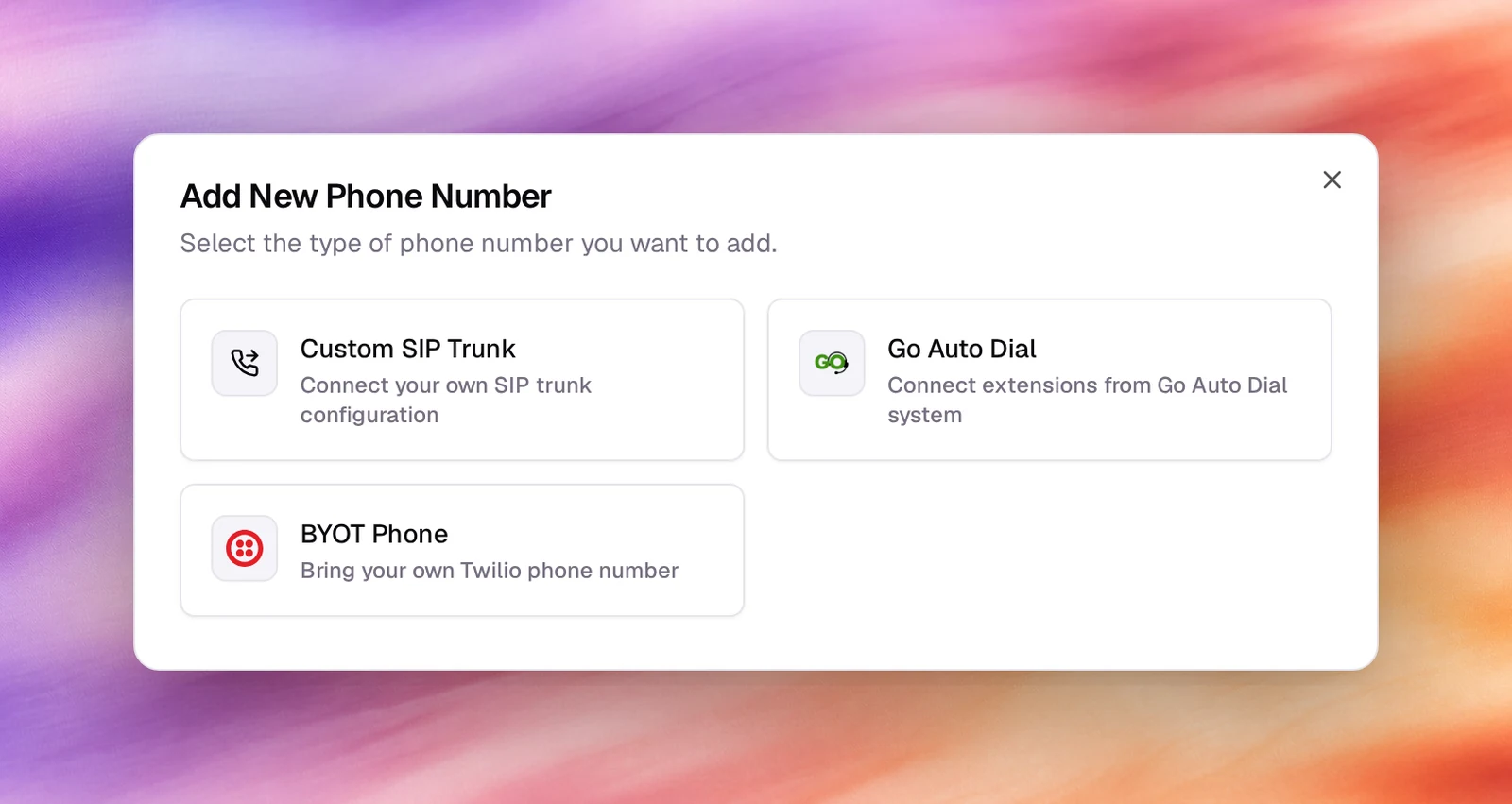
| Type | Use it when | You need | Page |
|---|---|---|---|
| **Custom SIP Trunk** | Your carrier, PBX or contact-centre platform speaks SIP | The gateway host and port, and registration credentials if the trunk requires them | [SIP trunk](/deploy/phone-numbers/sip-trunk) |
| **BYOT Phone** | You already have a Twilio number | The number, your Twilio Account SID and Auth Token | [BYOT (Twilio)](/deploy/phone-numbers/byot-twilio) |
| **Go Auto Dial** | Your dialler is Go Auto Dial | An extension, its password, a campaign id and the server details | [Go Auto Dial](/deploy/phone-numbers/go-auto-dial) |
SIP is the general answer: anything that can route calls to an IP address works,
and the carrier picker pre-fills a nickname for 30 common carriers and PBXs. See
[Carriers](/deploy/phone-numbers/carriers).
## The list
Four tiles count **Total**, **Active**, **Inactive** and **Providers**. The table
shows **Number**, **Nickname**, **Provider**, **Type**, **Country**, **Status** and
**Created**, with a search box and two filters, **All Providers** and **All
Statuses**.
Each row's menu has:
- **Open details**: the number's page, at `/phone-numbers/`.
- **Move to workspace**: reassigns the number to another workspace in the company.
With no other workspace to pick, the dialog says so and **Move Phone Number**
stays disabled.
- **Delete**: removes the number. Campaigns that use it lose their number.
## A number's page
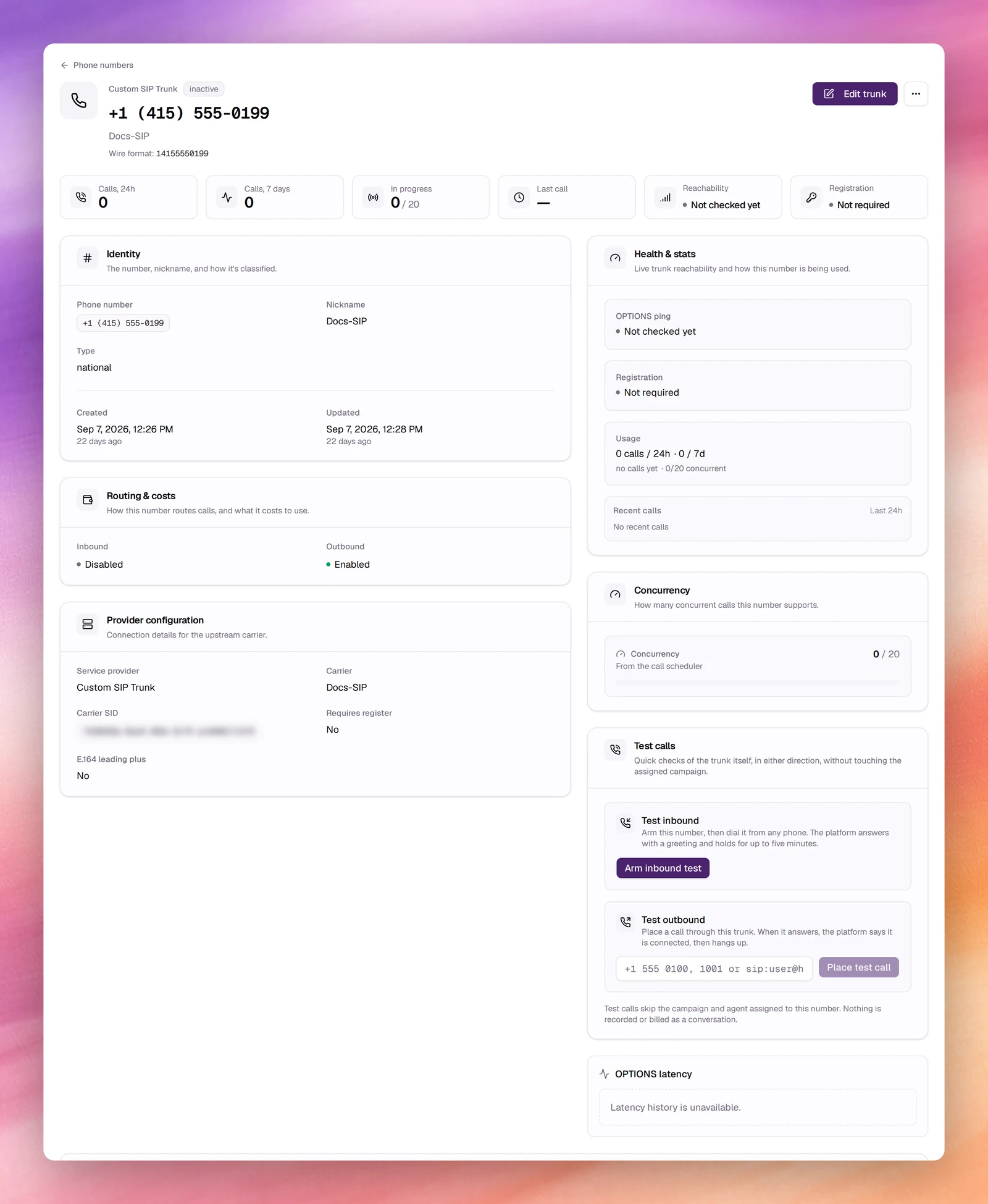
The header shows the provider, the status, the number (with a copy button) and
the nickname. For a SIP trunk it also shows the **Wire format**: the number
exactly as it is sent to the carrier, with or without the leading `+`.
**Edit trunk** (**Edit** for other types) opens the same form used to create the
number. The menu next to it repeats **Move to workspace** and **Delete**. Both
need permission to manage phone numbers.
The body is made of cards:
- **Identity**: the number, nickname, type, and when it was created and last
updated.
- **Provider configuration**: the service provider, carrier and a **Carrier SID**
you can copy. For a SIP trunk it adds **Requires register**, **E.164 leading
plus** and, when set, **Tech prefix** and **Diversion**; for a BYOT number, the
**BYOT account SID**.
- **Concurrency**: the calls in progress against the limit, with a bar.
- **Routing & costs**, when there is something to show: for a SIP trunk whether
**Inbound** and **Outbound** are enabled across its gateways, and any monthly or
per-minute costs recorded on the number.
### Health and activity on a SIP trunk
A SIP trunk's page carries much more, and refreshes its live values every 10
seconds while it is open.
A row of tiles opens the page: **Calls, 24h**, **Calls, 7 days**, **In progress**
(against the limit) and **Last call**, plus **Reachability** and **Registration**
once the trunk has been checked.
- **SIP registration** lists the register username, realm and From overrides when
the trunk registers.
- **Health & stats** has three panels. **OPTIONS ping** is the trunk's
reachability, for example **Reachable**, **Degraded**, **Unreachable** or **Not
checked yet**, with its round-trip time. **Registration** reads, for example,
**Registered**, **Registration failed** or **Not required**, with the error or
the expiry time. **Usage** gives the call counts, average duration and
concurrency. Below them, **Recent calls** charts the last 24 hours hour by hour.
- **OPTIONS latency** summarises the probe history: **p50**, **p95**, **Last OK**
and the number of samples.
- **Gateways** lists each gateway with **Host**, **Port**, **Protocol**,
**Direction**, **Options ping**, **Crypto pad**, **Active** and **Health**, the
last state the health monitor saw for it. **Probe now** pings every gateway
immediately, and tries registration when the trunk registers.
- **Trunk activity** covers every number on the same trunk: **Recent calls** (the
latest 20, with SIP code and reason), **SIP errors** (the last 24 hours, grouped
by code), **Error history** (the latest 50) and **Recent activity** (the latest
50 configuration changes). An error's info icon explains the code and what to
check. **Last call SIP flow**, and **SIP flow** on each recent call, open the
signalling ladder for that call.
- **Rejected inbound calls** lists inbound calls turned away before they reached an
agent, with the reason: a stopped campaign, no campaign, or an inactive number.
### Test calls
**Test calls**, on a SIP trunk's page for users who can manage phone numbers,
checks the trunk itself without involving the campaign or agent assigned to the
number. Nothing is recorded or billed as a conversation.
- **Test inbound**: choose **Arm inbound test**, then dial the number from any
phone while the countdown runs. The platform answers with a greeting and holds
for up to five minutes.
- **Test outbound**: type a **Target** (a number such as `+15555550100`, an
extension or a `sip:` address) and choose **Place test call**. When it answers,
the platform says it is connected, then hangs up.
The result shows the state (**Dialing**, **Connected**, **Completed**, **Failed**,
or **Expired** when nobody called), whether the call connected, the **Answer
latency**, the **Codec** and **RTP**: **Two-way**, **One-way (receiving)**,
**One-way (sending)** or **No media**.
## Assigning a number to an agent
Numbers are not attached to agents directly. A campaign joins the two: the
outbound wizard asks for an **Outbound Phone Number**, the inbound wizard for an
**Inbound Phone Number**, and the campaign's page shows both under **AI Agent
Details**. A number can serve one inbound campaign and one outbound campaign at the
same time, so the same line can answer calls and place them; a second campaign in
the same direction needs another number.
## Related
- [SIP trunk](/deploy/phone-numbers/sip-trunk)
- [Create an outbound campaign](/deploy/campaigns/create-an-outbound-campaign)
- [Create an inbound campaign](/deploy/campaigns/create-an-inbound-campaign)
- [Transfer Call](/build/tools/transfer-call)
- [Workspaces](/account/workspaces)