---
title: "Quickstart: your first voice agent"
description: "Create a voice agent, give it a prompt and talk to it from the browser. About ten minutes, no phone number needed."
---
By the end of this page you have a voice agent that answers as the receptionist of a
dental clinic, and you have spoken to it from your browser. Attaching it to a phone
number comes later, in [Deploy](/deploy/picking-a-channel).
:::note[Before you start]
You need a Callab AI account with a workspace. If **AI Agents** is not in your
sidebar, ask an admin to add you as a member.
:::
## Create the agent
1. **Open the wizard**
In the sidebar choose **AI Agents**, then **Create Agent** at the top right.
2. **Choose voice, then a single prompt**
Pick **Voice Agent**, then **Single Prompt Agent**. A single prompt is one brief
the agent follows for the whole call; a **Conversation Flow** is a graph of steps,
covered in [Flow agents](/build/flow-agents/flow-editor).
3. **Start from scratch**
The templates are worth a look later. For now choose **Start from scratch** so
every field on the next screens is yours.
4. **Name it and pick a language**
Type a name and leave **Language** on English (US). The language decides which
voices are offered and how the caller's speech is transcribed.
5. **Pick a voice**
Tap a voice to hear a sample, then **Create Agent**. You can change the voice at
any time from the agent's settings.
*The Create Agent wizard, from AI Agents to the new agent's workspace.*
The agent opens in its **workspace**: the sidebar on the left lists its sections in
four groups, **Build**, **Testing**, **Improve** and **Release**. You are on
**Settings**.
## Write the prompt
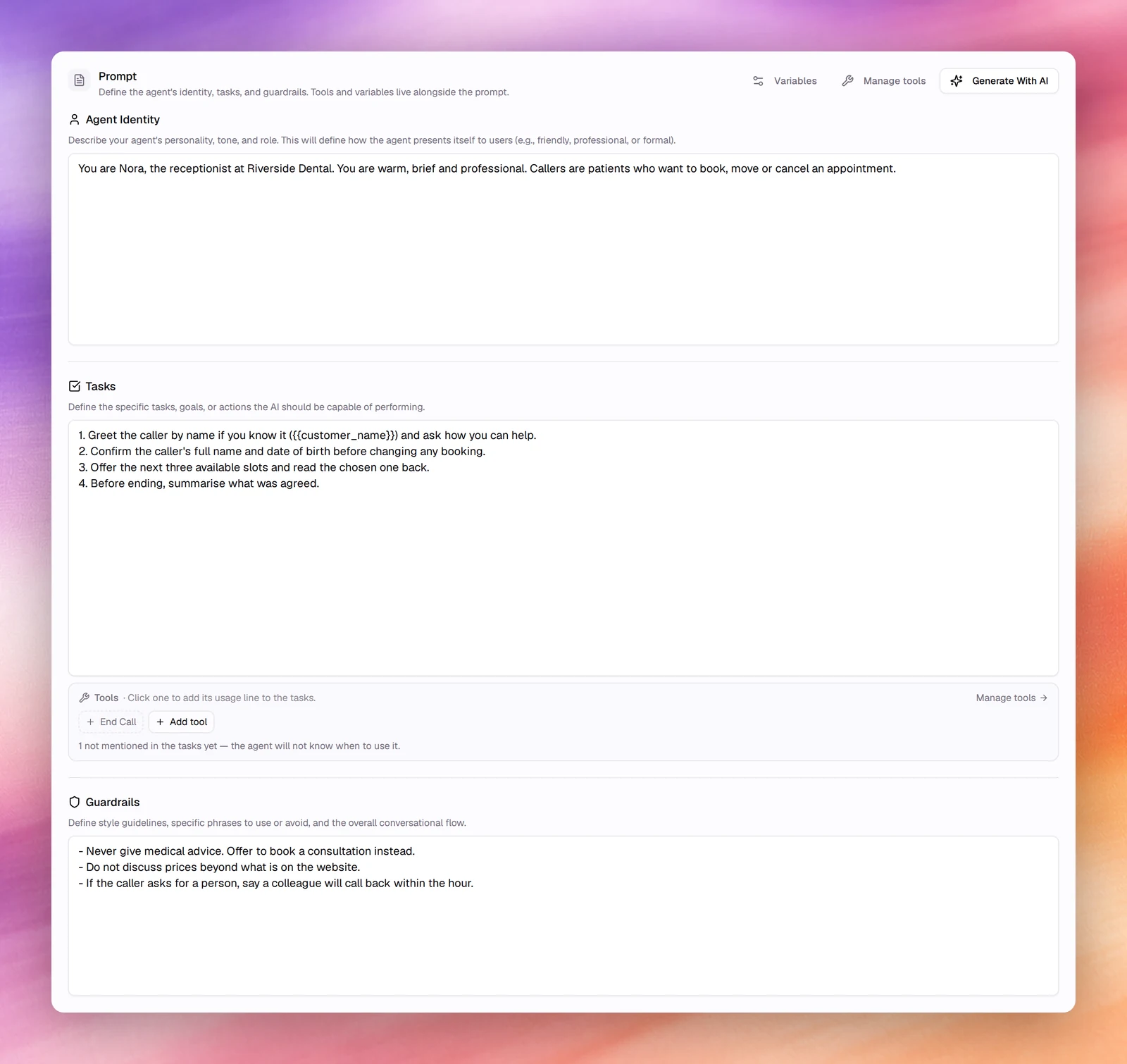
The prompt has three fields. Fill them in plain language; the agent reads them as
instructions, not as a script.
1. **Agent Identity**
Who the agent is and how it sounds.
```text
You are Nora, the receptionist at Riverside Dental. You are warm, brief and
professional. Callers are patients who want to book, move or cancel an
appointment.
```
2. **Tasks**
What it should achieve on every call.
```text
1. Greet the caller and ask how you can help.
2. Confirm the caller's full name and date of birth before changing any booking.
3. Offer the next three available slots and read the chosen one back.
4. Before ending, summarise what was agreed.
```
3. **Guardrails**
What it must never do.
```text
- Never give medical advice. Offer to book a consultation instead.
- Do not discuss prices beyond what is on the website.
- If the caller asks for a person, say a colleague will call back within the hour.
```
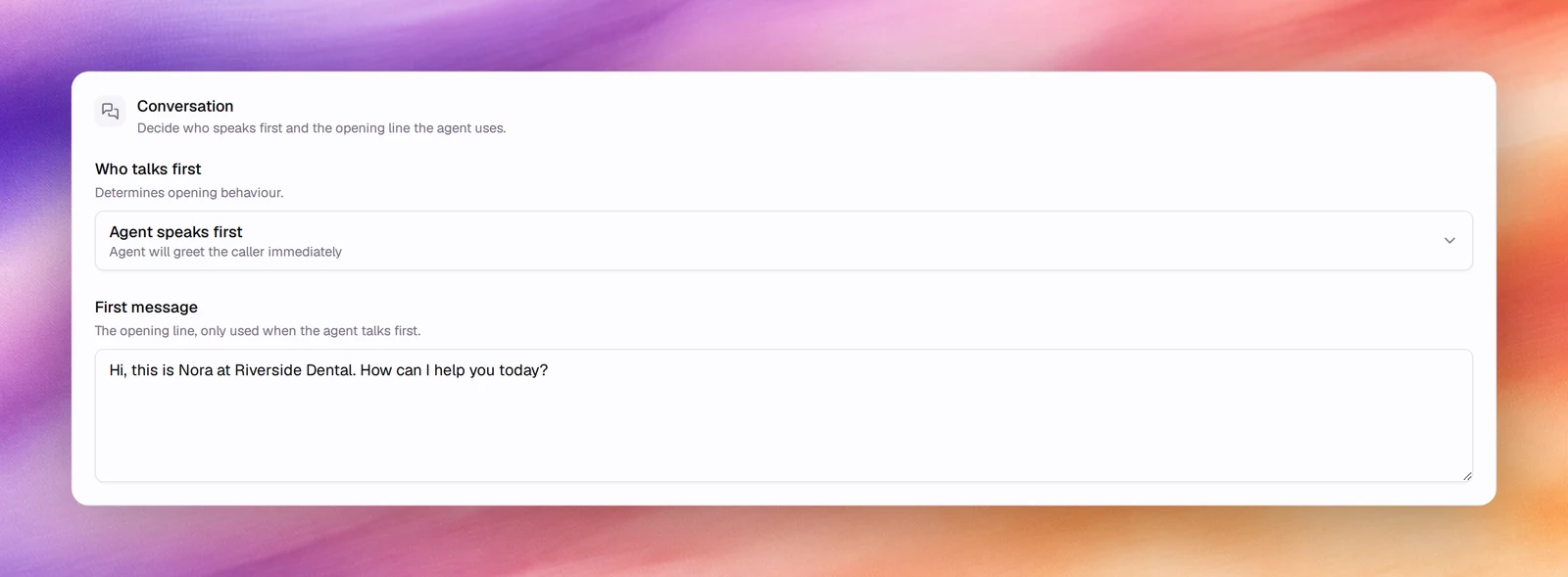
4. **First message**
Under **Conversation**, leave **Who talks first** on **Agent speaks first** and
set **First message** to the opening line:
```text
Hi, this is Nora at Riverside Dental. How can I help you today?
```
5. **Save**
Choose **Save** at the top right. The version counter under the agent's name
moves to `v0.2`.
:::tip
**Generate With AI** next to the prompt writes all three fields from a one-line
description, a website or a document. It is the fastest way to a first draft; edit
the result rather than starting blank. See [AI prompt generation](/build/prompting/generate-with-ai).
:::
## Talk to it
1. **Open the call test**
In the workspace sidebar, under **Testing**, choose **Call**.
2. **Start the call**
Choose **Call**. Your browser asks for the microphone the first time. The agent
speaks its first message; answer it out loud. The transcript appears at the
top of the panel as you talk.
3. **End the call**
Choose **End call** when you are done. A minute or two of browser testing is
enough to hear whether the identity and first message feel right.
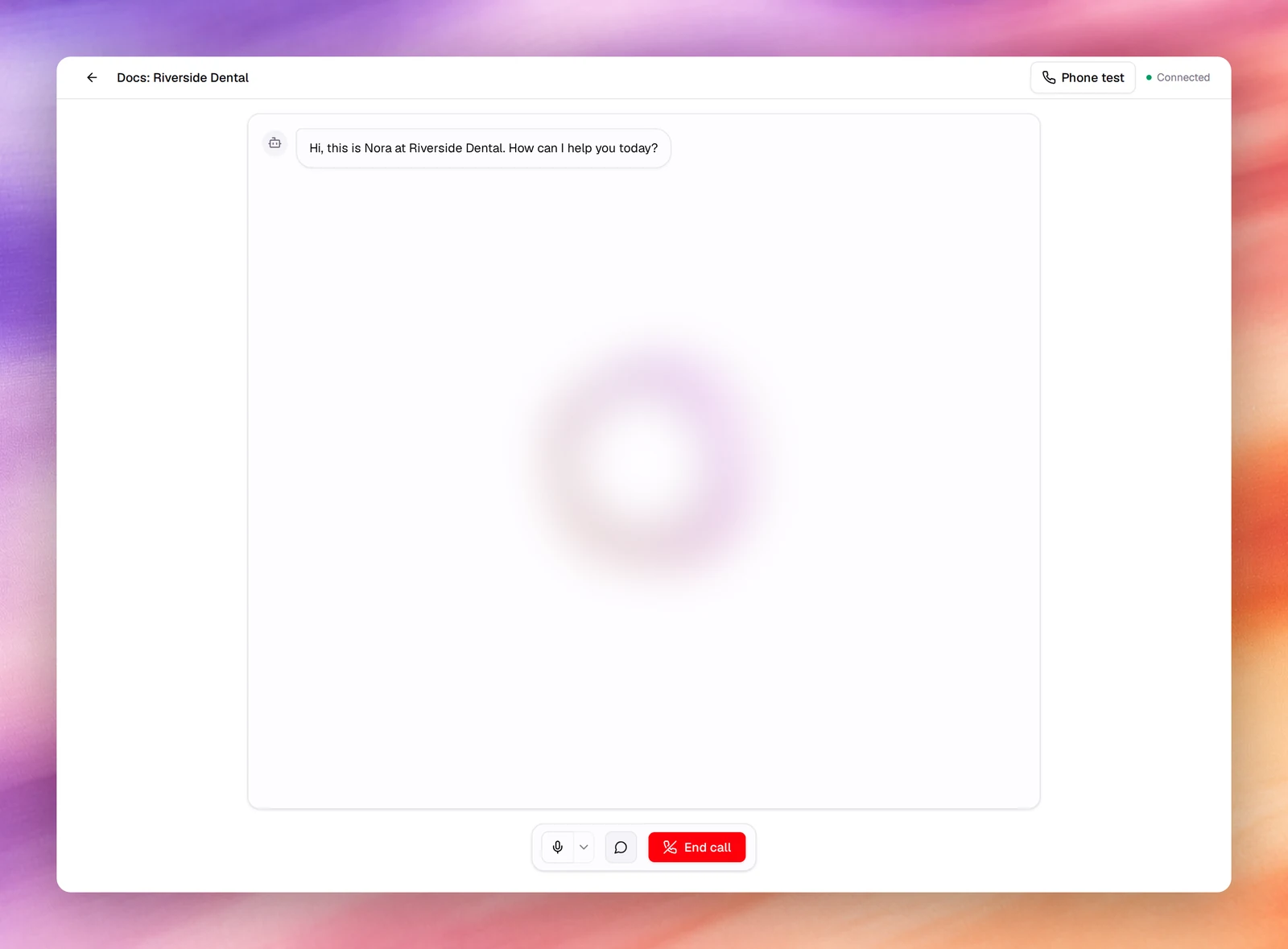
**Call** is the only way to talk to a voice agent from the browser; there is no
typed chat for voice agents. To check the same wording repeatedly without speaking,
write it as a scenario under **Evaluation**. See
[Evaluations](/test-and-improve/evaluations).
## Verify
- **Call Logs** in the main sidebar lists the test call within a few seconds, with
**WEB** as both numbers, its duration and a recording.
- Open the call. The transcript, a summary, a quality assessment and the outcome
(task status, sentiment, disconnect reason) are on the call's page.
## Troubleshooting
- **The agent does not speak first.** **Who talks first** is set to the caller. Switch
it to **Agent speaks first** and save.
- **The microphone never activates.** The browser blocked the permission. Reload the
page and allow the microphone when asked, or check the site permissions in the
address bar.
- **The agent answers in the wrong language.** The agent's **Language** decides
transcription. Change it under **Settings** and pick a voice for that language.
## What next
**[Add a tool](/build/tools/overview)**
Let the agent end the call itself, transfer to a person, or call a webhook.
**[Capture outcomes](/build/outcomes)**
Define the fields the agent fills after every call.
**[Put it on a number](/deploy/phone-numbers/overview)**
Connect a SIP trunk or your Twilio number and answer real calls.
**[Run a campaign](/deploy/campaigns/create-an-outbound-campaign)**
Call a list of contacts with this agent.