---
title: Atlas, the in-app assistant
description: "Ask agent opens Atlas, a chat panel inside the dashboard that answers questions about the product, takes you to the right page and runs small tasks for you."
---
Atlas is the assistant built into the dashboard. It opens from **Ask agent** in the
top bar of every page and sits in a panel on the right, so it stays with you while
you work. Ask it where something is, how to do something, or to do it for you.
## Open it
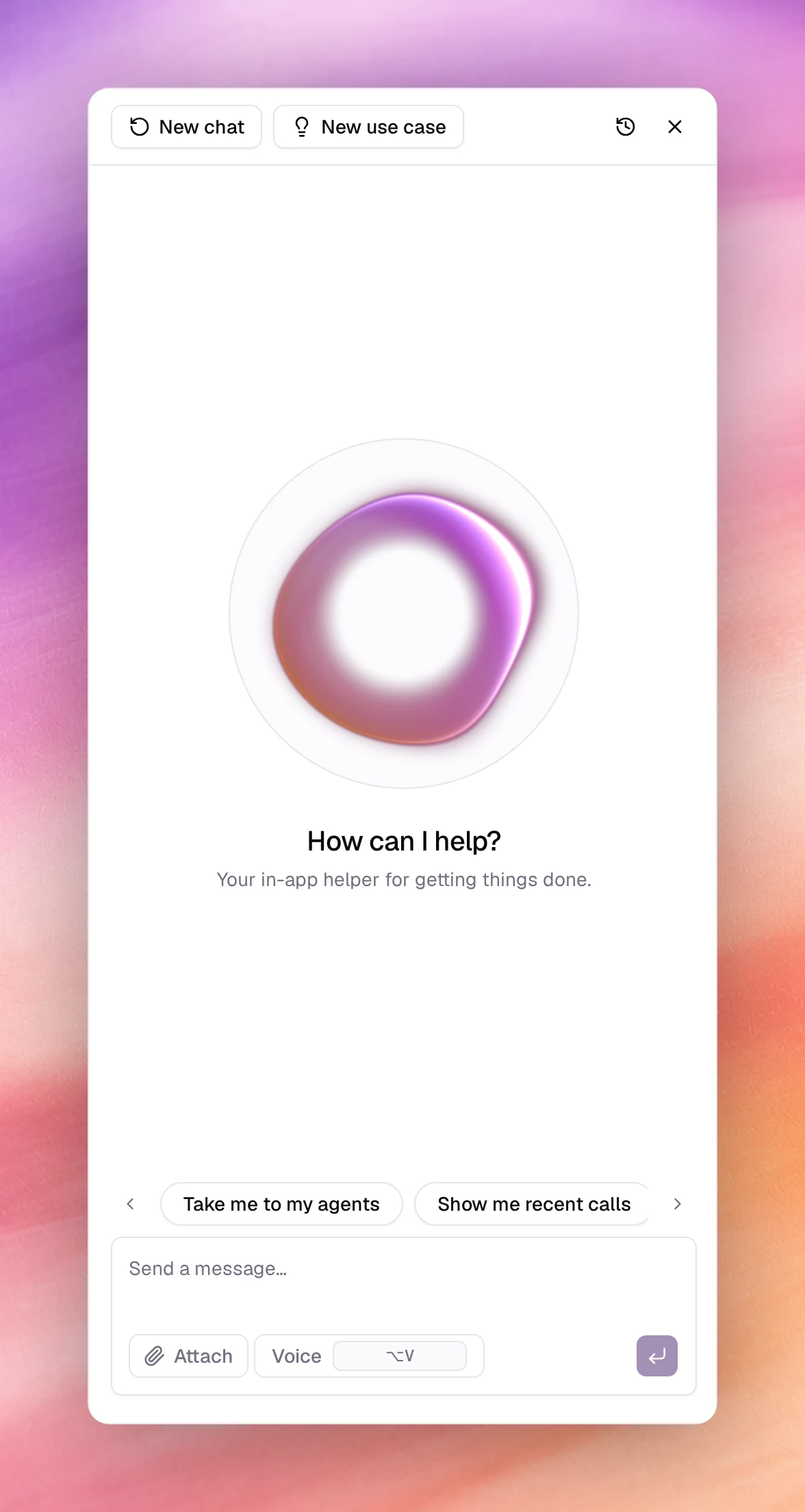
Choose **Ask agent** at the top right of any page. The panel opens with
**How can I help?** and a row of suggestions you can tap:
- **Take me to my agents**
- **Show me recent calls**
- **Switch to dark mode**
- **How do I create a campaign?**
## Ask it something
Type in **Send a message…** and press Enter, or choose **Voice** to speak instead.
**Attach** adds a file to the question. Atlas answers in the panel; when the answer
is a page, it takes you there.
Each action Atlas takes is shown as one compact line in its answer, such as
**Creating agent** followed by the agent's name, **Listing advisor findings**, or
**Used browser_navigate_to_url** when it opens a page for you. Choose the line to
expand what it sent and what came back. When an action needs your go-ahead, the
line asks whether to allow the tool to run, with **Approve** and **Deny**.
The panel's toolbar has four buttons, plus **Copy chat** once a conversation has started:
| Button | What it does |
| --- | --- |
| **New chat** | Starts a fresh conversation. The old one stays in the history. |
| **New use case** | Switches the panel to the use case architect: describe what you want an agent to do and Atlas drafts a structured use case for it. |
| **Chat history** | Lists earlier conversations, grouped by **Today**, **Yesterday**, **This week** and so on, so you can pick one up again. |
| **Close assistant** | Hides the panel. On a wide screen its state is kept until the next **Ask agent**. |
Drag the panel's inner edge to make it wider or narrower, from 360 to 720 pixels;
double-click the edge to reset it. On a narrow screen the panel opens as a drawer
over the page instead.
*A question and its answer in the panel.*
## What it is good for
- **Finding a screen.** "Where do I change the voice?" explains where the voice
lives in the agent editor and offers to take you to **AI Agents**.
- **Explaining a field.** Ask what a setting does before you change it.
- **Working in the app for you.** Atlas can click, fill in fields, open pages and
switch the theme in the dashboard you are looking at.
- **Acting on your workspace.** Atlas can read and change workspace data directly:
look up calls, conversations, contacts and campaign statistics; create, clone or
update agents, campaigns, contacts, knowledge bases and flows; pause or resume a
campaign; run an Advisor scan; check billing.
For anything that changes an agent, check the result in the agent's workspace.
Atlas has no tool to publish an agent, so publishing stays with you.
## Design a use case
**New use case** switches the panel to the **Use case architect**. Describe what
you want an agent to do; Atlas asks for any missing details, sometimes with a short
form, then drafts the use case. The draft appears in the chat as a card with its
summary; choose it to open the use case page, with the sections **What this agent
does**, **What it can do**, **What we need from you**, **Example scenarios**, **How
we will know it works**, **Agent parameters** and **Tools**.
## Related
- [Dashboard](/operate/dashboard)
- [Call logs](/operate/call-logs)
- [Profile](/account/profile) for the theme and display language Atlas can switch