---
title: Call logs
description: "Every voice conversation your agents have had, one row per call, with the extracted outcomes as columns. Search, filter and export to CSV."
---
Voice agents
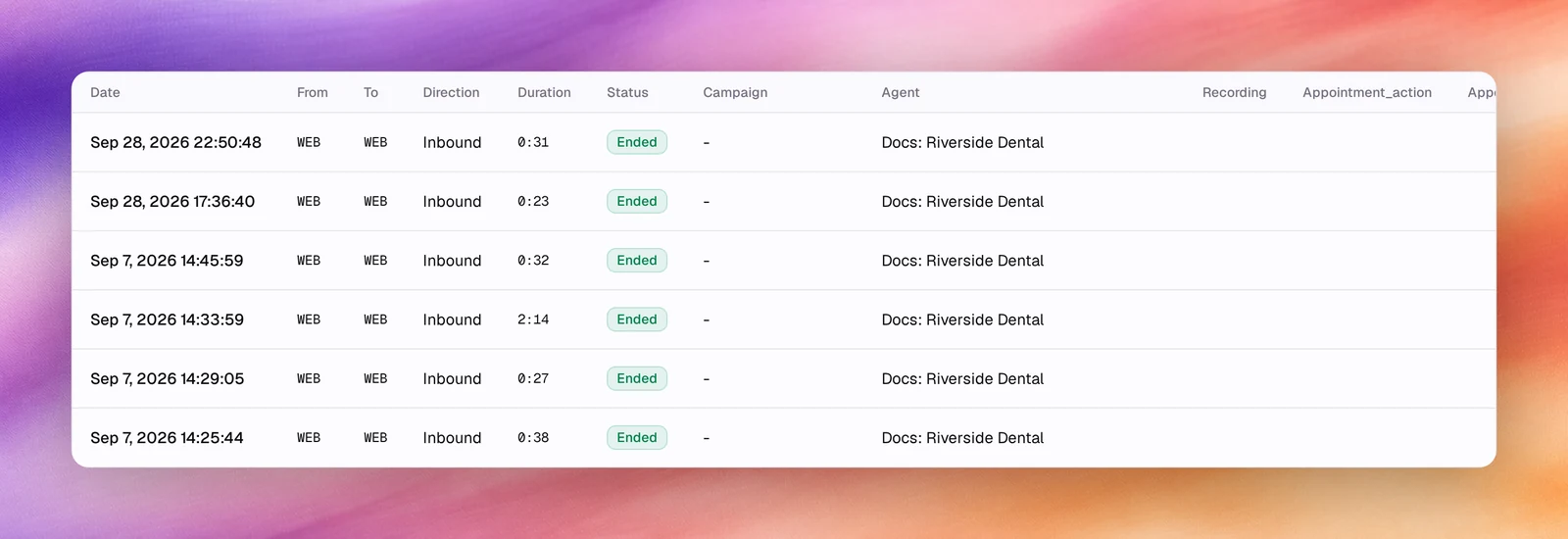
**Call Logs**, under **Observability** in the sidebar, lists every call handled by a
voice agent: phone calls from campaigns and phone numbers, and browser test calls,
which show **WEB** as both numbers. Each row opens the call's own page, described in
[Call details](/operate/call-details).
## Columns
| Column | What it shows |
|---|---|
| **Date** | When the call started. The **Columns** menu names it **Start Date**; **End Date** is available but hidden by default. |
| **From**, **To** | The two numbers. Browser tests show **WEB** on both sides. |
| **Direction** | **Inbound** or **Outbound**. |
| **Duration** | Talk time as `m:ss`. |
| **Status** | **Ended**, **No Answer**, **Busy**, **Failed** or **In Progress**. |
| **Campaign** | The campaign the call belongs to, or `-` for a test call or a direct inbound call. |
| **Agent** | The agent that handled the call. |
| **Recording** | A **Play recording** button, shown on hover, when a recording exists; `-` otherwise. |
After these come one column per **outcome** key found in the calls on the current
page, named after the key with its first letter capitalised, for example
**Appointment_action** or **Customer_intent**. A call that produced no value for an
outcome shows `-`. Outcomes are defined per agent under [Outcomes](/build/outcomes),
so a page mixing several agents shows the outcome columns of all of them.
The list is sorted by end time, newest first. Choose a column heading to sort by
that column, and again to reverse the order; **Recording** and the outcome columns
do not sort.
## Search and filter
The toolbar has, from left to right:
- **Search calls…** narrows the list as you type.
- The date range select, **All Time** by default: **Today**, **Last 7 Days**,
**Last 30 Days**, **This Month** or **Custom**, which opens a **Start Date** and
an **End Date** calendar; **Apply** sets the range.
- **Status** lists the 5 statuses. Pick one to show only those calls; pick it again
to clear it. The **Exclude selected** switch at the top turns the choice into
"everything except".
- **Direction** works the same way with **Incoming** and **Outgoing**.
- **Filter** adds a filter on any other field. The fields are grouped: **Common**
(**Disconnect Reason**, **Agent Task Status**), **Entities** (**Campaign**, **AI
Agent**) and **Advanced** (**Call From**, **Call To**, **Transcript**, **Duration
(seconds)**). Once an **AI Agent** or **Campaign** filter is set, an **Outcome
Fields** group adds that agent's outcomes that have a fixed list of values.
- **Columns**, described under [Choose columns](#choose-columns).
- **Refresh calls list** reloads the table without changing the filters.
In **Filter**, pick a field, then a value, then **Apply**. A list field takes one
value, with **Exclude selected** to invert it and **Not Recorded** for calls where
the value is missing. An **Advanced** field takes an operator (**Contains**, **Is**,
**Is Not**, **Greater Than** or **Less Than**) and a typed value. Each filter
appears as a chip under the toolbar; choose a chip to change it or its **x** to
remove it. Repeat to combine filters.
While a search, date range or filter is on, the toolbar shows the result count and
**Clear all**, and **Save This Filter** next to the chips keeps the combination as
a preset. Saved presets are listed under **Saved Filters** at the top of the
**Filter** menu.
*Adding an AI Agent filter from the Filter menu.*
:::tip
**Agent Task Status** is the agent's own verdict on whether it finished its tasks
(**Completed** on the call's page). Filtering on it is the quickest way to find the
calls worth listening to.
:::
## Choose columns
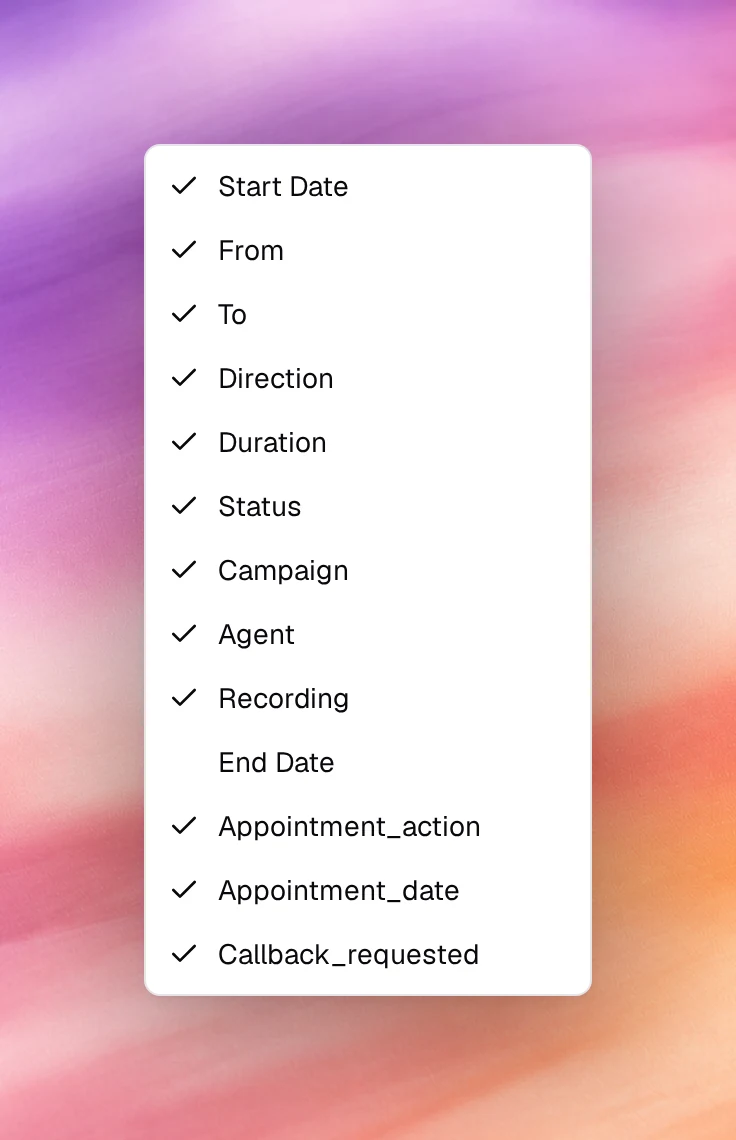
**Columns** opens a checklist of the standard columns, including the hidden **End
Date**, followed by the outcome columns. Untick a column to hide it, tick it to
bring it back. An outcome column you untick also leaves the menu; reload the page
to bring it back.
## Export
**Export CSV** at the top right downloads every matching call, not just the current
page, as `call_logs_.csv`. The export respects the search, date range,
filters and sort, so narrow the table first if you only need a subset. It contains
the visible **Date**, **From**, **To**, **Direction**, **Duration**, **Status** and
**End Date** columns and the visible outcome columns; **Campaign**, **Agent** and
**Recording** are not exported. The button appears only for users allowed to export
calls.
## Pagination
When there is more than one page, the footer reads **Showing 1 to 10 of N calls**.
Move with **Previous**, **Next**, the page numbers or **Go to page**; **Per Page**
sets 10, 15, 25, 50 or 100 rows.
## Related
- [Call details](/operate/call-details)
- [Call quality metrics](/operate/call-quality-metrics)
- [Outcomes](/build/outcomes)
- [Conversations](/operate/conversations) for text agents