

Live Webhook
Calls an HTTP endpoint from inside the conversation, with a method, URL, JSON headers and a JSON body that can carry dynamic variables.
Live Webhook sends data to an external API endpoint during the call. The agent decides to call it, the platform makes the HTTP request, and the response comes back to the agent so it can use what it learned. It is the general-purpose connector: look up an order, create a ticket, check a balance, log a lead.
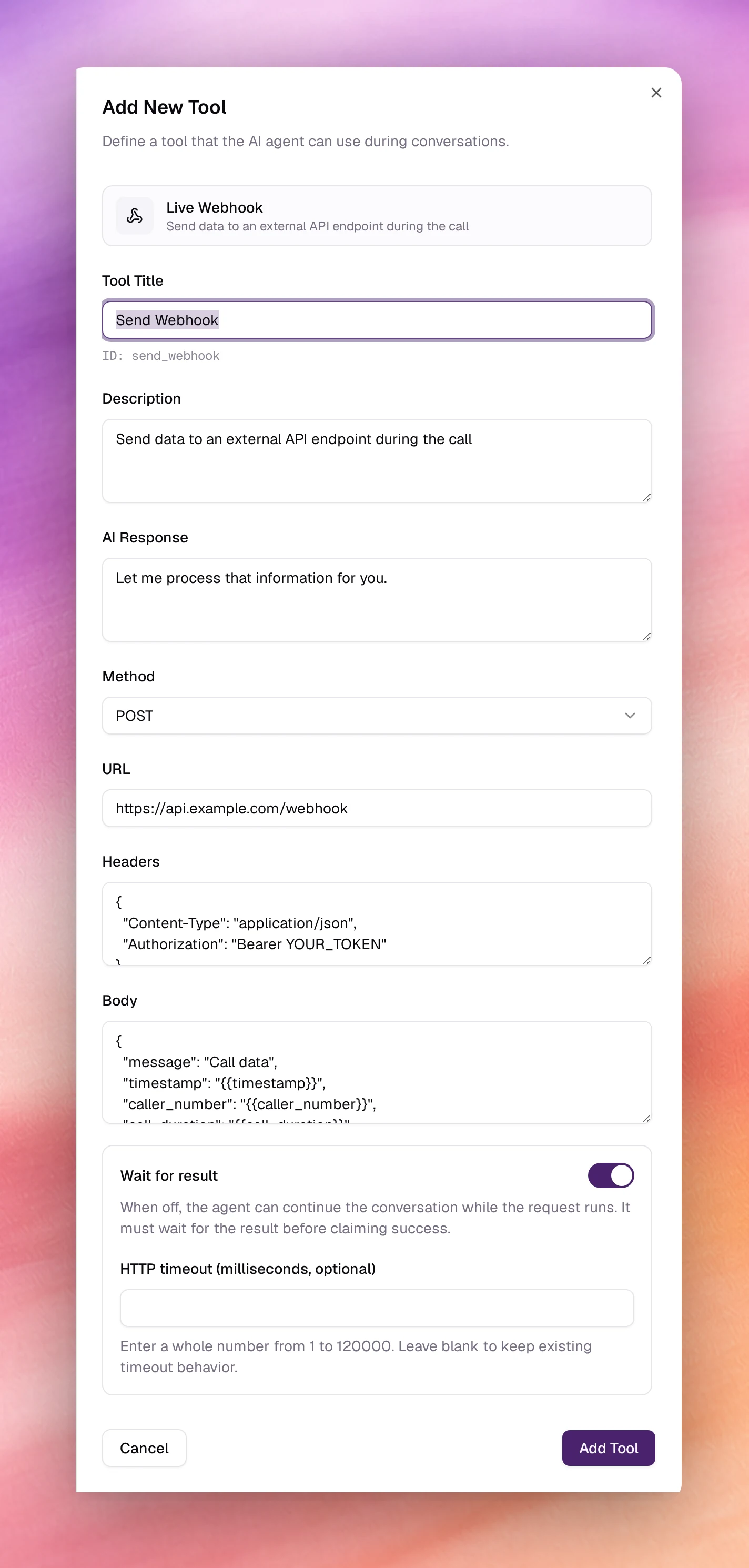
Configuring it
Open Tools under Build, choose Add tool, then Live Webhook. After the shared fields:
| Field | Type | Default | Notes |
|---|---|---|---|
| Tool Title | Text | Send Webhook |
Name it after the job: Look up order. Letters and spaces only; its ID, send_webhook by default, is shown under the field. |
| Description | Text | Send data to an external API endpoint during the call |
Say when: Look up the order when the caller gives an order number. |
| AI Response | Text | Let me process that information for you. |
Said while the request runs. |
| Method | Select | POST |
GET, POST, PUT, PATCH or DELETE. |
| URL | URL | https://api.example.com/webhook |
Required. The endpoint. Must be reachable from the internet. |
| Headers | JSON object | { "Content-Type": "application/json", "Authorization": "Bearer YOUR_TOKEN" } |
Must be valid JSON. Replace YOUR_TOKEN. The value is stored with the agent. |
| Body | JSON object | see below | Shown for POST, PUT and PATCH only, where it is required and must be valid JSON. The payload. Write {{variable}} for any value the agent should fill at call time. |
The default body shows the pattern:
{
  "message": "Call data",
  "timestamp": "{{timestamp}}",
  "caller_number": "{{caller_number}}",
  "call_duration": "{{call_duration}}"
}
A value in double braces is replaced when the request is made. Use the agent’s
dynamic variables, the predefined ones such as
{{call_from_number}}, or, in a flow agent, a variable extracted at an earlier
node. To have the agent supply a value it collected in conversation, name the
variable in the body and describe it in Description: Send the order number the caller gave as order_number.
Execution settings
Below the request fields, a box sets how the conversation treats the request.
| Field | Default | Notes |
|---|---|---|
| Wait for result | On | When on, the agent waits for the response. When off, it can carry on the conversation while the request runs, and must wait for the result before claiming success. |
| Announce when finished | Off | Shown when Wait for result is off. When on, the result is announced at a safe moment without interrupting the caller; when off, it updates the agent’s context silently. |
| HTTP timeout (milliseconds, optional) | empty | A whole number from 1 to 120000. Leave it blank to keep the existing timeout behaviour. |
With Wait for result off, the result is only available during the same session, not after the caller hangs up. A tool added on a flow node’s Tools tab does not show these settings.
Choose Add Tool, then Save the agent.
Behaviour and limits
- The request is made when the model calls the tool, so the Description decides when. For a request that must happen at a fixed point, use a flow agent’s Webhook node, which fires whenever it is reached.
- The response body is returned to the agent as the tool’s result. Keep it small and readable: a JSON object with the fields the agent needs, not a full record.
- By default the agent waits for the response; AI Response covers the wait. Switch Wait for result off to let the conversation continue meanwhile.
- Each tool has one URL and one method. For several endpoints, add several tools.
- Request and response are shown on the call’s page as a tool call. See Call details.
Troubleshooting
- The agent never calls it. The Description does not match what callers say. Rewrite it around the trigger, and mention the tool in Tasks as well.
- The endpoint returns 401. The Headers still contain
YOUR_TOKEN, or the token expired. - The body arrives with literal braces. The variable name is not one the agent knows. Check the spelling against Variables, or describe it in Description so the agent fills it.