

Deploy to Microsoft Teams
Run a text agent as a bot in Microsoft Teams chats and channels through an Azure Bot registration and a Teams app.
Text agentsA Microsoft Teams deployment reaches your team inside Microsoft Teams chats and channel conversations. The agent is registered as a bot in your Microsoft 365 tenant and installed as a Teams app.
Create the deployment
Start the wizard
Under Launch AI Text choose New Deployment, then Microsoft Teams. Picking it moves the wizard straight on to the agent.
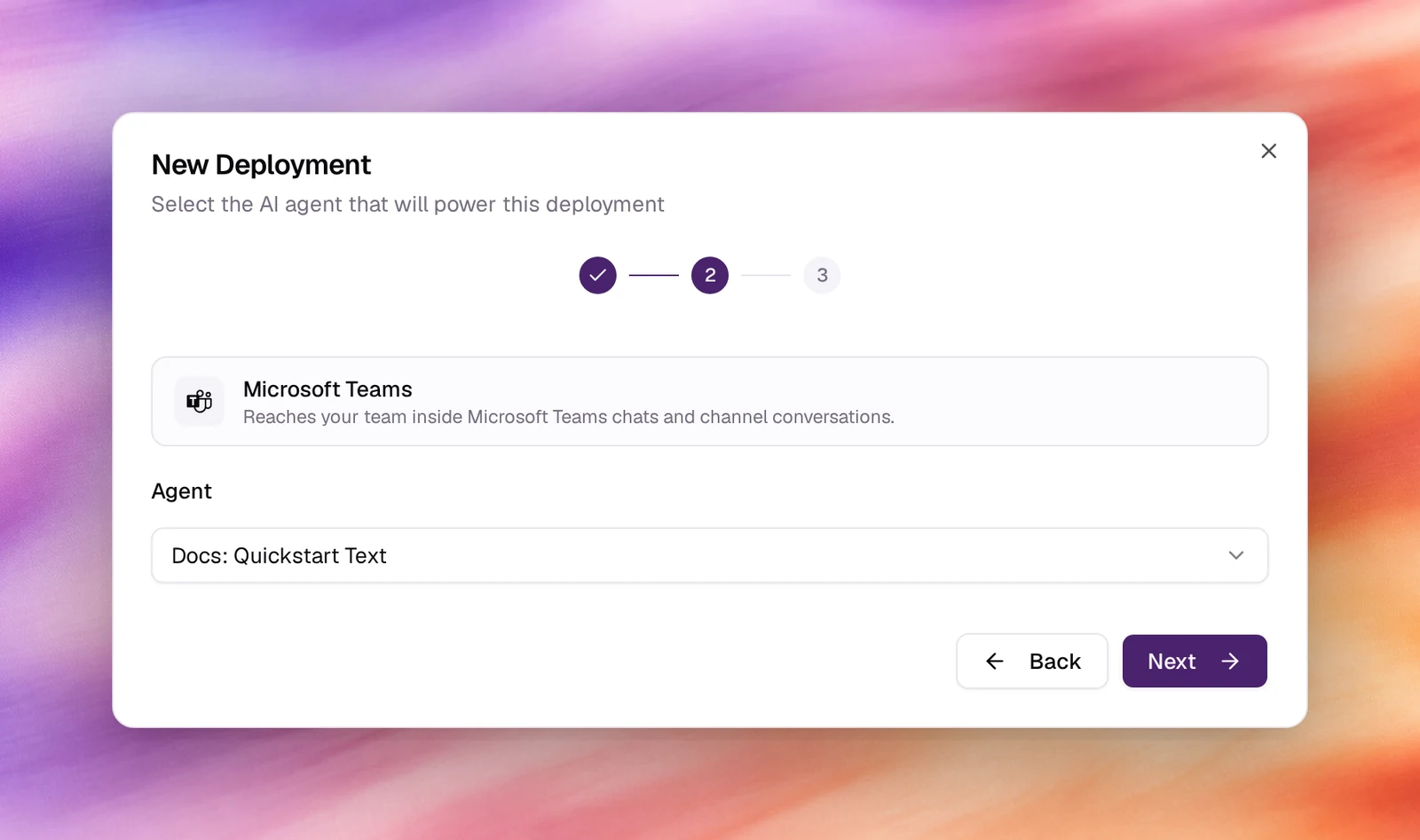
Pick the agent
Choose the text agent under Agent. Next.
Name it
Accept or edit the Display Name, then Create Deployment. The deployment is listed as Needs setup with a Webhook URL.
Connect Teams
Open the deployment and enter what the Azure Bot resource gives you: the Microsoft App ID and its client secret, and the tenant id when the bot is single-tenant. In Azure, set the bot’s messaging endpoint to the deployment’s Webhook URL and enable the Microsoft Teams channel on the bot.
Then package the bot as a Teams app (a manifest with the same app id) and install it for yourself, a team or the organisation through the Teams admin centre.
Verify
- The deployment shows Active.
- Open the app in Teams and send a message in the chat. The agent replies and
the exchange is listed under Conversations with the platform
teams.
Troubleshooting
- Azure shows the endpoint as unreachable. The deployment must be saved with its credentials before Azure can validate the endpoint.
- The bot is installed but does not answer in a channel. Mention it; bots in channels only receive messages that address them.
- Installation is blocked. Custom apps are disabled for the tenant or the user. An admin allows them under Teams apps policies.