

Create an outbound campaign
Run a batch call: a voice agent calls a filtered list of contacts from one of your numbers. Name it, set the calling window and retries, pick the audience.
Voice agentsAn outbound campaign dials contacts one after another, inside a calling window, and hands each answered call to the agent. It is created under Launch AI Voice in a wizard of 3 steps, with one more when the agent declares dynamic variables and another when you pick a post-call flow, and then runs on its own until the list is exhausted or you stop it.
Create it
Choose the type
In the sidebar choose Launch AI Voice, then Create Campaign. In Select Campaign Type choose Outbound, described as Make calls from your AI agent.
Campaign info
Type a Campaign Name of at least 3 characters. Pick the AI Agent (the list shows the workspace’s voice agents, most recently updated first) and the Outbound Phone Number the calls come from. Agent version follows the agent’s latest version unless you pin the campaign to a specific one; an agent with nothing published shows Publish the agent and This agent has no published version yet. Publish it to pin a version. Leave Post-call flow on No flow unless you have built an automation to receive results; picking one adds a mapping step at the end. Next.
Schedule and retries
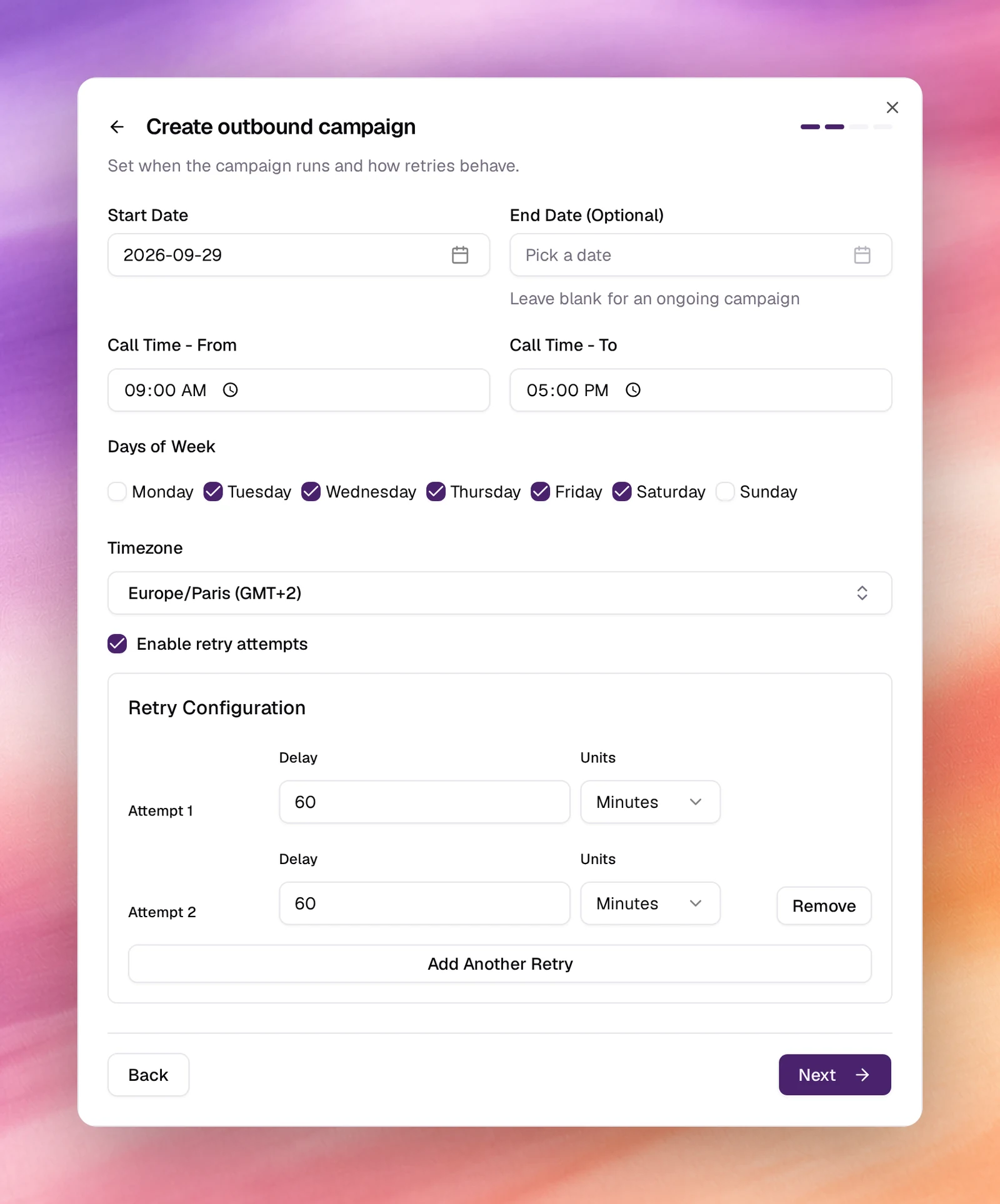
Start Date defaults to today; leave End Date blank for an ongoing campaign. Set Call Time - From and To, tick the Days of Week, and choose the Timezone the window is expressed in. Tick Enable retry attempts to call back numbers that did not answer. The options are explained in Calling windows and retries. Next.
Audience
Choose at least one value in Contact Sources and Contact Tags; Contact Categories is optional. Each picker is a multi-select with (Select All). A contact is called when it matches a selected source and a selected tag, and a selected category if any. See Audience, tags and categories. The button below is Launch your AI, or Next when a variables or flow step follows.
Agent variables (agents with dynamic variables only)
Agent Dynamic Variable Mapping lists each variable the agent’s prompt uses. For each one pick a Data Source (a contact field such as Firstname or Metadata) or Use custom input for a fixed value.
Flow mapping (with a post-call flow only)
The chosen flow is shown with Change. Webhook Variable Mapping lists the variables the flow expects; map each to a data source. Test Flow sends a test run.
Launch
Choose Launch your AI. The campaign appears in the list as a card with its status, agent, number, schedule and audience. A start date in the future lists it as Scheduled.
What the agent knows about each contact
The agent is told the contact’s name and number, and any metadata field whose name matches a dynamic variableDynamic variableA placeholder in the prompt, such as {{customer_name}}, filled per conversation.See the glossary in the prompt is filled in for that call. To check or change the mapping after creation, pause the campaign and open its Settings page: the Agent variables section, Agent Dynamic Variable Mapping, lists each variable the agent declares and the data source it takes. An agent with no variables shows The selected AI Agent has no dynamic variables defined.
The Settings page also has a Webhook section to forward every call’s outcome to an integration or custom flow from Automations.
Verify
- The card under Launch AI Voice shows the right agent, number, schedule and tag count. View Details opens the campaign’s page.
- Inside the calling window, Total Calls on the page starts to climb and Call Logs on the campaign fills with rows. Open one to read the transcript.
- The campaign’s Status filter and tiles (Running Campaigns, Scheduled Campaigns, Completed Campaigns) reflect where it is.
Troubleshooting
- Outbound is greyed out in Select Campaign Type. No phone number is free for an outbound campaign; the card says why and offers Add a phone number.
- Next stays disabled on the first step. The name needs at least 3 characters, and an agent and a number must be picked.
- Launch your AI stays disabled. Both Contact Sources and Contact Tags need at least one value.
- The campaign is scheduled but nothing dials. You are outside Call Time or Days of Week in the chosen Timezone. The campaign’s page shows the window converted to your local time.
- Calls go out slower than expected. The trunk’s Concurrency Limit caps simultaneous calls. See SIP trunk.
- Variables are empty on the call. The contact metadata field name and the prompt’s variable name differ. Names are exact; check the Agent variables section in Settings.