

Publishing
Take an agent's saved changes live: the Unpublished changes chip, the Publish button, the launch checks that gate it and Publish agent.
Saving an agent records a new version; publishing is what takes that version live. After a save the header shows an Unpublished changes chip. Publish in the header opens the launch checks, and Publish agent at the top of them publishes the version once every required check passes.
The header
| Element | Meaning |
|---|---|
| Version badge, for example v2 | The current revision, the same number as the Version line in the sidebar card. It increments on every save. |
| Active | The agent is live wherever it is attached. |
| Unpublished changes | Shown after a save that has not been published. Its tooltip reads You have changes that haven’t been published yet. |
| Agent info | Who created and last updated the agent, when, and its ID. |
| More actions | On a single-prompt agent, holds Migrate to Flow Agent, which creates a new flow agent from this one and leaves this one unchanged. |
| Share agent | The share link and embed code. See Share link. |
| Save | Enabled while the editor holds unsaved edits; disabled once saved. |
| Publish | Opens the Publish section with the launch checks. |

Publish a change
Save
Edit the agent and choose Save. The version badge increments, Save turns grey and the Unpublished changes chip appears next to it.
Test the saved version
Run Chat or Call, then the agent’s evaluation scenarios. Both use the saved version, so this is the last look before it goes live.
Open the launch checks
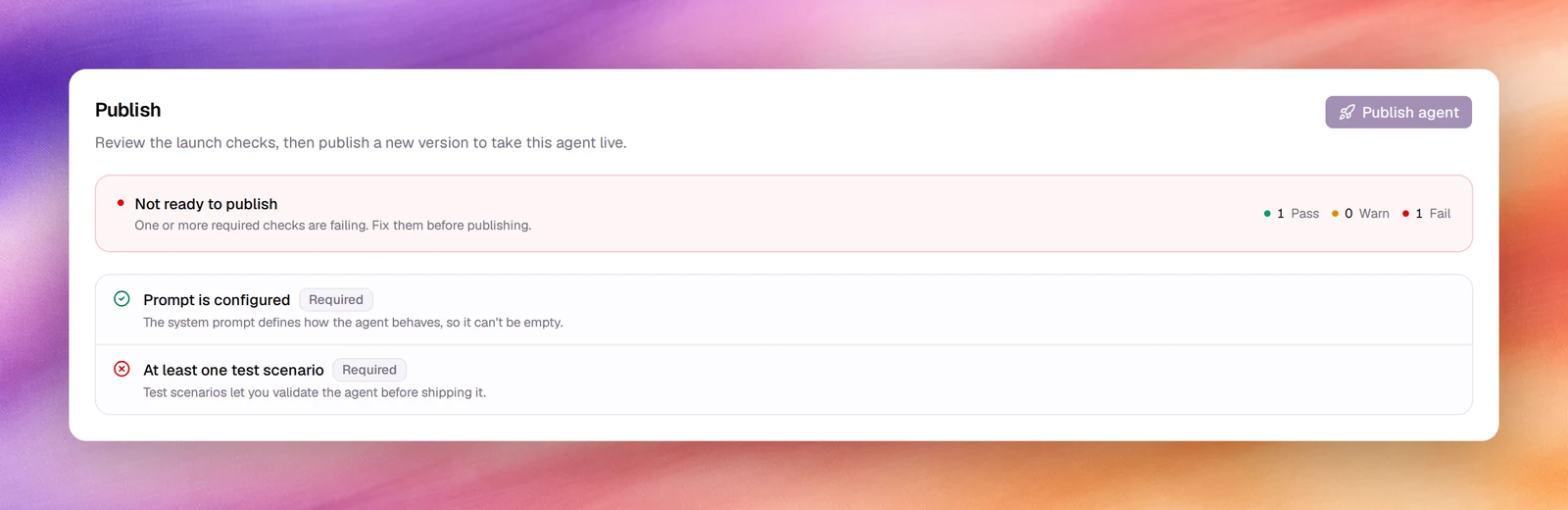
Choose Publish in the header. You land on Publish under Release: Review the launch checks, then publish a new version to take this agent live. Opening the section runs the checks again, and the Publish agent button sits above them.
Clear the required checks
The two required checks, Prompt is configured and At least one test scenario, are listed with their Pass, Warn and Fail counters. While one fails, Publish agent is disabled and the banner reads Not ready to publish: One or more required checks are failing. Fix them before publishing. Fix the item, save, and come back through Publish. Warnings do not block: the banner reads Ready to publish and you can publish anyway.
Publish agent
Choose Publish agent. A new version is published, Agent published confirms it and the Unpublished changes chip disappears from the header.
Once nothing is unpublished, the banner reads Up to date: There are no unpublished changes to publish., and Publish agent stays disabled until the next save. See Launch checklist for the checks themselves.
Verify
- The Unpublished changes chip is gone from the header.
- The Publish section reads Up to date.
- A browser call reflects the change.
Troubleshooting
- Publish agent is disabled. A required check is failing; the banner says which. The usual one is At least one test scenario: create a scenario under Evaluation, then reopen Publish.
- Publish agent is disabled and the banner reads Up to date. There is nothing unpublished. Save a change first.
- The banner reads Run the launch checklist. The checks have not run yet for this agent. Choose Run checklist.
- The change went live but was wrong. Under Versions, open the previous version and choose Rollback to this version, then publish again. See Versions.