

Integrations overview
The Integrations page: OAuth connections to HubSpot, Zoho CRM, Pipedrive and Google Sheets, and the automations that move data in and out.
Integrations, under Connections in the sidebar, is where you connect external systems and orchestrate automation flows. It has two sections, each with a counter next to its title.
- Connections are the CRM accounts you connect via OAuth. Today: HubSpot, Zoho CRM, Pipedrive and Google Sheets. The list has the columns Name, Status, Flows (how many of its flows are running) and Connected (how long ago).
- Automations are flows that use those connections: inbound flows that pull data in, and outbound webhooks that push data out. See Automations and Webhooks.
Connect a system
Add connection
Choose Add connection. The Connect a CRM dialog lists every system you have not connected yet, with its category and a one-line description; Search systems… filters it. Once every system is connected, Add connection is hidden.
Connect
Connect on a card opens Connect to the system, which lists the connection’s Available Features and the Permissions it asks for. Its Connect button opens the provider’s OAuth consent page in a popup. Sign in there and approve; the popup closes and the connection is listed.
Or contact support
Systems with a Contact Support button are enabled per account; the button opens an email to support with the system’s name in the subject. See Other systems.
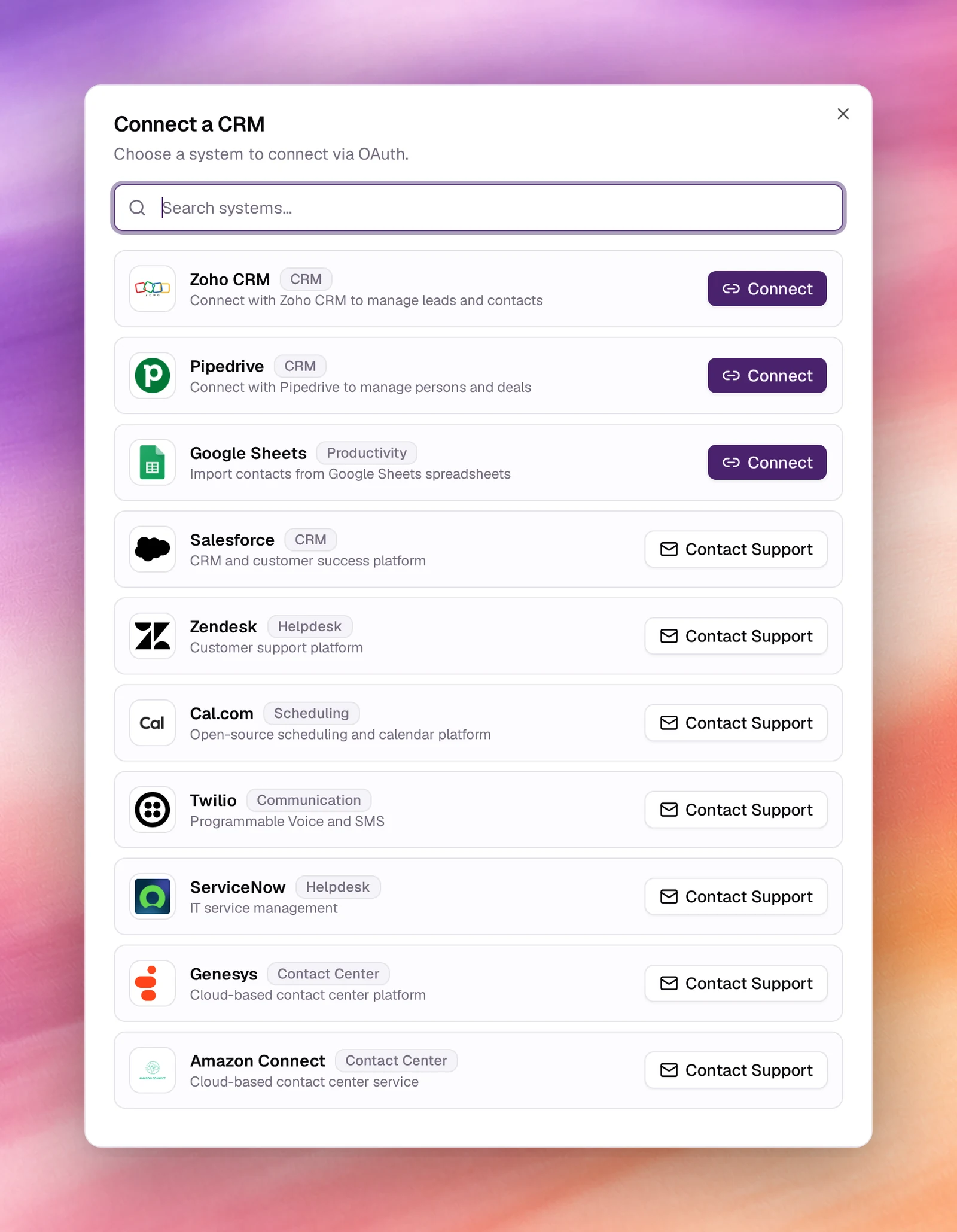
| System | Category | Button |
|---|---|---|
| HubSpot | CRM | Connect |
| Zoho CRM | CRM | Connect |
| Pipedrive | CRM | Connect |
| Google Sheets | Productivity | Connect |
| Salesforce | CRM | Contact Support |
| Zendesk | Helpdesk | Contact Support |
| Cal.com | Scheduling | Contact Support |
| Twilio | Communication | Contact Support |
| ServiceNow | Helpdesk | Contact Support |
| Genesys | Contact Center | Contact Support |
| Amazon Connect | Contact Center | Contact Support |
GoHighLevel has no entry in this dialog; it is reached through its templates with an API key stored as a variable. A Callab API key is a different thing: it authenticates calls made to Callab, not out to a CRM.
What a connection gives you
- Inbound templates under Add Flow: bring the system’s contacts, leads or persons into Contacts, tagged so a campaign can call them.
- Outbound templates under the Webhook tab: create or update records in the system from Callab.
- Your AI Tools in the agent’s tool picker: actions from the connected system that an agent can take during a conversation. See Tools overview.
Manage a connection
Choose a connection’s row to open its page. The header shows its status (Active, Token expired, Connection error or Inactive) with Refresh and Disconnect, or Reconnect when the connection needs it. Three tiles count Total Capabilities, Activated and Running.
Below them, the connection’s capabilities are grouped by type:
| Type | What it does |
|---|---|
| Sync | Background data synchronization. |
| AI Tool | Used by the AI agent during calls. |
| After Call | Runs automatically after a call ends. |
| Manual | Triggered manually by a user. |
Configure on a capability opens Configure & Enable, which creates a flow from it under a Flow Name you choose. An inbound sync also asks for a Sync Frequency, then runs a test to discover the system’s fields so you can map them to contact fields. An activated sync has Run Now, a start and stop control for its scheduled syncs, and Configure Sync Schedule, from every 5 minutes to every day. A capability that needs more permissions than the connection holds shows Reconnect to Enable.
Execution history
Each automation keeps its own history. In the Automations list, open the row’s actions menu and choose View History: Integration History Logs lists every run with its attempt, status and time, and View Execution Details shows each step. A flow that has never run reads No execution history found for this integration. Refresh at the top of the page reloads the connections and both flow lists.