

Tools overview
What a tool is, the 11 built-in tools, the capabilities text agents switch on, the fields every tool shares, and where tools are added.
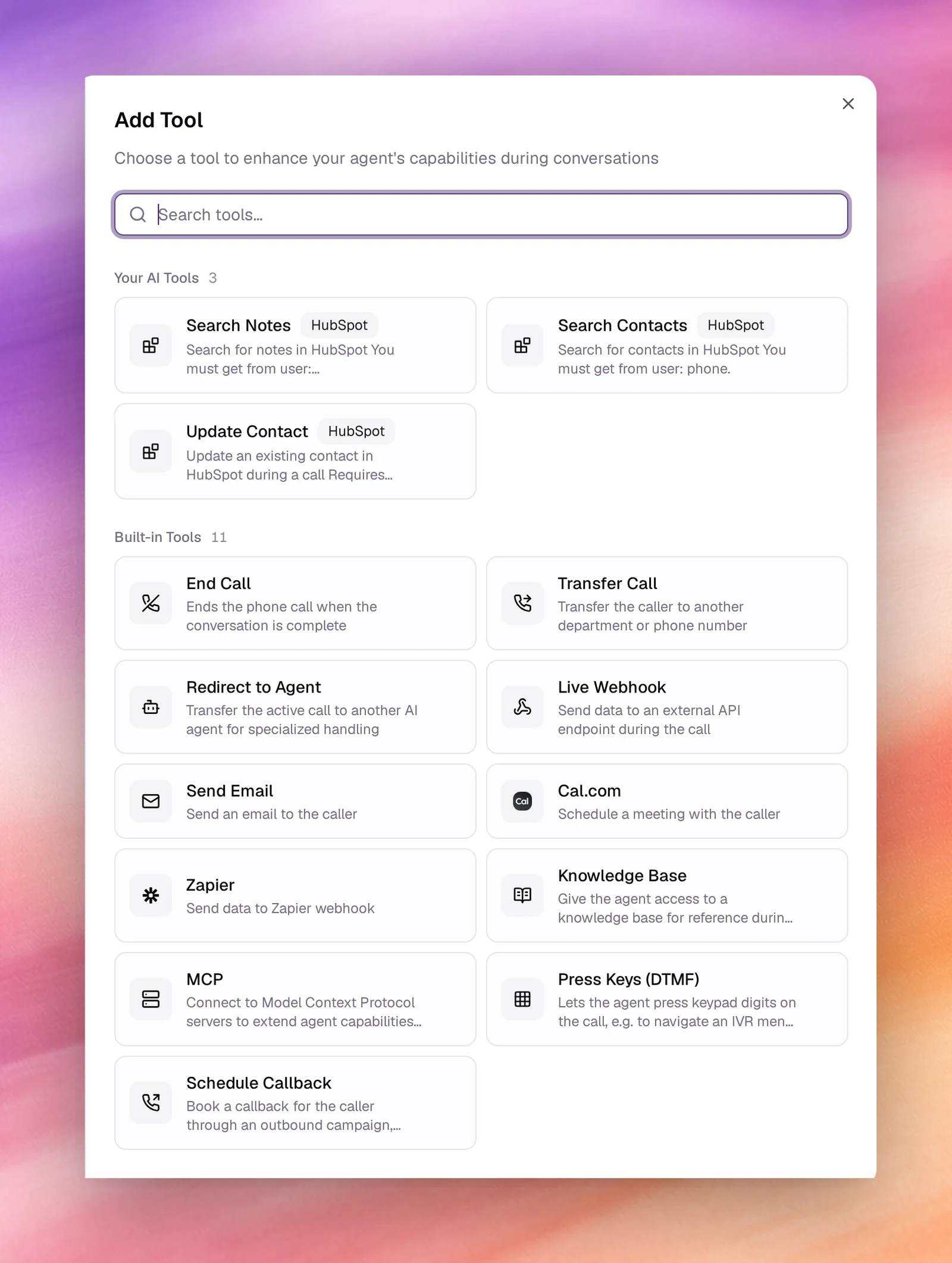
A tool is an action the agent may take during a conversation: hang up, transfer, hand the call to another agent, call an API, send an email, book a meeting, push data to Zapier, look something up in a knowledge base, or reach an MCPMCPModel Context Protocol. A tool type that connects an agent to an MCP server's tools and data.See the glossary server. The prompt tells the agent what to do; tools are what it can actually do. An agent with no transfer tool cannot transfer, whatever the prompt says.
The built-in tools
| Tool | What it does | Page |
|---|---|---|
| End Call | Ends the phone call when the conversation is complete | End Call |
| Transfer Call | Transfers the caller to another department or phone number | Transfer Call |
| Redirect to Agent | Hands the active call to another AI agent for specialized handling | Redirect to Agent |
| Press Keys (DTMF) | Presses keypad digits on the call, for an IVR menu or a prompt | Press Keys (DTMF) |
| Schedule Callback | Books a callback at a time the caller chooses, placed by an outbound campaign | Schedule Callback |
| Live Webhook | Sends data to an external API endpoint during the call | Live Webhook |
| Send Email | Sends an email to the caller | Send Email |
| Cal.com | Schedules a meeting with the caller | Cal.com |
| Zapier | Sends data to a Zapier webhook | Zapier |
| Knowledge Base | Gives the agent a knowledge base to consult during conversations | Knowledge Base |
| MCP | Connects to a Model Context Protocol server for external tools and data | MCP |
The picker has a second section, Your AI Tools, for tools created from your integrations. It reads No AI tools available until an integration provides one. See Integrations.
A text agent’s picker differs in two ways. The tools that act on a phone call (End Call, Transfer Call, Redirect to Agent, Press Keys (DTMF) and Schedule Callback) are not offered. And an Agent Capabilities section lists abilities that are switched on or off rather than configured:
| Capability | What it lets the agent do |
|---|---|
| User Form | Show a form to collect structured information: contact details, preferences, dates. |
| Web Search | Search the web for current information. |
| Page Content | Read the content of a web page, one the user shared or one found by search. |
| Schedule Task | Create reminders, recurring checks and other scheduled actions. Marked Deployments only: it works in messaging deployments such as Slack, Telegram, WhatsApp and Teams. |
| Memory | Store, search and delete facts about the user across conversations. Also Deployments only. |
A capability switched on is listed under Configured tools like any other tool.
Where tools are added
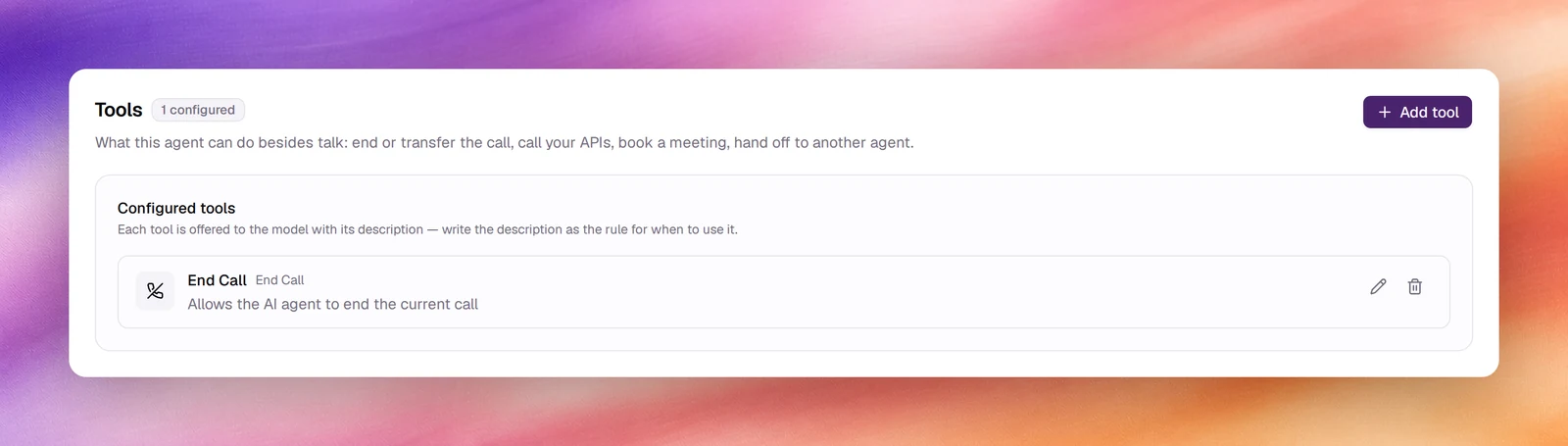
Single-prompt agents. Tools have their own section: Tools under Build. It counts what is configured, lists each tool under Configured tools with its description, and Add tool opens the picker. Manage tools, in the Prompt card’s header and its Tools bar, takes you to the same section; the bar’s own Add tool adds a tool and writes its usage line into the tasks (see Prompting guide). Each tool is offered to the model with its description, so write the description as the rule for when to use it.
Flow agents. Tools live in two places in the flow editor. Global Tools, in the toolbar’s settings panel, are available at every node and are managed the same way as the Tools section. Each Prompt node also has a Tools tab for tools that apply at that node only, with an Include Global Tools switch to add or withhold the global ones. The node picker does not offer Knowledge Base; the node’s KB tab does that job.
Adding a tool
Open the picker
Open Tools under Build, or choose Manage tools in the Prompt card, which goes there. Then choose Add tool. Search tools… narrows the list.
Pick a built-in tool
Choose a card. The Add New Tool panel opens beside the page, headed by the tool you picked, with the shared fields filled with defaults.
Fill in the tool's own fields
Each tool adds fields below AI Response; they are on the tool’s page.
Add Tool, then Save the agent
Add Tool closes the form and lists the tool under Configured tools. Choose Save at the top of the page; the tool is part of the agent from that version on.
Fields every tool shares
The top of every Add New Tool panel is the same: a card naming the tool you picked, then three fields. The model reads Description to decide when to call the tool and says AI Response while it does; Tool Title identifies it.
| Field | Type | Meaning |
|---|---|---|
| Tool Title | Text | The display name under Configured tools, for example End Call. The line under it shows the ID the model calls, made from the title: lower case, spaces as underscores, other characters dropped, so End Call becomes end_call. Keep titles unique within the agent. |
| Description | Text | What the tool does and when the agent should invoke it. This is the sentence the model reads, so put the trigger in it: Transfer to the front desk when the caller asks for a person. |
| AI Response | Text | What the agent says as it uses the tool, for example Let me transfer you. Please hold on. |
Editing and removing
Under Configured tools, Edit reopens the panel as Edit Tool with Update Tool in place of Add Tool; the tool itself cannot be changed, only its fields. Remove deletes the tool from the agent. Both take effect when you Save the agent, and both are recorded as a new version.
Behaviour and limits
- Tools are per agent. The same webhook on 2 agents is 2 tools.
- The agent decides when to call a tool from the Description and the conversation. To make a call certain, use a flow agent and a node: a Webhook node fires whenever it is reached.
- Tool calls appear on the call’s page under its transcript, with the request and the response. See Call details.
- Dynamic variablesDynamic variableA placeholder in the prompt, such as {{customer_name}}, filled per conversation.See the glossary in double braces are substituted in webhook bodies, email content and Zapier fields. See Dynamic variables.