

Atlas, the in-app assistant
Ask agent opens Atlas, a chat panel inside the dashboard that answers questions about the product, takes you to the right page and runs small tasks for you.
Atlas is the assistant built into the dashboard. It opens from Ask agent in the top bar of every page and sits in a panel on the right, so it stays with you while you work. Ask it where something is, how to do something, or to do it for you.
Open it
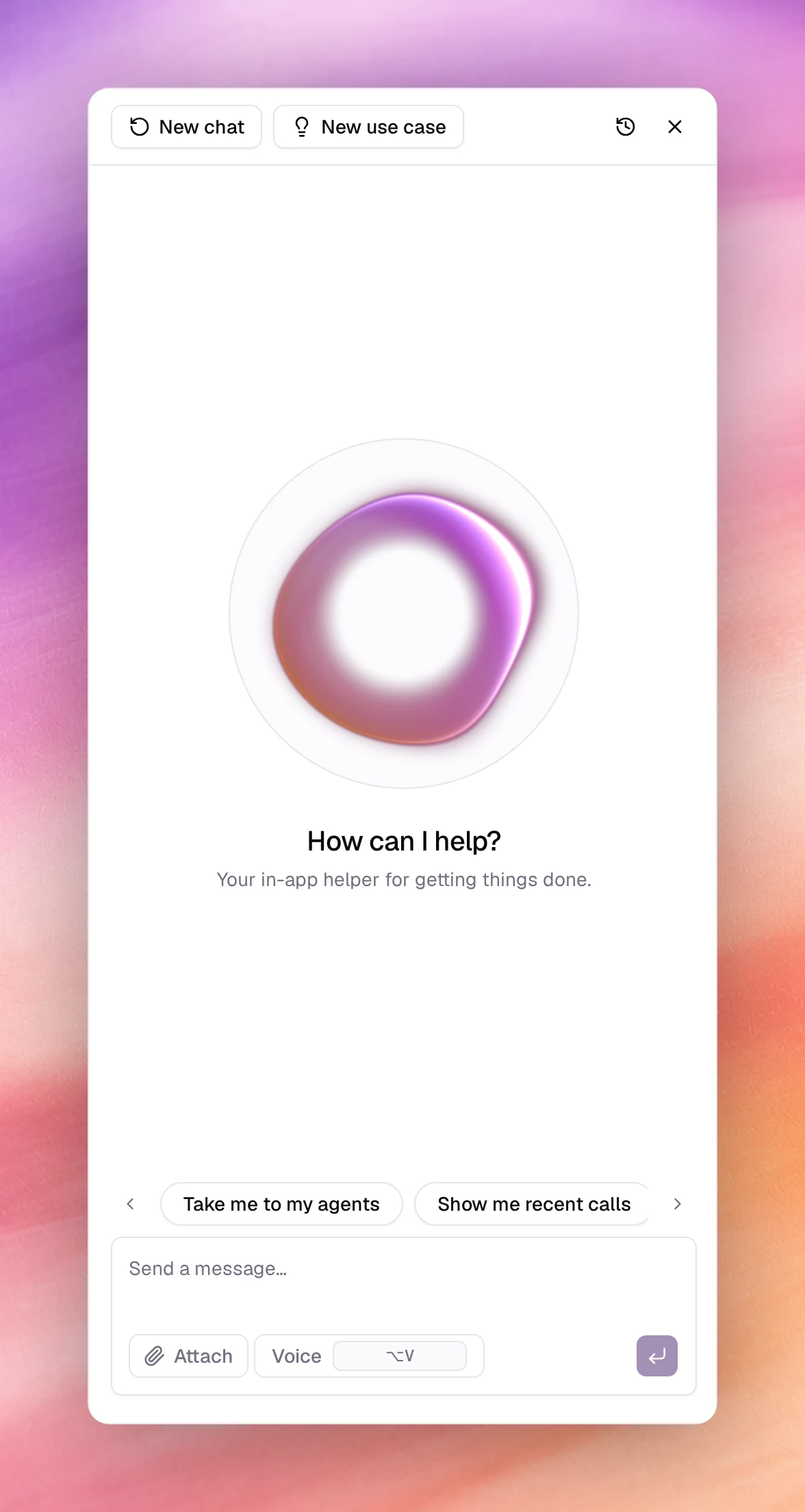
Choose Ask agent at the top right of any page. The panel opens with How can I help? and a row of suggestions you can tap:
- Take me to my agents
- Show me recent calls
- Switch to dark mode
- How do I create a campaign?
Ask it something
Type in Send a message… and press Enter, or choose Voice to speak instead. Attach adds a file to the question. Atlas answers in the panel; when the answer is a page, it takes you there.
Each action Atlas takes is shown as one compact line in its answer, such as Creating agent followed by the agent’s name, Listing advisor findings, or Used browser_navigate_to_url when it opens a page for you. Choose the line to expand what it sent and what came back. When an action needs your go-ahead, the line asks whether to allow the tool to run, with Approve and Deny.
The panel’s toolbar has four buttons, plus Copy chat once a conversation has started:
| Button | What it does |
|---|---|
| New chat | Starts a fresh conversation. The old one stays in the history. |
| New use case | Switches the panel to the use case architect: describe what you want an agent to do and Atlas drafts a structured use case for it. |
| Chat history | Lists earlier conversations, grouped by Today, Yesterday, This week and so on, so you can pick one up again. |
| Close assistant | Hides the panel. On a wide screen its state is kept until the next Ask agent. |
Drag the panel’s inner edge to make it wider or narrower, from 360 to 720 pixels; double-click the edge to reset it. On a narrow screen the panel opens as a drawer over the page instead.
What it is good for
- Finding a screen. “Where do I change the voice?” explains where the voice lives in the agent editor and offers to take you to AI Agents.
- Explaining a field. Ask what a setting does before you change it.
- Working in the app for you. Atlas can click, fill in fields, open pages and switch the theme in the dashboard you are looking at.
- Acting on your workspace. Atlas can read and change workspace data directly: look up calls, conversations, contacts and campaign statistics; create, clone or update agents, campaigns, contacts, knowledge bases and flows; pause or resume a campaign; run an AdvisorAdvisorThe page, under Observability in the sidebar, that lists configuration issues detected across your agents, knowledge bases, campaigns and numbers.See the glossary scan; check billing.
For anything that changes an agent, check the result in the agent’s workspace. Atlas has no tool to publish an agent, so publishing stays with you.
Design a use case
New use case switches the panel to the Use case architect. Describe what you want an agent to do; Atlas asks for any missing details, sometimes with a short form, then drafts the use case. The draft appears in the chat as a card with its summary; choose it to open the use case page, with the sections What this agent does, What it can do, What we need from you, Example scenarios, How we will know it works, Agent parameters and Tools.