

Security and 2FA
Change your password and turn on two-factor authentication with an authenticator app, a manual key and 10 backup codes. Settings > Security.
Settings > Security holds the two controls that protect your own sign-in: the password form and two-factor authentication (2FA). Both apply to your account, not to the company; every member sets up their own.
Change your password
- Fill in Current Password, New Password and Confirm Password. Each field has a show button to reveal what you typed.
- Choose Change Password.
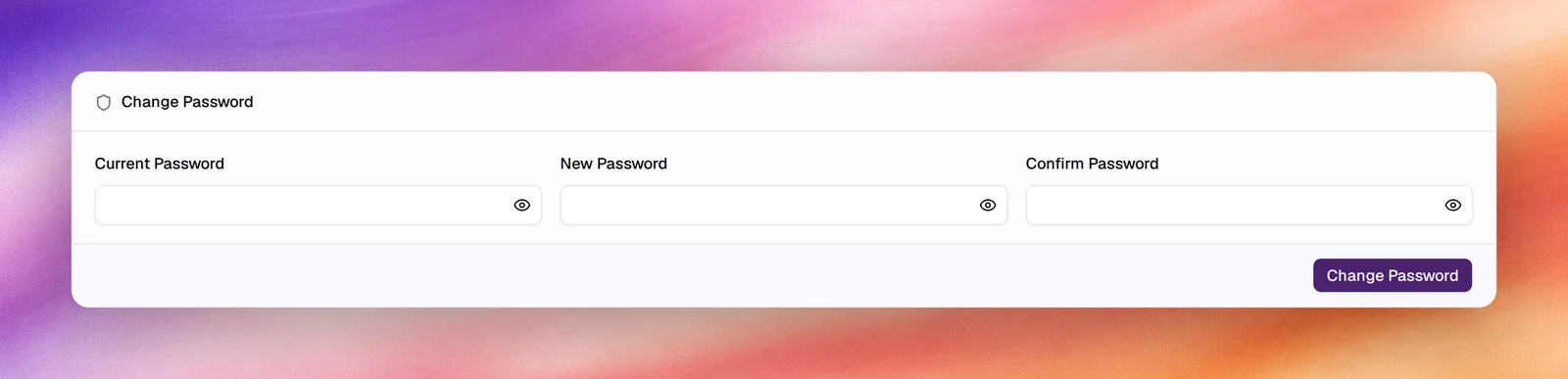
If you cannot sign in at all, use Forgot password on the login page instead; this form needs the current password.
Turn on two-factor authentication
With 2FA on, signing in asks for a 6-digit code from your authenticator app after the password. You need an app such as Google Authenticator, Authy or 1Password on your phone or in your password manager.
Open the setup
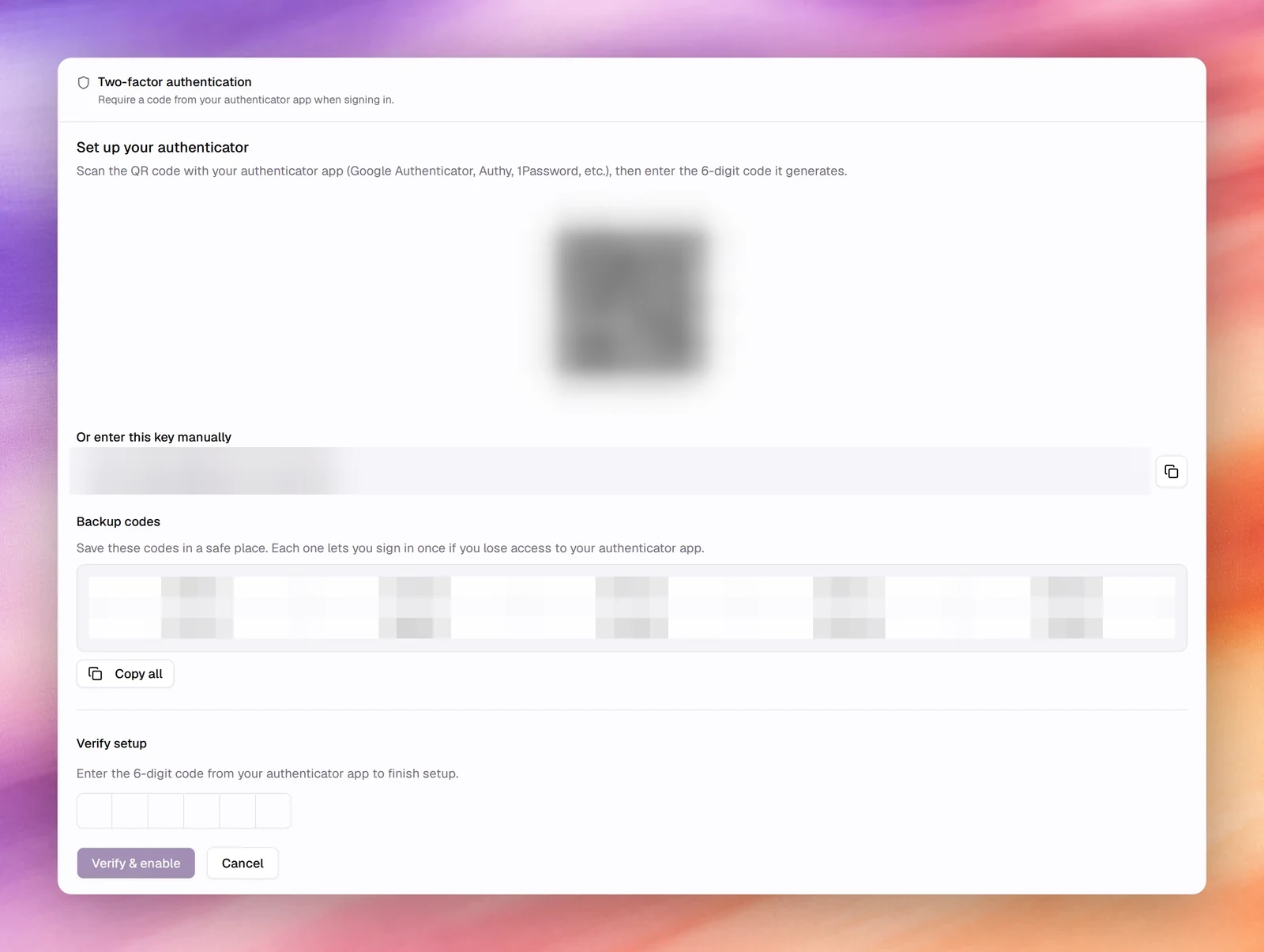
Under Two-factor authentication, choose Enable. The card expands into Set up your authenticator.
Scan the QR code
Scan the QR code with your authenticator app. If the app cannot scan, choose Copy next to Or enter this key manually and paste the key into the app by hand.
Save the backup codes
Under Backup codes, 10 codes are listed. Choose Copy all and store them where you keep other secrets. Each code lets you sign in once if you lose access to your authenticator app.
Verify
Under Verify setup, type the 6-digit code the app shows now and choose Verify & enable. The button stays disabled until the field holds 6 digits.
Manage two-factor authentication
Once 2FA is on, the card reads Two-factor authentication is active and offers two buttons:
- Regenerate backup codes issues a new set. Enter a current code from your authenticator app and choose Regenerate; your previous backup codes stop working, so store the new ones before choosing Done.
- Disable 2FA turns it off. Confirm with your current password and a current authenticator code.
Recent activity
The Security section also shows Recent activity: security events on your account from the last 24 hours. It records sign-ins and failed sign-in attempts, signing out, two-factor being enabled, disabled or verified, password changes and resets, and refreshed sessions.
Check it after turning on two-factor authentication, and whenever a sign-in looks unfamiliar. A Failed sign-in attempt you did not make is the signal to change your password. With nothing to show it reads No activity in the last 24 hours.
Verify
- Sign out and sign in again. After the password, the app asks for a code.
- The next time you open Settings > Security, the two-factor card reads Two-factor authentication is active.
Troubleshooting
- Verify & enable stays disabled. The field needs exactly 6 digits. Wait for the app to show a fresh code and type it without spaces.
- The code is rejected. Codes rotate every 30 seconds and depend on the phone’s clock. Check the phone’s time is set automatically, then try the next code.
- You lost the authenticator. Sign in with one of the backup codes. Disabling 2FA or regenerating codes needs a current authenticator code, so ask support if you cannot produce one.