

Transfer Call
Hands the caller to a person, a queue or another number over Twilio, a SIP trunk or Ziwo, with a blind, dial or attended method and custom SIP headers.
Voice agentsTransfer Call moves the caller to another department or phone number. The agent says a line, the platform transfers the call, and the agent leaves it. The fields depend on the Transfer Type, which must match how the call is connected: a call on a SIP trunkSIP trunkA carrier connection that brings your own phone numbers to Callab AI.See the glossary number transfers over SIP, a call on a Twilio number over Twilio.
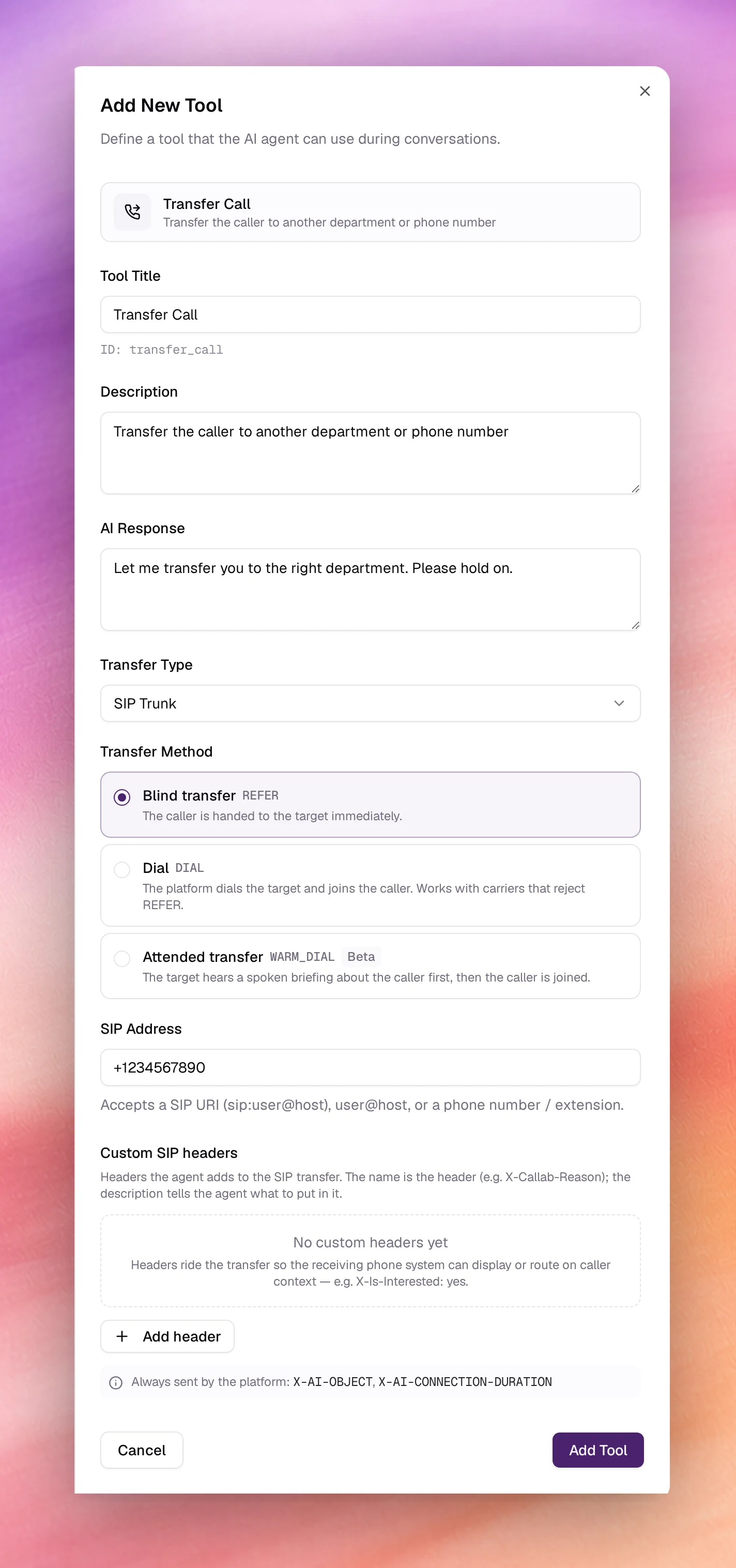
Configuring it
Open Tools under Build, choose Add tool, then Transfer Call. After the shared fields come the transfer fields.
| Field | Default | Notes |
|---|---|---|
| Tool Title | Transfer Call |
Use one tool per destination: Transfer to Sales, Transfer to Billing. The ID under the field is derived from the title (transfer_to_sales) and must differ between tools. |
| Description | Transfer the caller to another department or phone number |
Say which callers go here. |
| AI Response | Let me transfer you to the right department. Please hold on. |
Said before the transfer starts. |
| Transfer Type | Twilio |
Twilio, SIP Trunk or Ziwo. Decides the fields below. |
The destination is required whatever the type. A new tool starts with a sample number in it; replace it with the real destination.
Twilio
| Field | Type | Notes |
|---|---|---|
| Phone Number | Text | The destination in E.164 format, for example +14155552671, with at least 7 digits. For calls on a BYOT Twilio number. |
SIP Trunk
For calls on a SIP trunk number. The form has 3 parts: where the call goes, the dial options, and the headers sent with it.
| Field | Type | Default | Notes |
|---|---|---|---|
| Transfer Method | Choice | Blind transfer | One of the 3 methods below. |
| SIP Address | Text | sample number | Required. A SIP URI (sip:1000@pbx.example.com, or sips:), user@host with an optional port, or a phone number or extension such as +15555550100 or 2001. Free text is rejected because it cannot be routed. |
The 3 transfer methods:
| Method | Value | What happens |
|---|---|---|
| Blind transfer | REFER |
The caller is handed to the target immediately. |
| Dial | DIAL |
The platform dials the target and joins the caller. Works with carriers that reject REFER. |
| Attended transfer (Beta) | WARM_DIAL |
The target first hears a spoken briefing about the caller, then the caller is joined. |
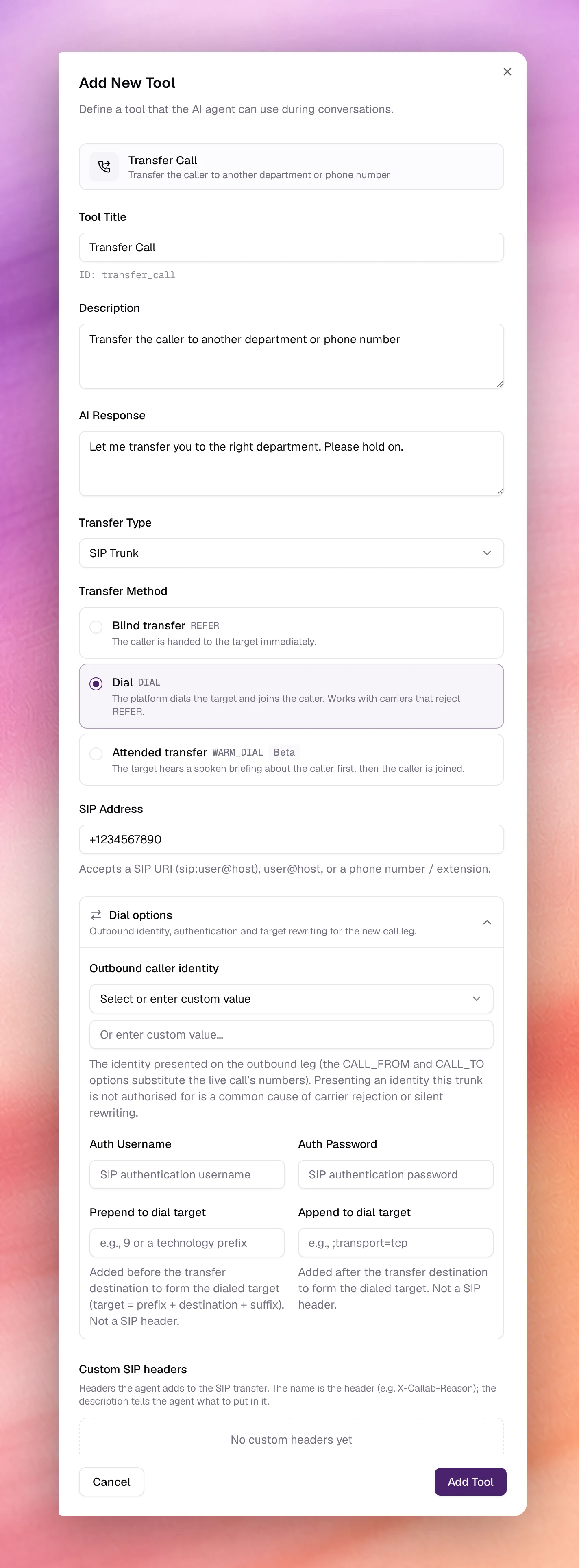
With Dial or Attended transfer, a collapsed Dial options section sets the outbound identity, authentication and target rewriting for the new call leg:
| Field | Type | Notes |
|---|---|---|
| Outbound caller identity | Select or text | The identity presented on the outbound leg. Pick {{CALL_FROM}} (the original caller ID) or {{CALL_TO}} (the called number), or enter a custom value. Presenting an identity the trunk is not authorised for is a common cause of carrier rejection or silent rewriting. |
| Auth Username | Text | Username for SIP authentication, if the PBX requires it. |
| Auth Password | Text | Password for SIP authentication, if required. |
| Prepend to dial target | Text | Added before the destination to form the dialled target, for example 9 for an outside line. Not a SIP header. |
| Append to dial target | Text | Added after the destination, for example ;transport=tcp. Not a SIP header. |
The dialled target is the prefix, then the destination, then the suffix.
Custom SIP headers let the agent pass context to the PBX or the person taking
the call, with every SIP transfer method. The platform always sends X-AI-OBJECT
and X-AI-CONNECTION-DURATION. Choose Add header for each of your own; a row
has these fields:
| Field | Meaning |
|---|---|
| Header name | Required. Letters, digits and hyphens only, for example X-Callab-Reason. If 2 rows share a name, only one is sent. |
| Fixed value or Model chooses | Where the value comes from. Pick one per header. |
| Value | With Fixed value: sent as is. It can contain {{CALL_FROM}} and {{CALL_TO}}, for example sales-line. |
| Choices | With Model chooses: the values the agent picks from, for example billing, support, sales. Type one and press Enter or a comma to add it. |
| What the model is told | What the agent should put in the header, for example Why the caller wants a person. |
Once a row has a name and a value or choices, a preview of the header shows under it.
Ziwo
| Field | Type | Notes |
|---|---|---|
| Ziwo Queue/Extension | Text | The Ziwo queue name or extension number to transfer to. |
Choose Add Tool, then Save the agent.
Behaviour and limits
- The agent says AI Response, then the transfer is attempted. On success the agent leaves the call; the call’s page records the transfer as a tool call.
- A Transfer Type that does not match the number the call is on fails. Check the number’s type under Phone Numbers before choosing.
- Browser test calls have no carrier behind them, so a transfer cannot complete there. Test transfers on a real number.
- Flow agents get the same targets from a Transfer call node, without the method, dial options and header options. Use this tool as a global or node tool when you need those. See Nodes.
- One tool, one destination. For several departments, add several tools with distinct names and descriptions.
Troubleshooting
- The agent says the transfer line but the call stays with it. The target is unreachable or the type is wrong. Verify the SIP address or number from a phone, and match Transfer Type to the number.
- The form rejects the SIP Address. It must be a
sip:orsips:URI,user@host, or a number or extension; a name such asfront deskcannot be routed. - The carrier or PBX rejects the transfer. Switch Transfer Method to Dial, then under Dial options fill Auth Username and Auth Password, or set the prefix the PBX expects in Prepend to dial target.
- The agent transfers everyone. The Description is too broad. State the
condition:
Only when the caller explicitly asks for a person.