

Create an inbound campaign
Make a voice agent answer every call to one of your numbers, directly or through a queue, with the call synced to the caller's contact record.
Voice agentsAn inbound campaign binds an agent to a phone number. While it runs, every call to that number is answered by the agent. It is the way to put a receptionist, support line or booking agent on a number you already publish.
Create it
Choose the type
Under Launch AI Voice choose Create Campaign, then Inbound, described as Receive calls to your AI agent.
Name it
Campaign Name (at least 3 characters), an optional Description, and the Timezone, which defaults to your browser’s. Next.
Agent and number
Pick the AI Agent that answers and the Inbound Phone Number it answers on. Next.
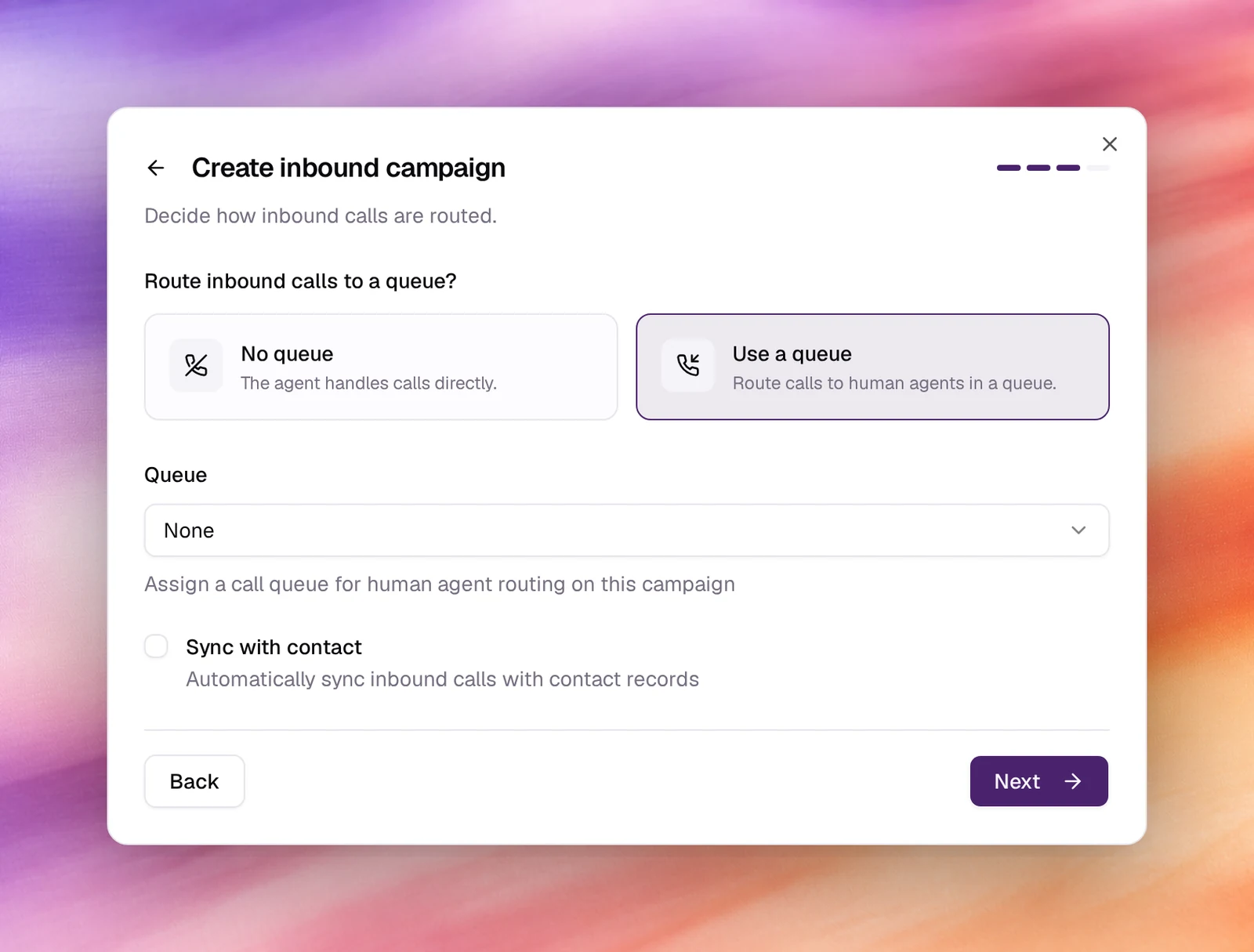
Routing
Answer Route inbound calls to a queue? with No queue (the agent handles calls directly) or Use a queue, which adds a Queue picker for routing to human agents. Tick Sync with contact to attach each call to the contact whose number matches, creating one if none exists. Next.
Webhook and launch
Post-Call Webhook (Optional) forwards each call’s outcome to an integration or custom flow from Automations; with none configured the step says so. Choose Launch your AI.
Behaviour and limits
- One number is answered by one running inbound campaign. To change the agent on a number, pause the campaign and change it under Settings, or stop it and start another.
- With Sync with contact on, the caller’s number is looked up in Contacts; the call is listed on the contact’s page and its metadata fills the agent’s dynamic variables. With memory enabled on the agent, that is how a returning caller is recognised.
- The campaign’s page counts calls and lists them under Call Logs like an outbound campaign. See Campaign details.
Verify
- The card under Launch AI Voice shows type
inbound, the agent and the number. - Call the number from a phone. The agent answers with its first messageFirst messageWhat the agent says when it speaks first.See the glossary, and
the call appears in Call Logs with the direction
inbound.
Troubleshooting
- Inbound is greyed out in Select Campaign Type. The workspace has no number, or every number is already on an inbound campaign; the card says which and offers Add a phone number.
- The number rings out. No inbound campaign is running on it, or the SIP gateway is not marked Inbound. Check the campaign’s status and the number’s Gateways card.
- The wrong agent answers. Another campaign on the same number is running. Filter the list by Inbound to find it.
- Calls are not on the contact’s page. Sync with contact was left unticked. Pause the campaign and tick it in the Campaign info section of its Settings page.