

Noise suppression
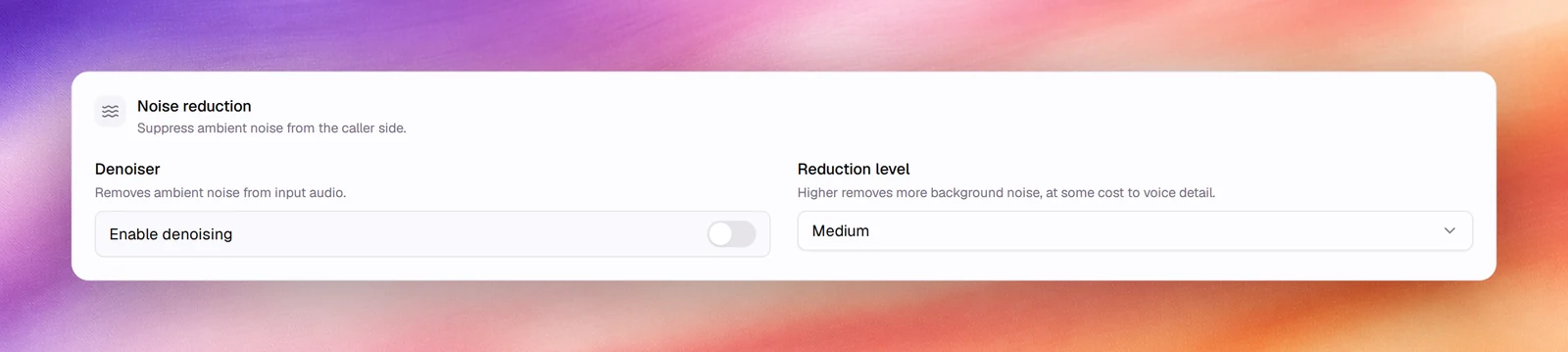
The Noise reduction card under Advanced: a denoiser on the caller's audio, its three levels, and when each one is worth the trade.
Voice agentsNoise reduction under Advanced runs a denoiser on the caller’s audio before it reaches speech detection and transcription. It removes ambient noise from the input, at some cost to voice detail at the higher levels.
Configuring it
- Open the agent and choose Advanced under Build.
- In Noise reduction, switch on Enable denoising.
- Pick a Reduction level.
- Save.
Reference
| Field | Default | Options | What it does |
|---|---|---|---|
| Enable denoising | Off | On, off | Removes ambient noise from input audio |
| Reduction level | Medium | Low, Medium, High | Higher removes more background noise, at some cost to voice detail |
Choosing a level
- Low for lines that are mostly clean, where the occasional car passing should not clip the caller’s words.
- Medium for typical mobile calls.
- High for very noisy environments. Expect some loss of soft consonants; if the transcript starts missing short words, step down.
Behaviour and limits
- The denoiser sits in front of voice activity detection. Turning it on often lets you keep VADVADVoice activity detection. The thresholds that decide what counts as speech and what counts as silence.See the glossary’s Activation threshold at its default instead of raising it to fight noise.
- It works on the caller’s audio only. The agent’s own background audio is unaffected.
- Recordings under Call Logs keep the caller’s original audio.
Verify
Make a test call from a phone in a noisy place and compare transcripts with the denoiser on and off under Call Logs.
Troubleshooting
- The agent misses short answers such as “yes”. The level is too high, or VAD’s Min speech duration is too long. Lower one of them.
- The agent keeps responding to noise. Turn denoising on before raising VAD’s Activation threshold.