

Flow editor
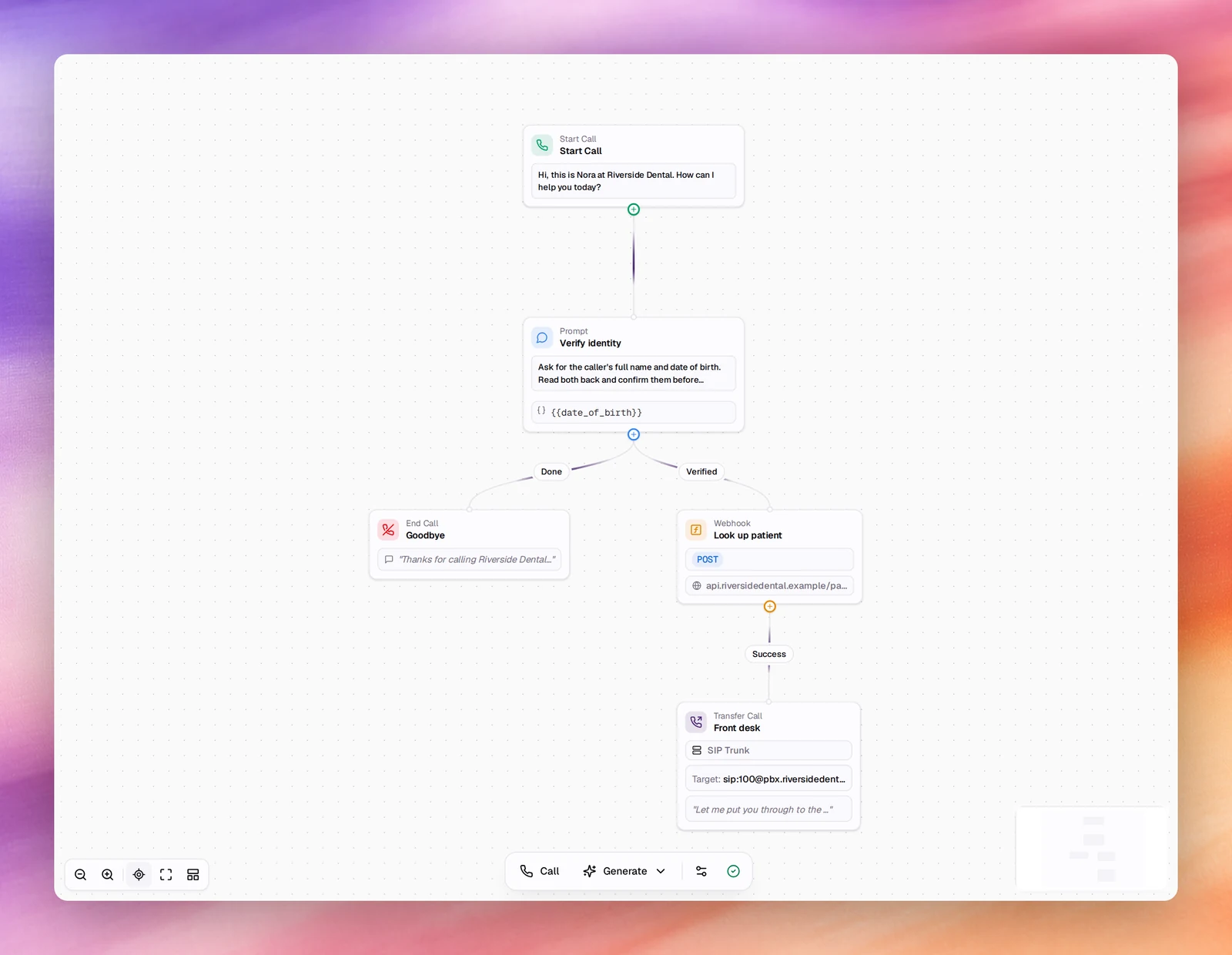
The Flow section of a flow agent: a canvas of nodes and edges, a toolbar, a settings panel for variables and global tools, and Save.
Flow agentsThe flow editor is where a flow agent’s conversation is designed. It replaces the
three prompt fields of a single-prompt agent with a canvas: each node carries
its own instructions, and each edge decides when the conversation moves from one
node to the next. It lives under Flow in the agent workspace, at
/agents/edit/<agent-id>/flow.
How it works
A new flow agent opens with 3 nodes already on the canvas: Start Call, one Prompt node and End Call. A conversation always begins at Start Call, follows edges whose conditions are met, and ends when it reaches an End Call node, when a Transfer call node hands the call over, or when a tool such as End Call fires.
At every node the agent is given the node’s own instructions on top of the agent’s general settings (language, voice, first messageFirst messageWhat the agent says when it speaks first.See the glossary rules, Advanced tuning). It talks to the person until one of the outgoing edges’ conditions is satisfied, then moves on. The prompt of a flow agent is therefore the sum of its nodes, read one at a time, not one long text.
The canvas
- Drag a node to move it. Positions are saved with the flow.
- Every node except End Call has a + handle at its bottom. Choosing it opens Add node, which lists the node types and connects the new node to the one you started from. See Nodes.
- Choosing a node opens its editor in a panel on the right. Save Changes applies the panel to the canvas; Cancel discards it; Delete Node removes the node and its edges.
- Choosing an edge’s label opens Configure Edge Connection. See Edges and conditions.
- The mini map at the bottom right shows where you are in a large flow.
Changes made in a panel are held in the editor until you choose Save at the top of the page. The indicator at the right end of the toolbar reads Flow Saved when nothing is pending.
The toolbar
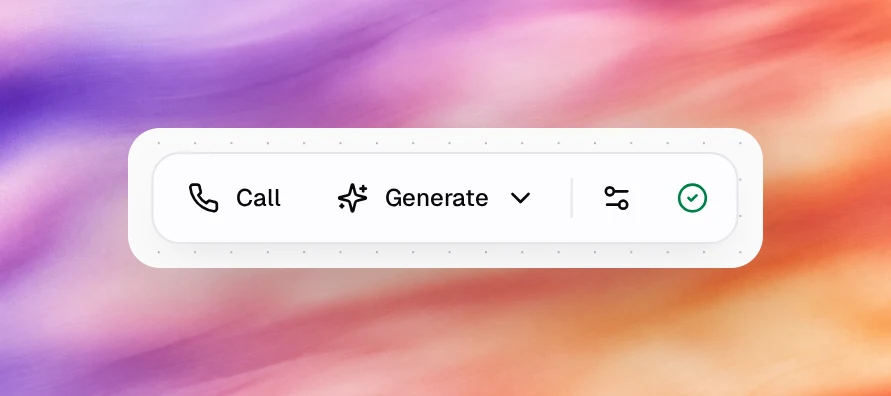
| Control | What it does |
|---|---|
| Zoom Out, Zoom In | Change the canvas scale. Scrolling on the canvas does the same. |
| Fit View | Zooms and pans so every node is visible. |
| Fullscreen | Expands the canvas to the whole browser window. Press Escape to leave. |
| Auto Layout | Rearranges the nodes top to bottom along their edges. Useful after generating or after adding branches by hand. |
| Call | Starts a browser test call with this flow. Same as Call under Testing. |
| Generate | Opens a menu with Custom Instructions and Enhance Current Flow. See Generate a flow. |
| Global Tools (sliders icon) | Opens the Settings panel with Variables and Global Tools. |
| Flow Saved (tick icon) | The save state of the flow. |
The Settings panel
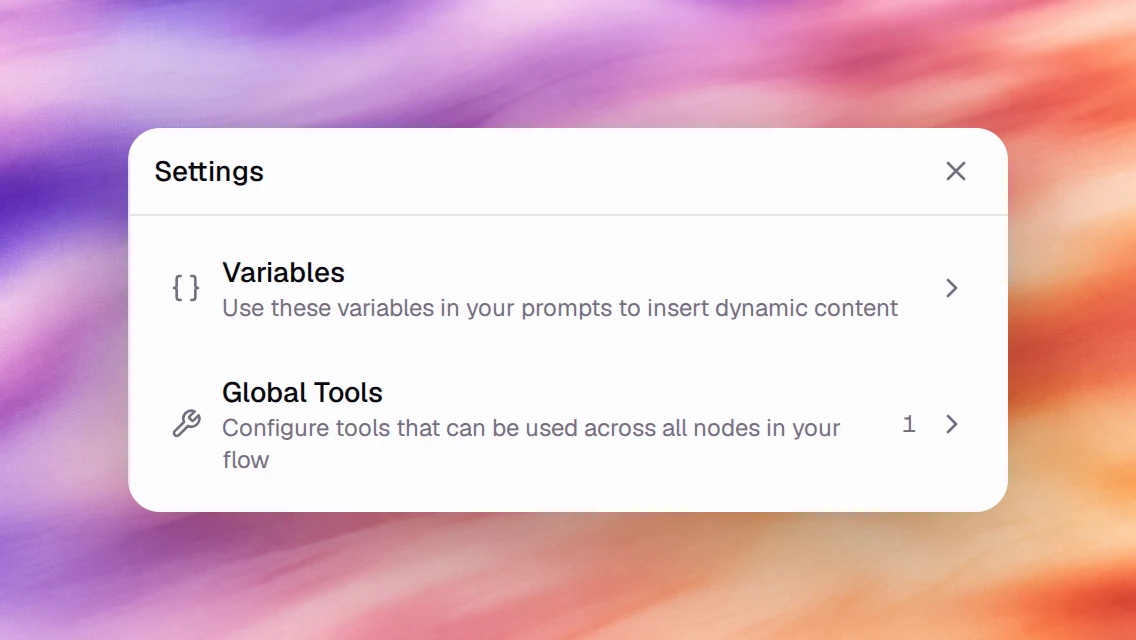
The sliders icon opens a panel with two sections.
Variables lists the predefined dynamic variablesDynamic variableA placeholder in the prompt, such as {{customer_name}}, filled per conversation.See the glossary you can write into any node’s
instructions, each with a Copy button: {{now}}, {{date}}, {{time}},
{{month}}, {{day}}, {{year}}, {{call_from_number}}, {{call_to_number}} and
{{sip_headers}}. Below them the panel lists the custom variables it finds in your
flow; write {{variable_name}} in any prompt to create one. Variables extracted by
a Prompt node’s Extract tab also become available to later nodes. See
Dynamic variables.
Global Tools holds the tools available at every node of the flow. It works like the Tools section of a single-prompt agent: Add Tool opens the same picker, and each tool has Edit and Remove. A Prompt node can add tools of its own on its Tools tab and can opt out of the global ones with Include Global Tools. See Tools overview.
Saving and versions
Save at the top of the page writes the whole flow as a new version of the agent, the same as saving Settings does. The version counter in the sidebar moves and the change is listed under Versions, so a flow can be compared and rolled back like any other change. See Versions.
Leaving the page with unsaved panel changes discards them.
Behaviour and limits
- A flow needs exactly one Start Call node. It cannot be deleted; the Add node menu does not offer another.
- A node with no outgoing edge keeps the conversation at that node until the call ends by other means. Give every Prompt node a way out, even if it is a single None (Always) edge to End Call.
- Everything outside the flow (voice, language, Outcomes, Advanced, Widget) is configured the same way as for a single-prompt agent.
- Testing works the same too: Chat and Call under Testing run the flow. The Launch Checklist refuses to publish a flow with no start node.