

Human Agent mode
The console where your team watches the AI's live calls: how to switch to it, who can open it, and how to set yourself available, away or offline.
The app has two modes. AI Agent is where you build, deploy and review AI agents; everything else in these docs happens there. Human Agent is a console for the people who supervise those agents: it shows the calls the AI is handling right now, flags the ones going badly, and tracks the team’s queues and campaigns.
Switch modes
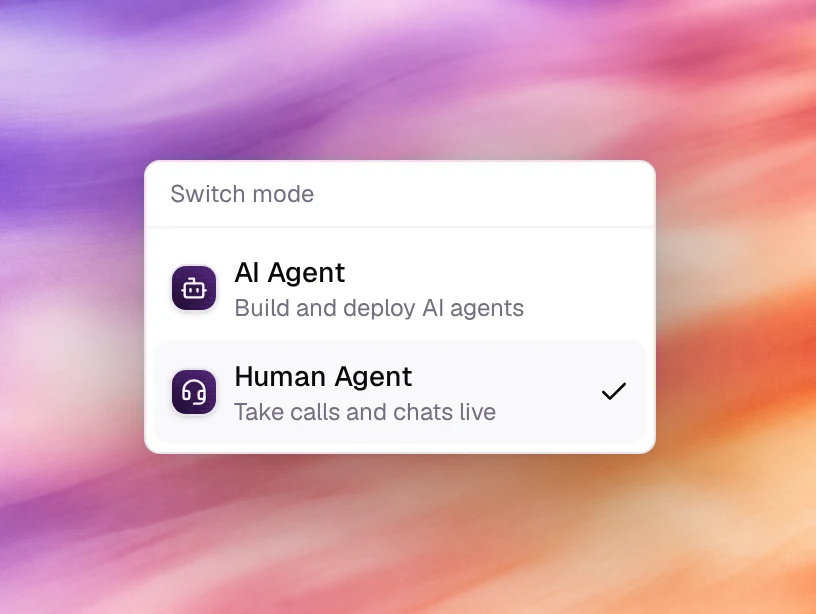
The mode switcher sits at the top of the sidebar, under the logo. Open it and choose Human Agent (Take calls and chats live) to enter the console, or AI Agent (Build and deploy AI agents) to go back.
Who can open it
| Role | Access |
|---|---|
| Owner, Admin | Both modes. |
| Agent | The console only. Signing in opens it directly, and the switcher shows Human Agent without a way out. |
| User | No. Choosing Human Agent returns to the AI Agent side. |
Roles are set in Members.
The console sidebar
| Entry | What it opens |
|---|---|
| Dashboard | The Supervision dashboard. |
| Live Calls | Live Calls, with the number of calls in progress. |
| Call Logs | Past calls. |
| Contacts | The workspace’s contacts. |
| Queues | The call queues human agents belong to, with the number of callers waiting. |
| Settings | Your profile and account settings. |
At the bottom, Connection and your availability show whether you are ready to take a call.
Set your availability
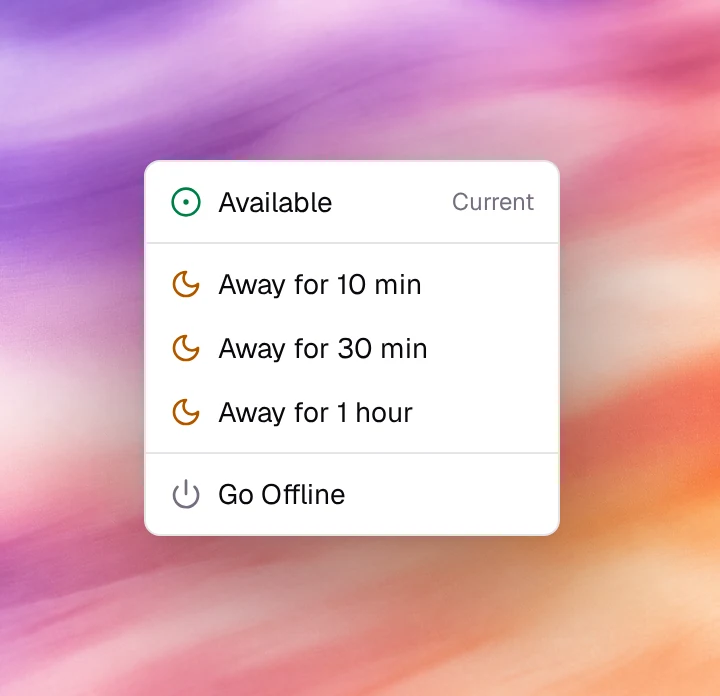
The menu at the bottom of the sidebar shows your status. Open it to change it:
- Available: you can be offered calls. The current status is marked Current.
- Away for 10 min, Away for 30 min or Away for 1 hour: no calls are offered, and the status shows the time left, such as Away (25m left). You return to Available on your own when it runs out, even after reloading the page.
- Go Offline: no calls until you choose Available again.
While you are on a call the status reads In Call and the menu is locked.
Check your connection
Connection opens a panel with what a call needs:
- Connection Status: Good, Degraded or Poor, with the Latency. A warning appears when latency is high enough to affect audio.
- Microphone: Enabled or Not enabled. Enable asks the browser for microphone access.
- Speaker: Available or Not detected, with a list to pick the output.
If the browser blocked the microphone, allow it from the lock icon in the address bar, then reload the page.