

Billing
Your minute and message balance, the plan and its limits, payment methods, buying minutes and auto-recharge. Settings > Billing.
Settings > Billing is where the company pays for calls. It has three cards: Balance, Subscription and Payment Methods. The Balance link at the bottom of the main sidebar opens the same page and shows the remaining minutes and messages at a glance.
Balance
Two meters, both consumed by every workspace in the company:
- Minutes: talk time for voice agents, shown as used of total, for example 1h 32m of 2h. Browser test calls count too.
- Text AI: messages for text agents, shown as a count, for example 100 of 100.
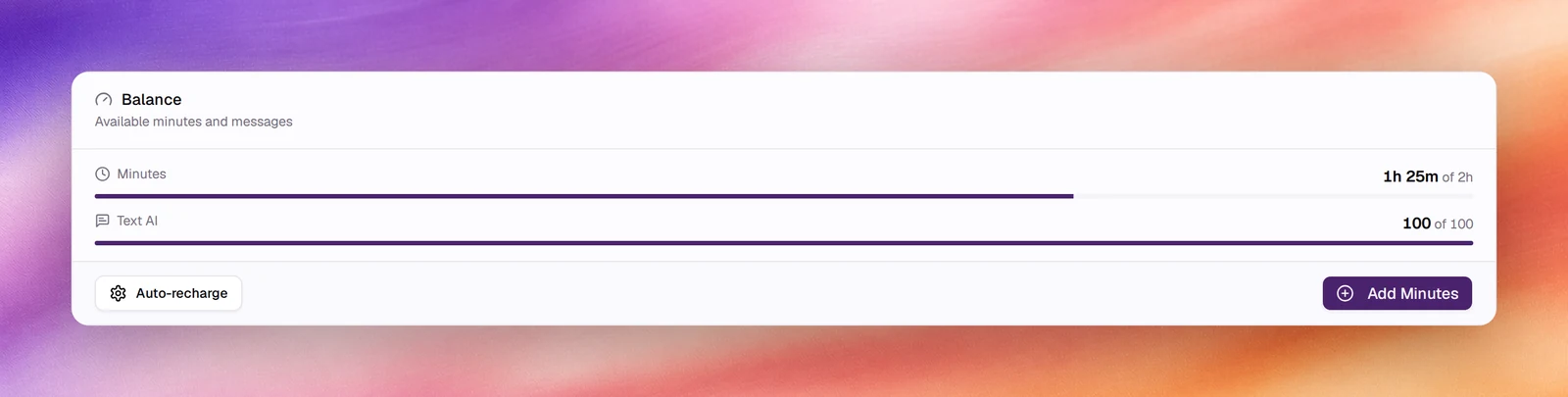
When minutes run out, running campaigns stop and you receive the Campaign Stopped email (see Notifications). Two buttons on the card prevent that.
Add Minutes
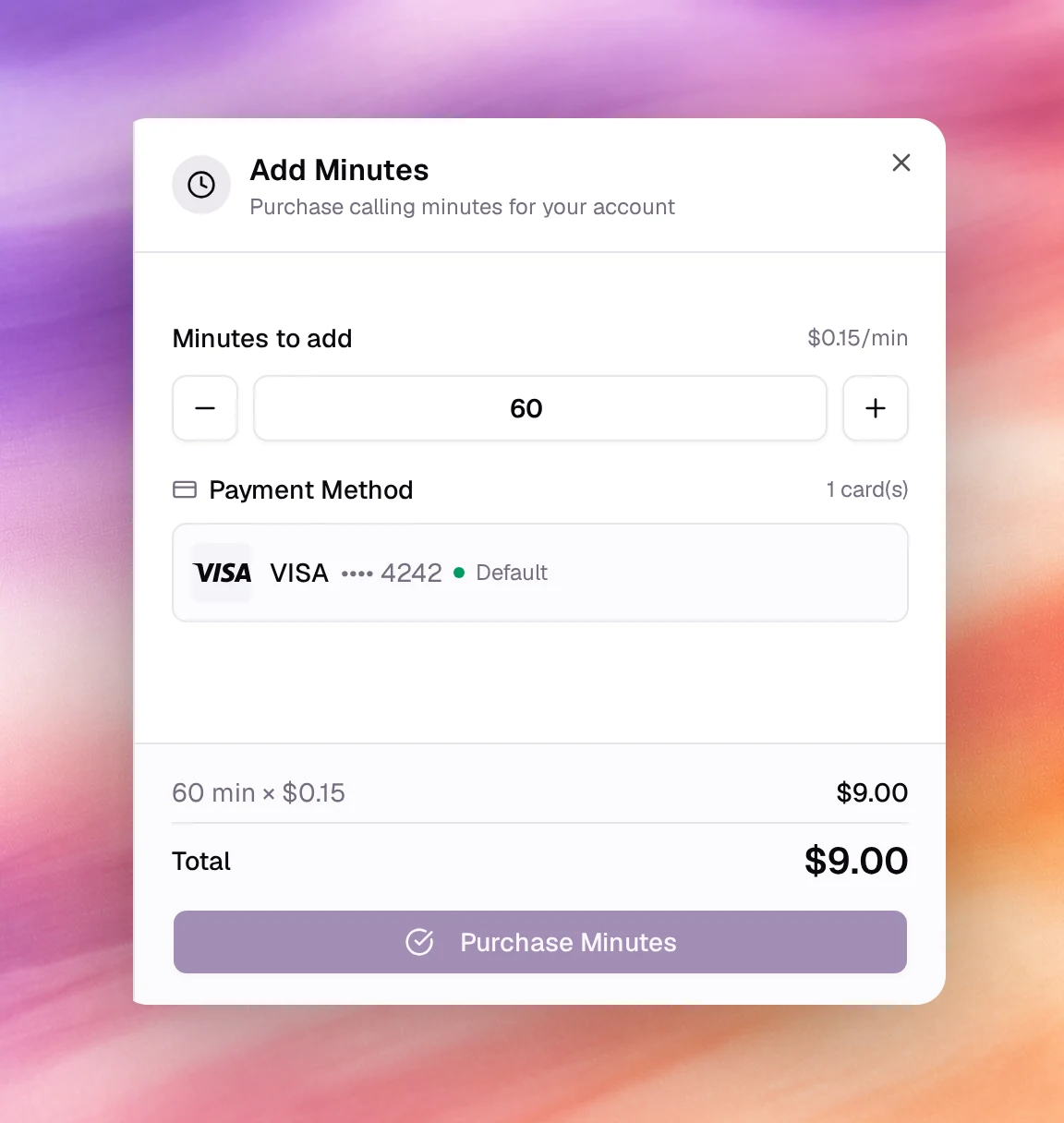
Buys calling minutes on top of the plan at $0.15/min.
- Choose Add Minutes.
- Set Minutes to add with the field or the plus and minus buttons. The dialog totals the purchase, for example 60 min × $0.15 = $9.00. The minimum purchase is $1, and a purchase above the maximum amount is refused until you reduce the minutes.
- Pick a card under Payment Method.
- Choose Purchase Minutes. The charge appears under Billing History in Usage and history as a Credit Purchase.
Auto-recharge
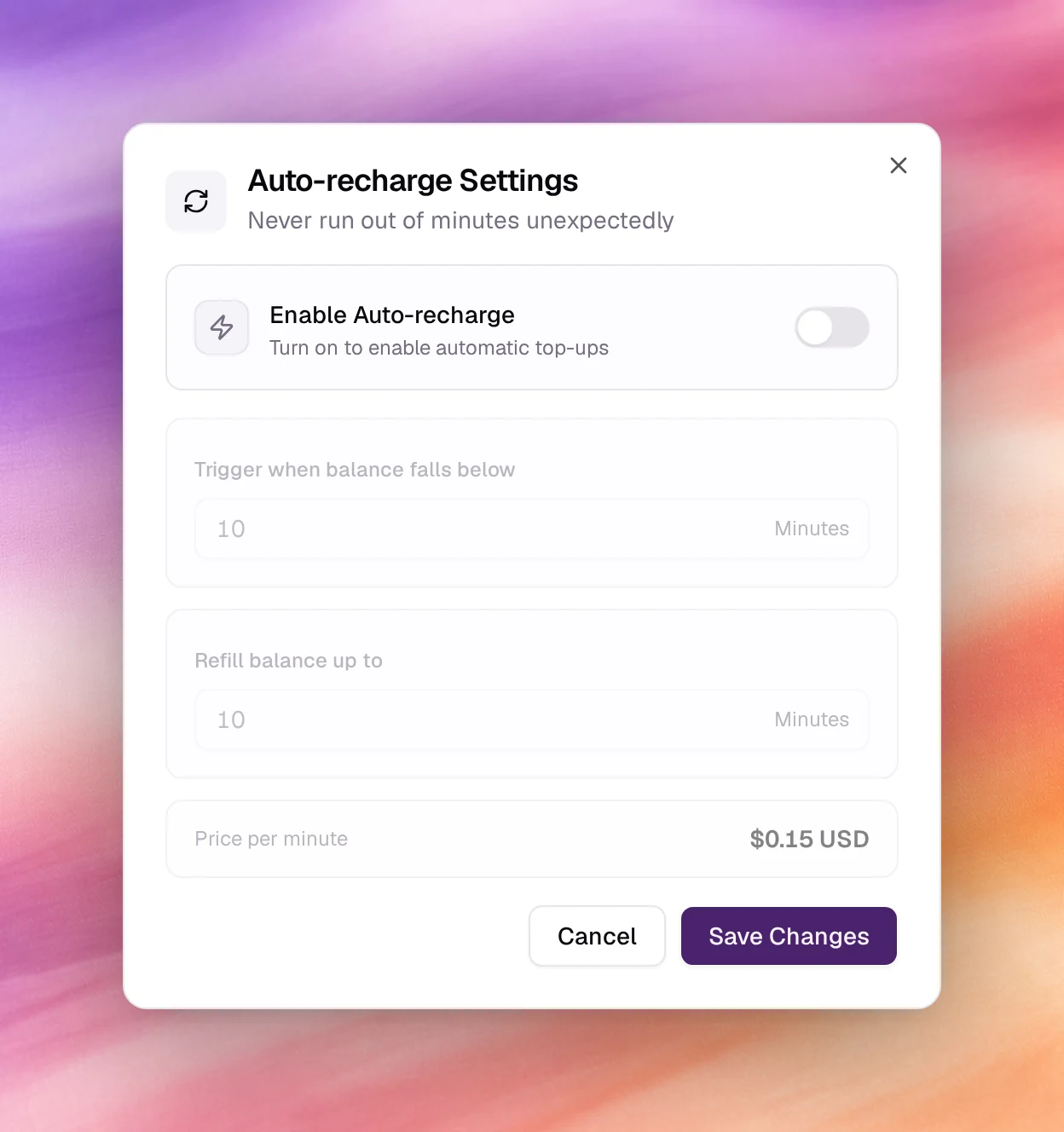
Tops up automatically so a campaign never halts for balance.
- Choose Auto-recharge.
- Turn on Enable Auto-recharge. The two fields below become editable.
- Trigger when balance falls below: the minute balance that starts a top-up.
- Refill balance up to: the minute balance after the top-up. The dialog shows the price, $0.15 USD per minute, and charges the default payment method.
- Choose Save Changes.
Subscription
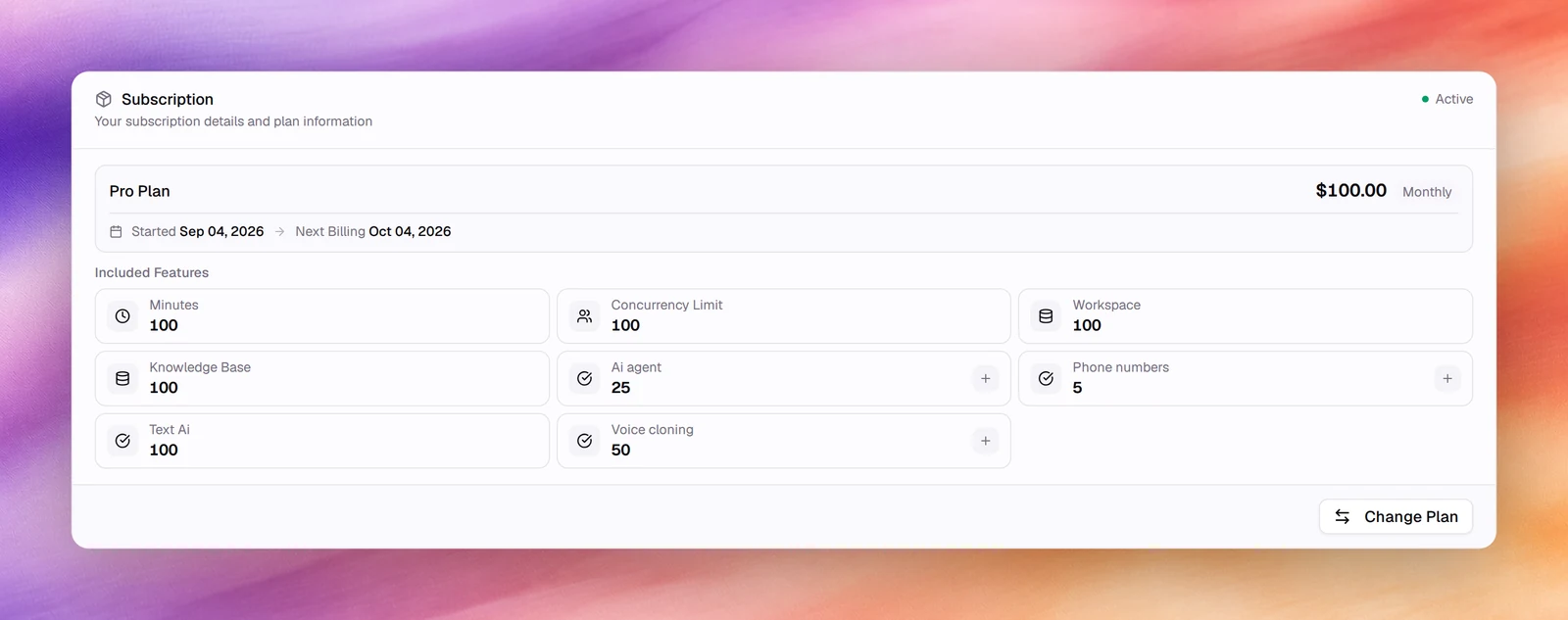
The card names the current plan, its price and cycle, the start date and the next billing date, with an Active badge while payments succeed. Included Features lists the plan’s limits:
| Limit | Meaning |
|---|---|
| Minutes | Calling minutes included each cycle. |
| Concurrency Limit | Calls the company can run at the same time. |
| Workspace | Workspaces you can create; see Workspaces. |
| Knowledge Base | Knowledge bases you can create. |
| Ai agent | Agents you can create. |
| Phone numbers | Numbers you can add. |
| Text Ai | Text-agent messages included each cycle. |
| Voice cloning | Cloned voices you can create. |
Ai agent, Phone numbers and Voice cloning are shown as buttons with a plus sign, Add more, when the plan allows add-ons and a card is on file. Choose one to open Purchase Add-on: set Quantity to add, check the New total and the Amount due, then choose Purchase for the amount. The add-on is billed for the plan’s period and appears on the next invoice. A limit raised this way shows the included and purchased amounts side by side.
If the subscription has expired, the card offers Reactivate, or on some accounts asks you to contact your account administrator. Until it is reactivated you cannot add minutes or configure auto-recharge.
Change Plan
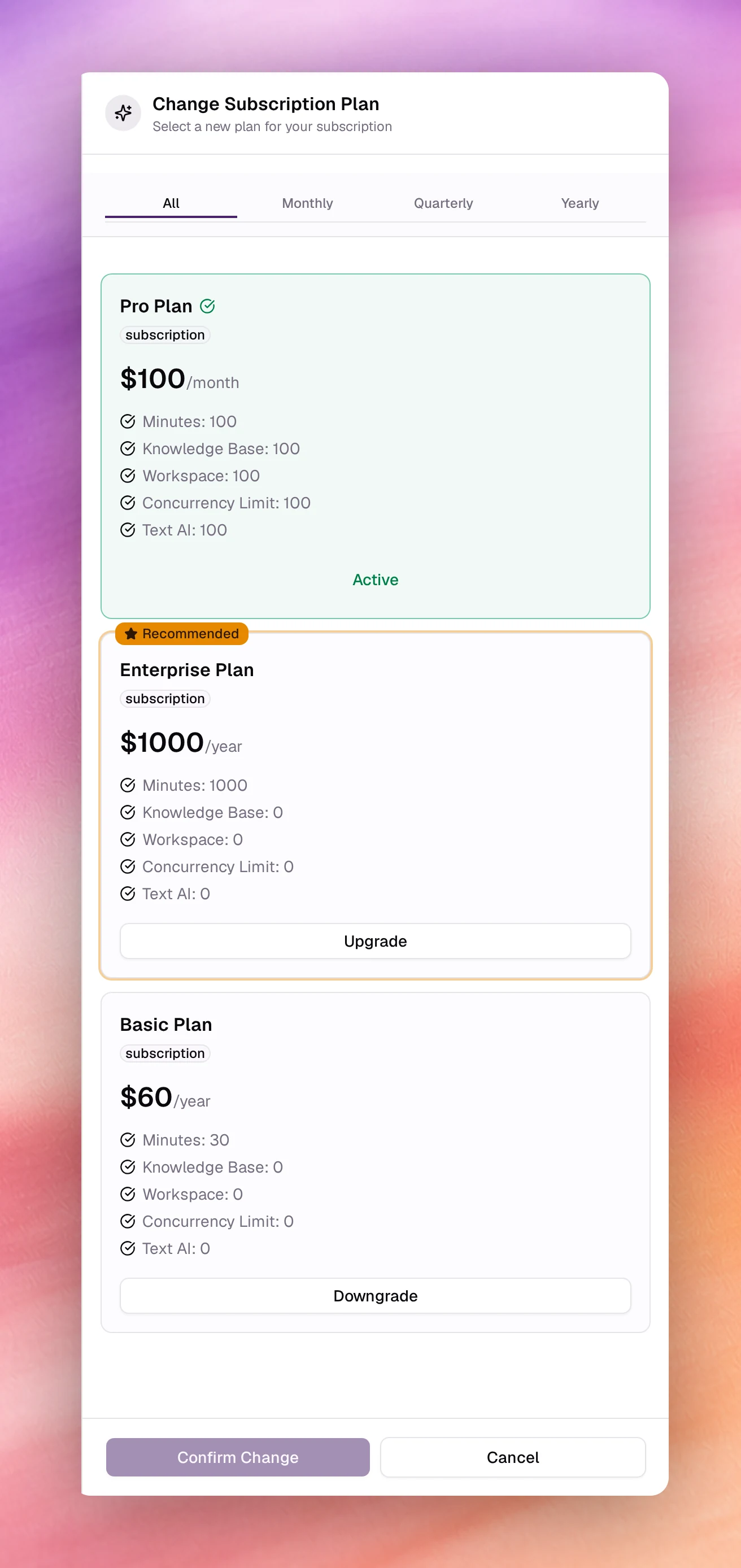
Change Plan opens Change Subscription Plan. Tabs filter the plans by cycle: All, Monthly, Quarterly, Yearly. Each plan card shows its price and the same limits as above; the current plan is marked Active and the others offer Upgrade or Downgrade. Pick one, then Confirm Change.
Payment Methods
Cards on file, masked to the last 4 digits with their expiry, and which one is the Default Payment Method. Manage Payment Methods adds a card, removes one or changes the default. The default card pays the subscription, auto-recharge and any purchase where you do not pick another.
Verify
- After Purchase Minutes, the Minutes meter total grows by the amount bought and a Credit Purchase row appears under Billing History.
- After enabling auto-recharge, the Auto-recharge dialog reopens with the switch on and your thresholds.
Troubleshooting
- Purchase Minutes is disabled. No payment method is selected, or the minutes field is empty. Add a card under Manage Payment Methods first.
- A campaign stopped and the email says insufficient balance. Buy minutes or turn on auto-recharge, then resume the campaign from its details page.
- Payment Failed email. The default card was declined. Update it under Manage Payment Methods; the platform retries and sends Payment Retry.