

Phone numbers overview
Voice agents need a number you connect yourself: a SIP trunk, a Twilio number you own, or a Go Auto Dial extension. How the three compare.
Voice agentsCallab AI does not sell phone numbers. Under Phone Numbers in the main sidebar,
at /phone-numbers, you connect a number you already have, and campaigns then
call from it or answer on it. Add Phone Number offers 3 types.
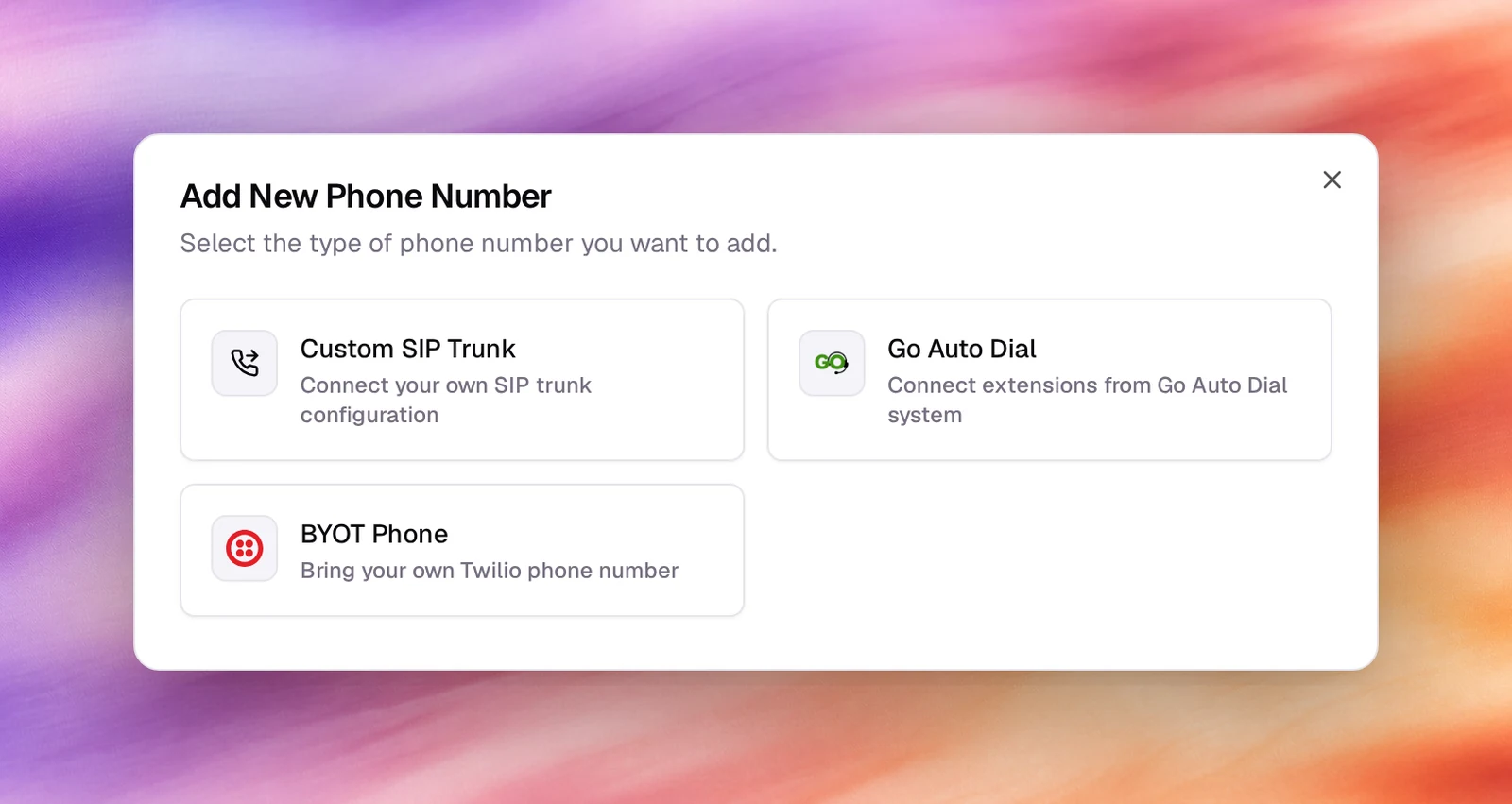
| Type | Use it when | You need | Page |
|---|---|---|---|
| Custom SIP Trunk | Your carrier, PBX or contact-centre platform speaks SIP | The gateway host and port, and registration credentials if the trunk requires them | SIP trunk |
| BYOT Phone | You already have a Twilio number | The number, your Twilio Account SID and Auth Token | BYOT (Twilio) |
| Go Auto Dial | Your dialler is Go Auto Dial | An extension, its password, a campaign id and the server details | Go Auto Dial |
SIP is the general answer: anything that can route calls to an IP address works, and the carrier picker pre-fills a nickname for 30 common carriers and PBXs. See Carriers.
The list
Four tiles count Total, Active, Inactive and Providers. The table shows Number, Nickname, Provider, Type, Country, Status and Created, with a search box and two filters, All Providers and All Statuses.
Each row’s menu has:
- Open details: the number’s page, at
/phone-numbers/<id>. - Move to workspace: reassigns the number to another workspace in the company. With no other workspace to pick, the dialog says so and Move Phone Number stays disabled.
- Delete: removes the number. Campaigns that use it lose their number.
A number’s page
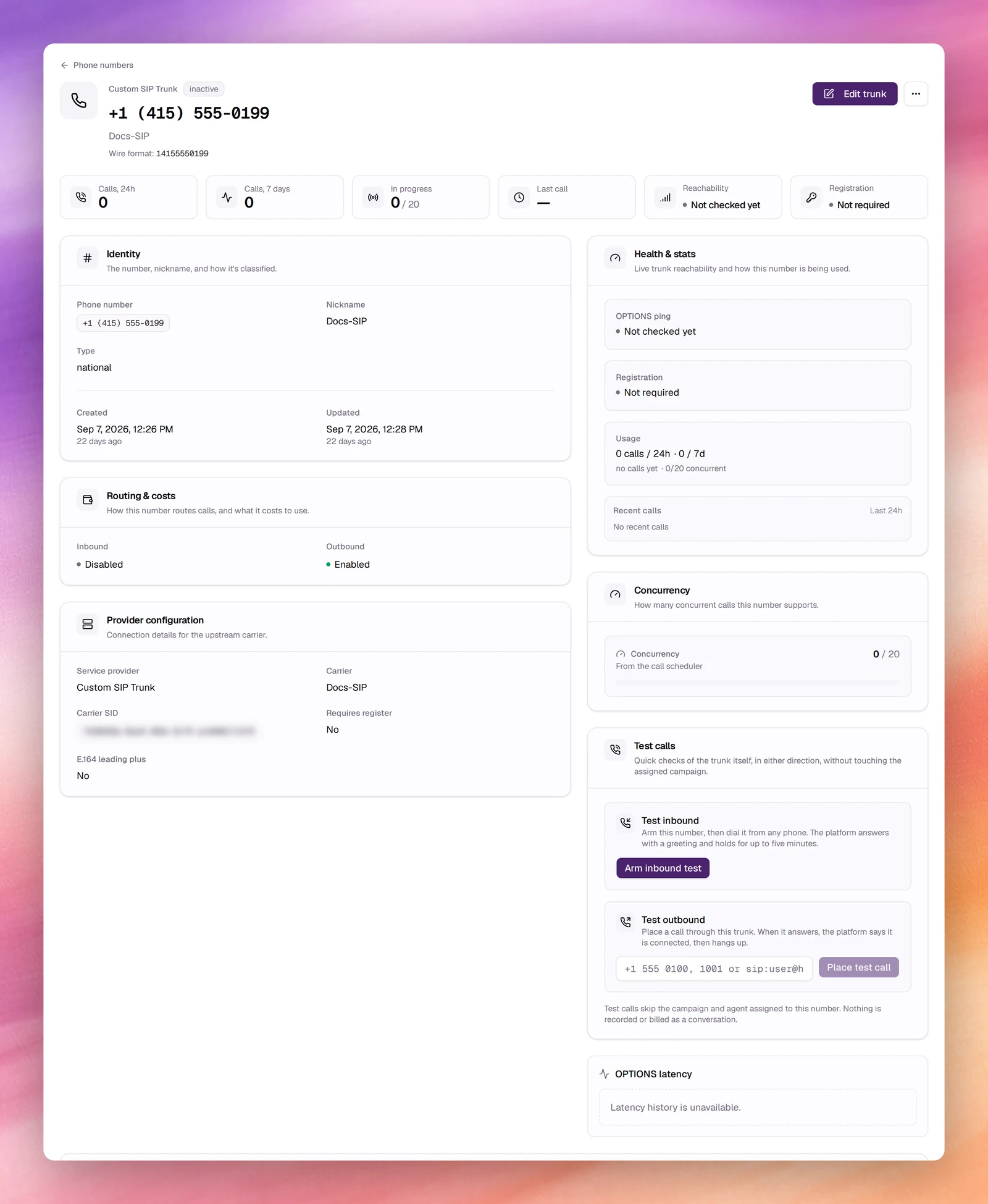
The header shows the provider, the status, the number (with a copy button) and
the nickname. For a SIP trunkSIP trunkA carrier connection that brings your own phone numbers to Callab AI.See the glossary it also shows the Wire format: the number
exactly as it is sent to the carrier, with or without the leading +.
Edit trunk (Edit for other types) opens the same form used to create the number. The menu next to it repeats Move to workspace and Delete. Both need permission to manage phone numbers.
The body is made of cards:
- Identity: the number, nickname, type, and when it was created and last updated.
- Provider configuration: the service provider, carrier and a Carrier SID you can copy. For a SIP trunk it adds Requires register, E.164 leading plus and, when set, Tech prefix and Diversion; for a BYOTBYOTBring your own Twilio. Adds a phone number from your own Twilio account.See the glossary number, the BYOT account SID.
- Concurrency: the calls in progress against the limit, with a bar.
- Routing & costs, when there is something to show: for a SIP trunk whether Inbound and Outbound are enabled across its gateways, and any monthly or per-minute costs recorded on the number.
Health and activity on a SIP trunk
A SIP trunk’s page carries much more, and refreshes its live values every 10 seconds while it is open.
A row of tiles opens the page: Calls, 24h, Calls, 7 days, In progress (against the limit) and Last call, plus Reachability and Registration once the trunk has been checked.
- SIP registration lists the register username, realm and From overrides when the trunk registers.
- Health & stats has three panels. OPTIONS ping is the trunk’s reachability, for example Reachable, Degraded, Unreachable or Not checked yet, with its round-trip time. Registration reads, for example, Registered, Registration failed or Not required, with the error or the expiry time. Usage gives the call counts, average duration and concurrency. Below them, Recent calls charts the last 24 hours hour by hour.
- OPTIONS latency summarises the probe history: p50, p95, Last OK and the number of samples.
- Gateways lists each gateway with Host, Port, Protocol, Direction, Options ping, Crypto pad, Active and Health, the last state the health monitor saw for it. Probe now pings every gateway immediately, and tries registration when the trunk registers.
- Trunk activity covers every number on the same trunk: Recent calls (the latest 20, with SIP code and reason), SIP errors (the last 24 hours, grouped by code), Error history (the latest 50) and Recent activity (the latest 50 configuration changes). An error’s info icon explains the code and what to check. Last call SIP flow, and SIP flow on each recent call, open the signalling ladder for that call.
- Rejected inbound calls lists inbound calls turned away before they reached an agent, with the reason: a stopped campaign, no campaign, or an inactive number.
Test calls
Test calls, on a SIP trunk’s page for users who can manage phone numbers, checks the trunk itself without involving the campaign or agent assigned to the number. Nothing is recorded or billed as a conversation.
- Test inbound: choose Arm inbound test, then dial the number from any phone while the countdown runs. The platform answers with a greeting and holds for up to five minutes.
- Test outbound: type a Target (a number such as
+15555550100, an extension or asip:address) and choose Place test call. When it answers, the platform says it is connected, then hangs up.
The result shows the state (Dialing, Connected, Completed, Failed, or Expired when nobody called), whether the call connected, the Answer latency, the Codec and RTP: Two-way, One-way (receiving), One-way (sending) or No media.
Assigning a number to an agent
Numbers are not attached to agents directly. A campaign joins the two: the outbound wizard asks for an Outbound Phone Number, the inbound wizard for an Inbound Phone Number, and the campaign’s page shows both under AI Agent Details. A number can serve one inbound campaign and one outbound campaign at the same time, so the same line can answer calls and place them; a second campaign in the same direction needs another number.