

Webhooks
Outbound automations that push data to another system: the webhook templates for HubSpot, Zoho CRM, Pipedrive and GoHighLevel, and the custom webhook builder.
A webhook is an outbound flow: one or more HTTP calls Callab makes to another system. It is created from the same Add Flow button as an inbound automation, under the Webhook tab, and listed under Automations with the Outbound filter. For the inbound direction see Automations; for a tool the agent calls mid-conversation see Live Webhook.
Templates
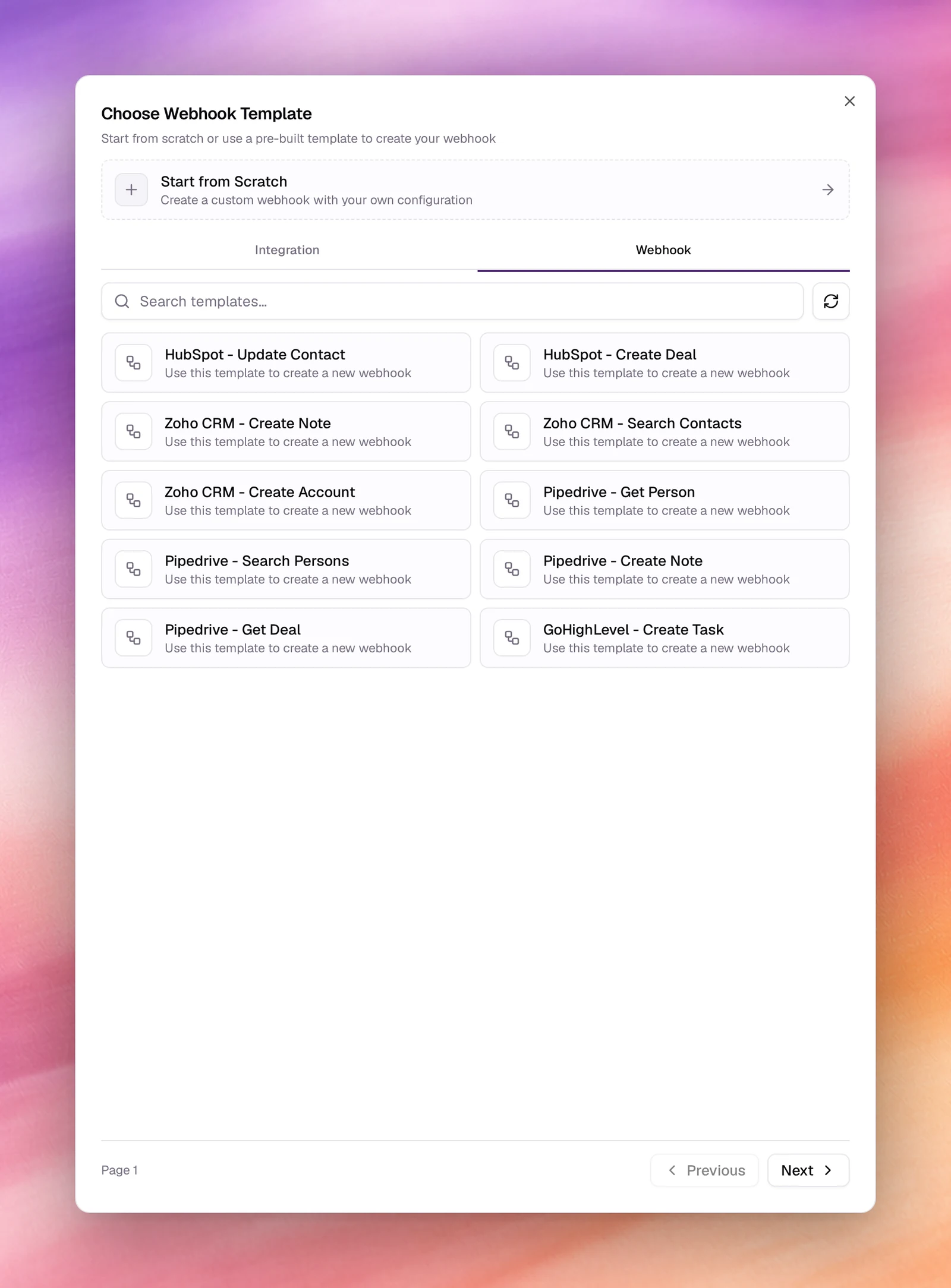
Add Flow, then the Webhook tab, shows Choose Webhook Template. Each template is one ready-made call against a connected CRM:
| System | Templates |
|---|---|
| HubSpot | Update Contact, Create Deal, Create Company, Search Companies, Get Deal |
| Zoho CRM | Create Note, Search Contacts, Create Account, Get Contact, Create Deal |
| Pipedrive | Get Person, Search Persons, Create Note, Get Deal, Update Person |
| GoHighLevel | Create Task, Create Contact, Update Opportunity, Get Pipelines, Search Opportunities |
The list is paged (Previous, Next) and searchable.
Choosing one turns the same dialog into Clone Webhook, with Webhook Name
pre-filled (the template’s name plus (Copy)) and one predefined variable,
access_token, set to {{access_token}}. Clone Webhook saves it; Back
returns to the list.
Start from Scratch
Start from Scratch under the Webhook tab opens Create Custom Webhook, a wizard in 2 steps.
Step 1: Details
Basic Information is the Workspace and the Webhook Name. Predefined
Variables are static values such as API keys, available to every step and
referenced as {{variableName}}; Add Variable adds one.
Step 2: Steps
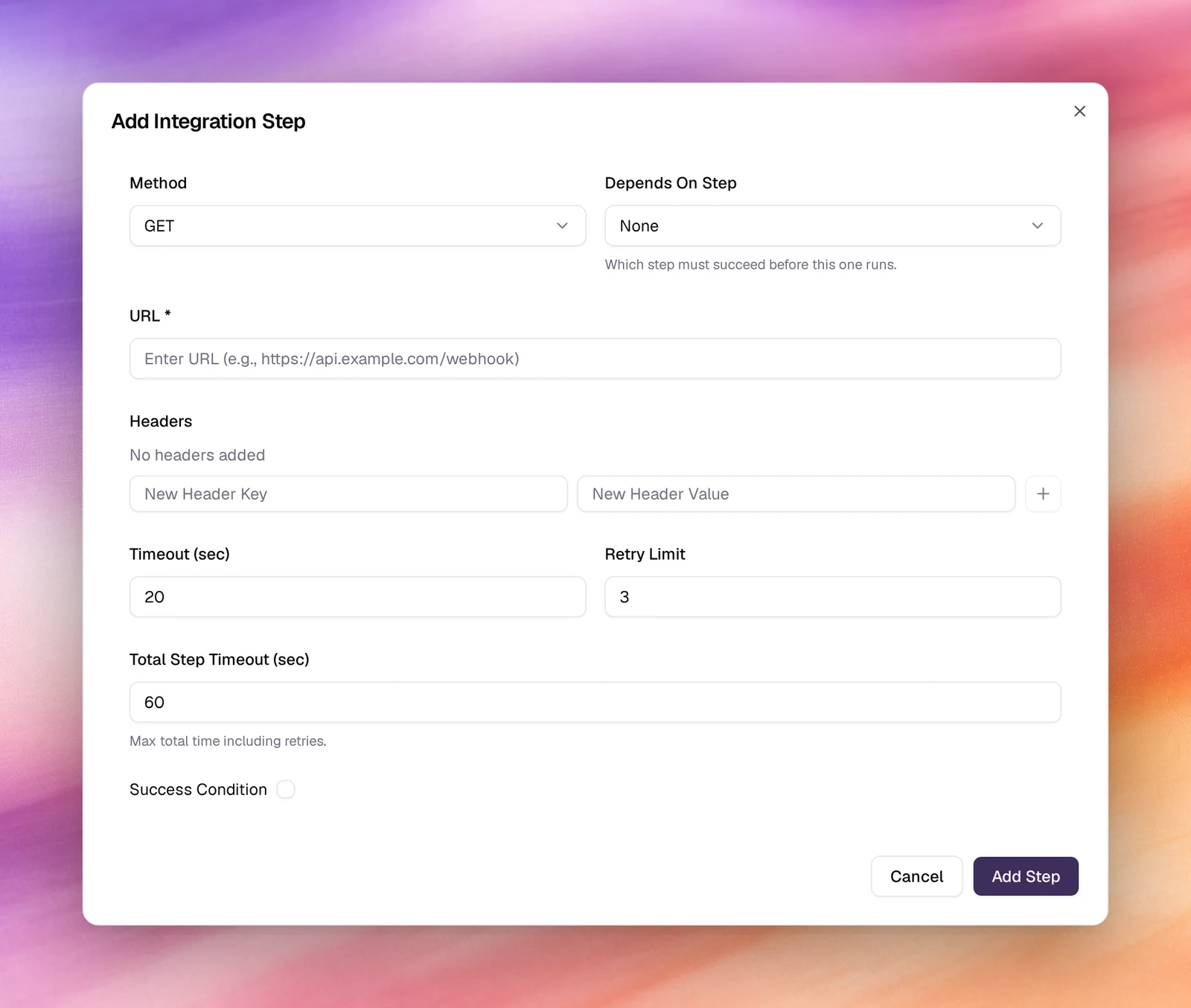
Webhook Steps: Add Step opens Add Integration Step, the same form as an integration step: Method, Depends On Step, URL, Headers, Timeout (sec), Retry Limit, Total Step Timeout (sec) and an optional Success Condition with an expected status code, a response key path and an expected value. The fields are described in Automations.
Custom Variables pass data between steps, exactly as in an integration. A
webhook has no mandatory results variable and no mapping step.
Two buttons close the wizard: Test Flow runs the steps once so you can check the response, Save creates the webhook.
Verify
- The webhook is listed under Automations with the Outbound filter.
- Test Flow returns the status code you expected. It is also in the webhook row’s actions menu under Automations, next to View History, which opens Integration History Logs with the result of every run.
Troubleshooting
- Add is disabled next to a header. Both the key and the value are required before Add activates.
- The step times out. Raise Timeout (sec) for a slow endpoint, and make sure Total Step Timeout (sec) still covers every retry.
- A template’s call returns 401.
{{access_token}}is not set: connect the system under Connections or replace the variable’s value with a token.