

Campaign details
The campaign list and a campaign's page: statuses, call counters, its Overview, Dashboard, Call Logs, Advisor and Settings, and the actions on it.
Voice agentsLaunch AI Voice, at /campaigns, lists every campaign in the workspace, and
each campaign has a page at /campaigns/<id> with its counters, configuration and
calls.
The list
Four tiles count Total Campaigns, Running Campaigns, Scheduled Campaigns and Completed Campaigns. Below them a search box, an All, Outbound, Inbound switch and a Filter by status select narrow the cards.
Each card shows the status and type, the campaign name, its description if it
has one, the Agent with a View Agent link, the Number, the
Schedule (a window and zone, as in 9:00–17:00 Europe/Paris, or Anytime)
and the Audience as a tag count. Inbound cards show only the agent and
number. View Details opens the page, and a stopped or draft campaign
also shows Edit. The card menu has Pause or Resume where it applies, and Archive.
Statuses
| Status | Meaning |
|---|---|
draft |
Created without everything it needs to run, such as a number. |
scheduled |
Complete, waiting for its start date or calling window. |
running |
Dialling, or answering, now. |
stopped |
Paused by you. Resume on the page continues it. |
done |
Every contact in the audience has been handled, or the end date passed. The status filter calls it Completed. |
archived |
Hidden from the default list. Filter by Archived to see it. Unarchive restores it as draft. |
The campaign’s page
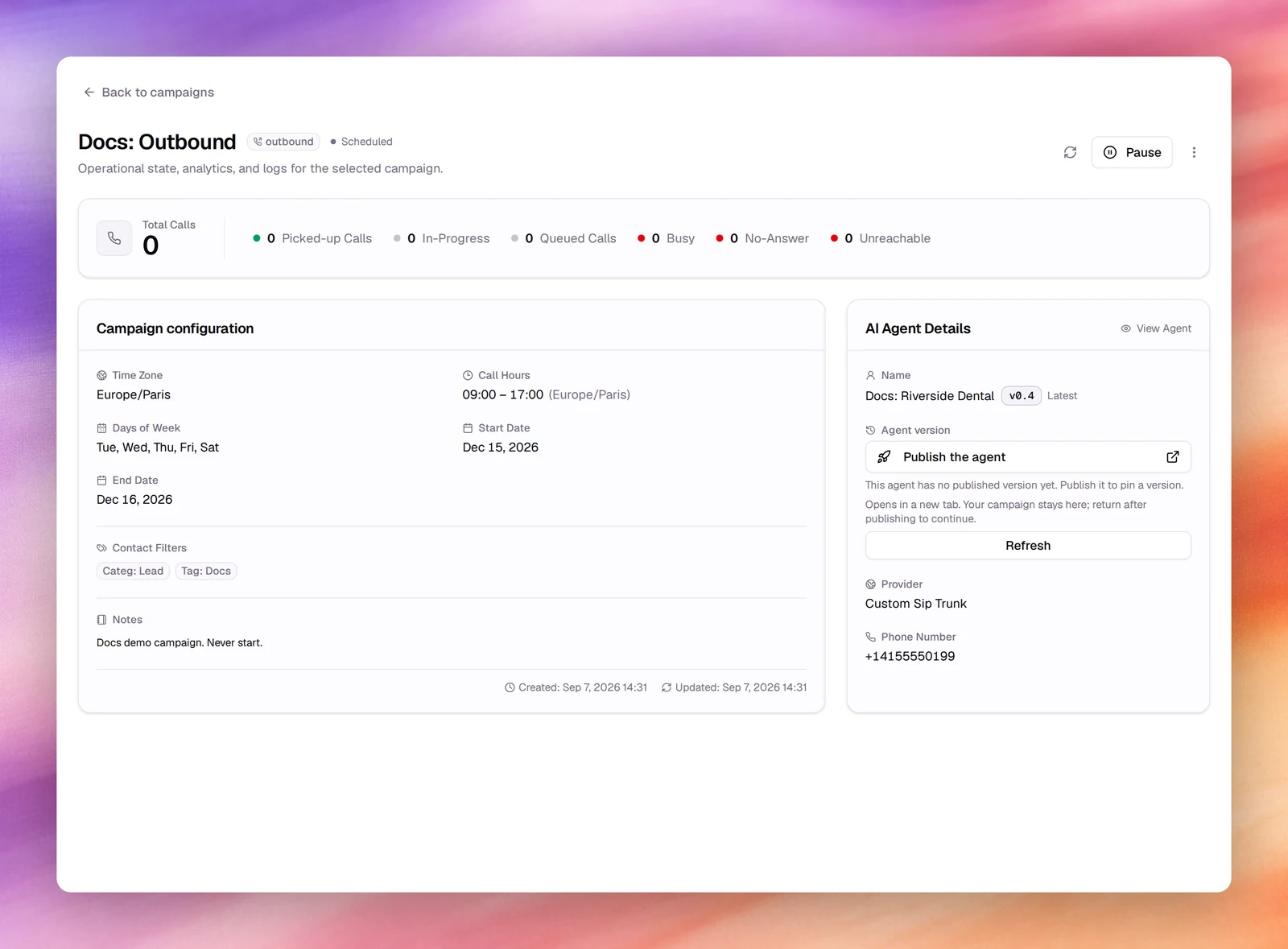
Opening a campaign swaps the main sidebar for the campaign’s own. At the top, a card shows the campaign’s Name, Type and Status under a Back to campaigns link. Below it the sections are grouped:
| Group | Section | Address |
|---|---|---|
| Overview | /campaigns/<id> |
|
| Monitor | Dashboard | /campaigns/<id>/dashboard |
| Monitor | Call Logs | /campaigns/<id>/call-logs |
| Improve | Advisor | /campaigns/<id>/advisor |
| Configure | Settings | /campaigns/<id>/settings |
Every section sits under the same header and counters. Back to campaigns
above the header also returns to the list. The header carries the name, its
type and status, and the line Operational state, analytics, and logs for the
selected campaign. Its actions are Edit (only on a stopped or draft
campaign), a refresh button, Pause while the campaign is scheduled or
running (Resume once it is stopped), and a menu with Archive.
A band of counters follows: Total Calls, then Picked-up Calls, In-Progress, Queued Calls, Busy, No-Answer and Unreachable. Picked-up is the number that reached a person or a machine; the last 3 are the ones retries act on.
Overview
Campaign configuration lists Time Zone, Call Hours (with the
equivalent in your local time when your zone differs), Days of Week, Start
Date and End Date when set, Contact Filters (the selected tags and
categories, as Tag: Renewal and Categ: Customer), Notes (the
description) and the created and updated timestamps. AI Agent Details shows
the agent’s Name with a View Agent link and its version, marked
Latest or Pinned, the number’s Provider and the Phone Number.
With permission to update campaigns, an Agent version picker there pins the
campaign to a published version, or back to Follow latest published; the
change saves at once.
Dashboard
Charts of this campaign’s calls over a date range that starts at the last 7 days. The default layout has Total Calls, Avg Call Duration (sec), Success Rate and Total Talk Time (min), then Call Duration Over Time, Success Counts Over Time, Disconnection Reasons and AI Agent Outcomes. Some charts link through to Call Logs with the matching filter applied.
Above the charts, Build this dashboard with AI offers to lay the dashboard out from the agent’s post-call outcomes. Generate AI Dashboard replaces the charts with ones built for this campaign; the agent needs post-call outcomes, or a notice, No Outcomes Defined, says so. A generated dashboard is marked AI Dashboard Active, and Reset Dashboard returns to the default layout; you can generate again at any time.
If your role can export calls, the Export menu has Export Call Logs, the calls in the selected range as a CSV file, and Export Report as PDF, the dashboard for that range as a PDF report.
Call Logs
The same table as the global Call logs, limited to this campaign: Date, From, To, Direction, Duration, Status and Details, with a search box, a Date Range select, Status and Direction filters and Add filter. Open a row for the transcript, recording and outcomes; see Call details.
Advisor
Automated checks and recommendations for this campaign: misconfigurations and best-practice findings, grouped as Errors, Warnings, Suggestions and Ignored. Re-check runs the checks again. On a finding, Fix it, where offered, opens Atlas with a prompt to fix it, ready to send, and Ignore dismisses it. With nothing to report the section shows Everything looks healthy.
Settings
Where a campaign is edited. The name at the top is renamed in place: click it, type at least 3 characters, press Enter. A side list picks what to edit: Campaign info, Schedule, Contact filters, Agent variables and Webhook on an outbound campaign, Campaign info and Webhook on an inbound one. Each section holds the wizard’s fields with the current values and its own Save, enabled once something in it changes. Contact filters adds a Contact Preview with the total and the first 10 contacts.
Only a stopped or draft campaign can be changed. On any other the section says
This campaign is read-only. Only stopped or draft campaigns can be edited. and
every field is disabled.
Edit
Edit is offered only while the campaign is stopped or draft, on its card
and in the page header; pause a running campaign first. It opens the campaign’s
Settings section. There, Agent variables maps the agent’s dynamic variablesDynamic variableA placeholder in the prompt, such as {{customer_name}}, filled per conversation.See the glossary
to contact data and Webhook picks a post-call automation; an inbound
campaign’s Campaign info also holds Timezone, Queue and Sync with
contact. Edits to the audience or window take effect on the next call, not on
calls in progress.
Verify
- After a change, the Campaign configuration card shows the new values and Updated moves.
- Counters add up: Picked-up Calls plus Busy, No-Answer and Unreachable approach Total Calls as calls finish.
Troubleshooting
- The card says
No number assignedand the status isdraft. The number was deleted or never set. Edit, pick an Outbound Phone Number, save. - There is no Edit button, or Settings is read-only. The campaign is
scheduledorrunning. Pause it, then Edit. - Resume does nothing. The campaign is outside its window; it resumes at the next Call Time.
- An archived campaign is missing. Set Filter by status to Archived.