

Connect a Go Auto Dial extension
Register an extension from your Go Auto Dial server so a Callab AI agent can take the calls that dialler delivers to it.
Voice agentsGo Auto Dial connects an extension on your Go Auto Dial server. The dialler keeps its own campaigns and lists; the extension is where it delivers calls, and the agent answers on that extension.
Add the extension
Choose the type
Under Phone Numbers, choose Add Phone Number, then Go Auto Dial.
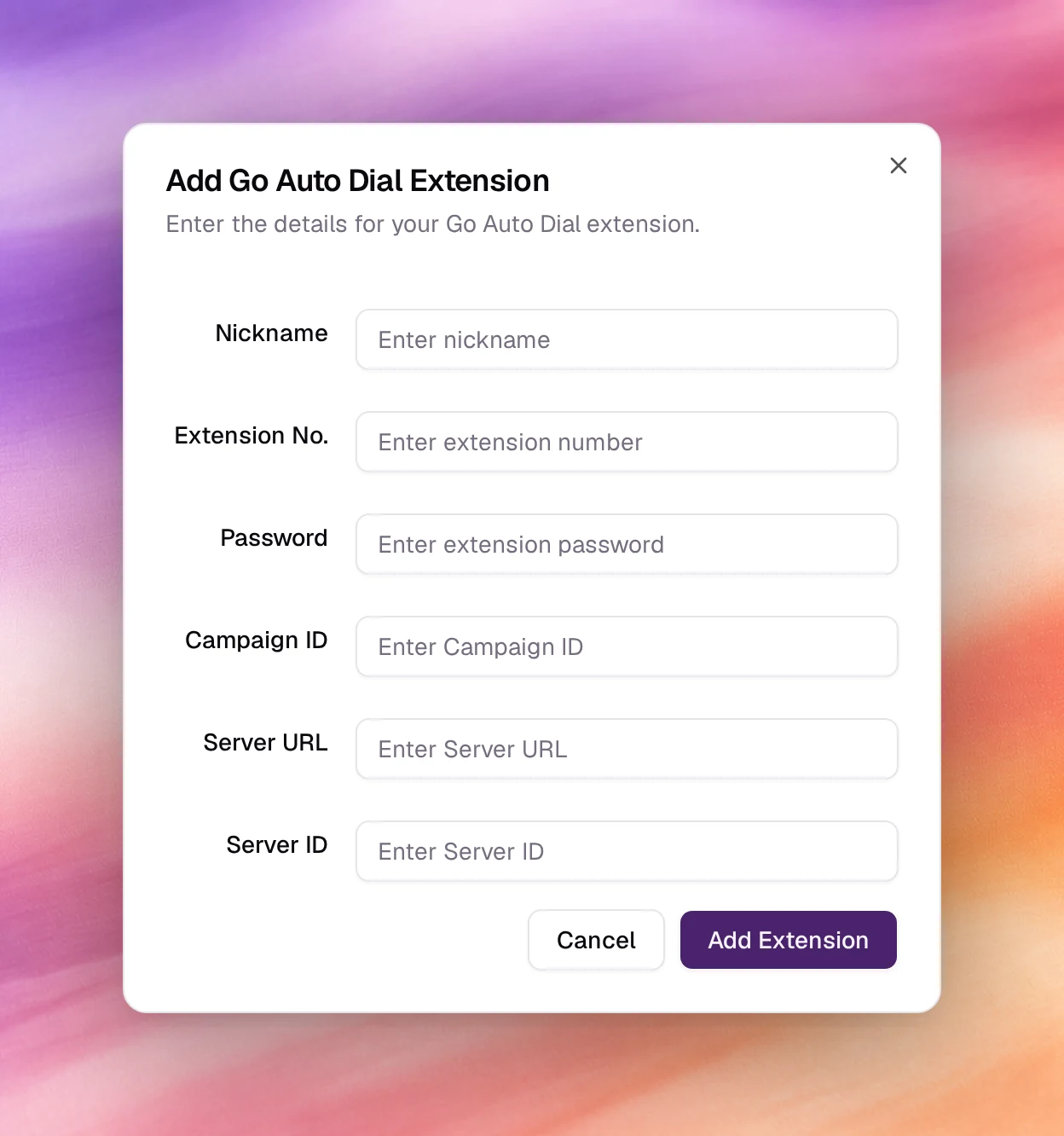
Fill in Add Go Auto Dial Extension
Enter a Nickname, the Extension No. and its Password, the Campaign ID of the Go Auto Dial campaign, and the Server URL and Server ID of your installation.
Add
Choose Add Extension.
Fields
| Field | Notes |
|---|---|
| Nickname | Shown in lists and campaign pickers. Up to 30 characters. |
| Extension No. | The extension the dialler delivers calls to. |
| Password | That extension’s SIP password. At least 4 characters. |
| Campaign ID | The Go Auto Dial campaign whose calls this extension receives. |
| Server URL | The address of the Go Auto Dial server, as a full URL, for example https://dialer.example.com. |
| Server ID | The server’s id in your installation. |
Behaviour and limits
- The extension appears under Phone Numbers like any number and is chosen in the campaign wizards the same way.
- To change the extension later, open its page and choose Edit. Edit Go Auto Dial Extension takes the same fields; Update Extension saves them.
- Dialling pace, lists and retries stay in Go Auto Dial. Use a Callab AI outbound campaign instead when you want those controlled here.
Verify
- The extension is listed with Status
active. - Have the dialler route one call to the extension. It appears in Call Logs with the agent’s transcript.
Troubleshooting
- The extension never registers. Check the password and that the server URL is reachable from the internet.
- Calls arrive but nobody answers. The extension has to be selected by a running inbound campaign.