

Testing in the browser
Talk or type to an agent from its workspace before it touches a phone number: the Chat and Call sections, the transcript, the phone test and the microphone.
Every agent can be tested from its workspace without a phone number. Chat runs the prompt as a text conversation; Call puts you on a live voice call through the browser; Phone test rings your own phone from one of your numbers. All three are under Testing in the workspace sidebar and use the agent as it is saved right now.
Chat
Chat tests a text agent in writing: the same prompt, model and tools a deployment would use, without deploying anything. It exists on text agents only; a voice agent is tested with Call.
Open Chat
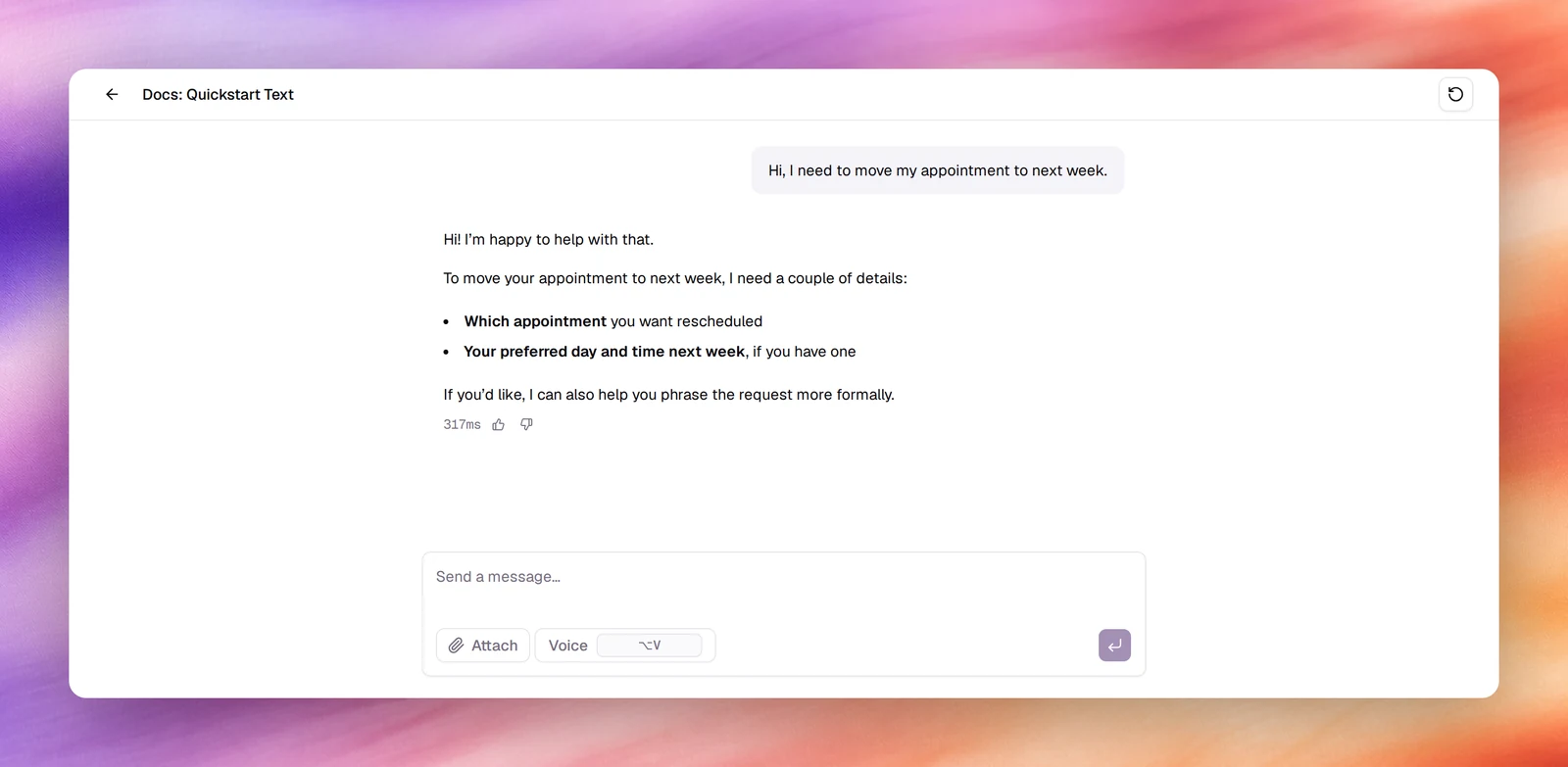
In the workspace sidebar, under Testing, choose Chat. The page opens on How can I help? and Start a conversation by sending a message., with a row of suggested prompts to start from.
Send a message
Type in Send a message… and press Enter, or choose one of the suggestions. The person always writes first on a text agent. Attach adds a file to the message, and Voice (⌥V) records a voice message that is transcribed before it is sent.
Keep going, or start over
The conversation continues until you leave the page. New chat clears it and starts again, which is the way to retry a change to the prompt.
Rating replies
Each reply can be rated Helpful or Not helpful. Choosing Not helpful asks What didn’t land?, and the note you leave is what the platform uses to draft a fix: it arrives as a change requestChange requestA prompt change drafted by AI from thumb-down feedback, shown under Change Requests to review, edit and accept. Accepting creates a new revision.See the glossary under Improve within a minute or so. Say what the agent should have done, not only that the reply was wrong. See Change requests.
Call
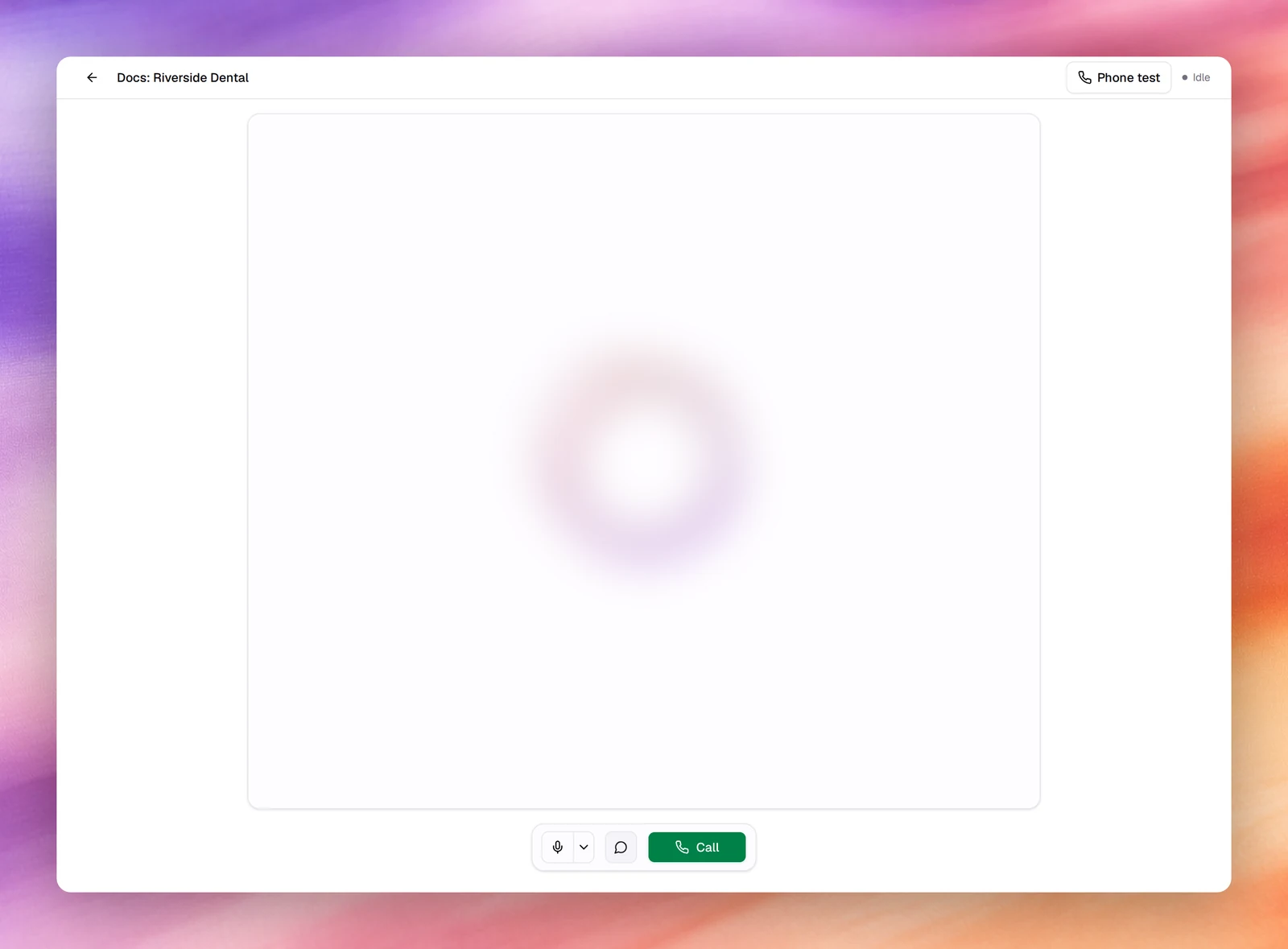
Voice agentsCall is a real voice conversation over the browser: the agent’s voice, its turn detection and its tools all run as they would on a phone call, so this is where you hear pacing and interruptions. The header shows Phone test and the call state, Idle before you start; the 4 controls sit in the bar under the visualiser.
| Control | What it does |
|---|---|
| Call | Starts the call. The first time, the browser asks for the microphone. Becomes End call while a call is running. |
| Toggle mute | Silences your microphone without ending the call. Useful to hear how the agent handles silence. |
| Select microphone | Picks the input device. Disabled until the browser has granted microphone access, because the device list is empty before that. |
| Show Transcript | Shows or hides the live transcript beside the call. On by default. |
Open Call
Under Testing, choose Call.
Start the call
Choose Call and allow the microphone when the browser asks. The state moves from Idle to connected, and the agent speaks its first messageFirst messageWhat the agent says when it speaks first.See the glossary if it is set to speak first.
Talk, then end
Answer out loud. Interrupt the agent mid-sentence at least once; that is the quickest test of the turn detectionTurn detectionHow the agent decides the caller has finished speaking and it is its turn.See the glossary settings in Turn detection. Choose End call when you are done.
Phone test
Phone test, at the top of the Call section, has the platform call your own phone from one of your numbers. It is the only browser test that goes through a carrier, so it is the one that proves the number, the trunk and the audio path, not just the prompt.
Open the dialog
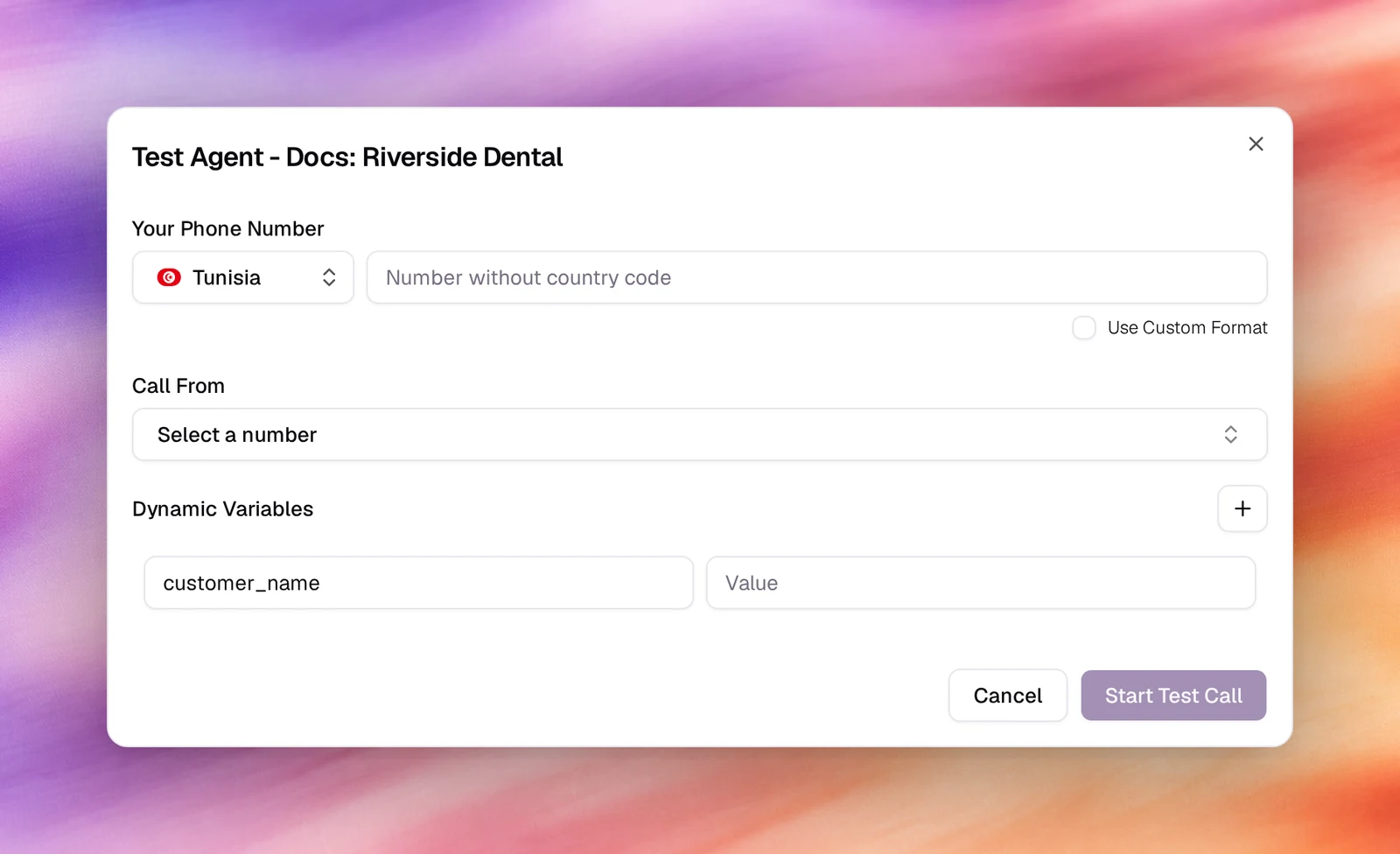
Choose Phone test. The dialog is titled Test Agent - agent name.
Enter your number
Pick your country, then type Your Phone Number without the country code. Tick Use Custom Format if your number does not fit the national pattern and enter it exactly as it should be dialled.
Choose the number to call from
Call From lists your active phone numbers by nickname, with a search box. The one you pick is the caller id you see on your phone.
Set variables if the prompt uses them
Dynamic Variables starts with the agent’s own variables. Add dynamic variable adds a key and value, so you can give each placeholder in the prompt a value for this one call, the way a campaign would from a contact. See Dynamic variables.
Start the call
Choose Start Test Call. Your phone rings within a few seconds; answer it and the agent begins.
Phone tests are billed like any other call from that number.
Verify
- Every browser call and phone test appears in Call Logs within a few seconds. Browser calls show WEB as both numbers; phone tests show the number you called from and your own.
- Open the call for the recording, the transcript, the summary and the captured outcomes. See Call details.
- Chat tests are listed under Conversations.
Troubleshooting
- Select microphone is greyed out. The browser has not granted microphone access yet. Choose Call once and allow it; the device list fills in.
- The agent talks over me or waits too long. Those are the turn detection and voice activity settings under Advanced, not the prompt. See Turn detection.
- The test does not reflect my latest edit. The agent was not saved. Choose Save, then start a New chat or a new call.
- Start Test Call is disabled. Either Your Phone Number is empty or no number is selected under Call From.
- A colleague’s shared link shows “Access denied”. The browser call page at
/agents/try/<id>is private unless the agent is shared. Use Share agent in the workspace header; see Share link.