

Quickstart: your first text agent
Create a text agent, choose its model, chat with it, and get the one-line embed code for your website. About five minutes.
A text agent answers in writing: on a web page through the widget, or in Slack, Telegram, Microsoft Teams, WhatsApp and Discord through a deployment. This page creates one and ends with the embed code for a website.
Create the agent
Open the wizard
In the sidebar choose AI Agents, then Create Agent.
Choose text, then a single prompt
Pick Text Agent, then Single Prompt Agent.
Start from scratch
Choose Start from scratch. The agent is created at once, named New Text Agent, and opens in its workspace. There is no voice step: a text agent has a model instead of a voice.
Name it and pick a model
Rename it
Under General, replace the name with your own and add a one-line Description. Set Language to the language your customers write in.
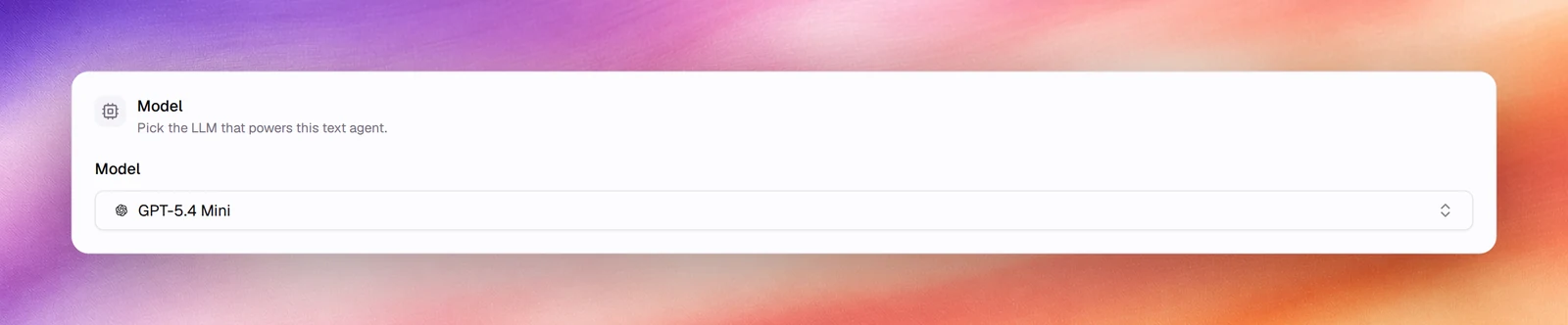
Choose the model
Under Model, pick the LLM that answers, for example GPT-5.4 Mini. The choice can be changed at any time.
Write the prompt and save
Fill Agent Identity, Tasks and Guardrails as in the voice quickstart, then Save.
Chat with it
Under Testing, choose Chat. Type a message and send it. The reply streams in, and each turn shows its response time.
Get the embed code
Open the widget
Under Release, choose Widget. The configurator shows a live preview on the right; the presets and the Layout, Avatar, Text, Colors and Features panels change it.
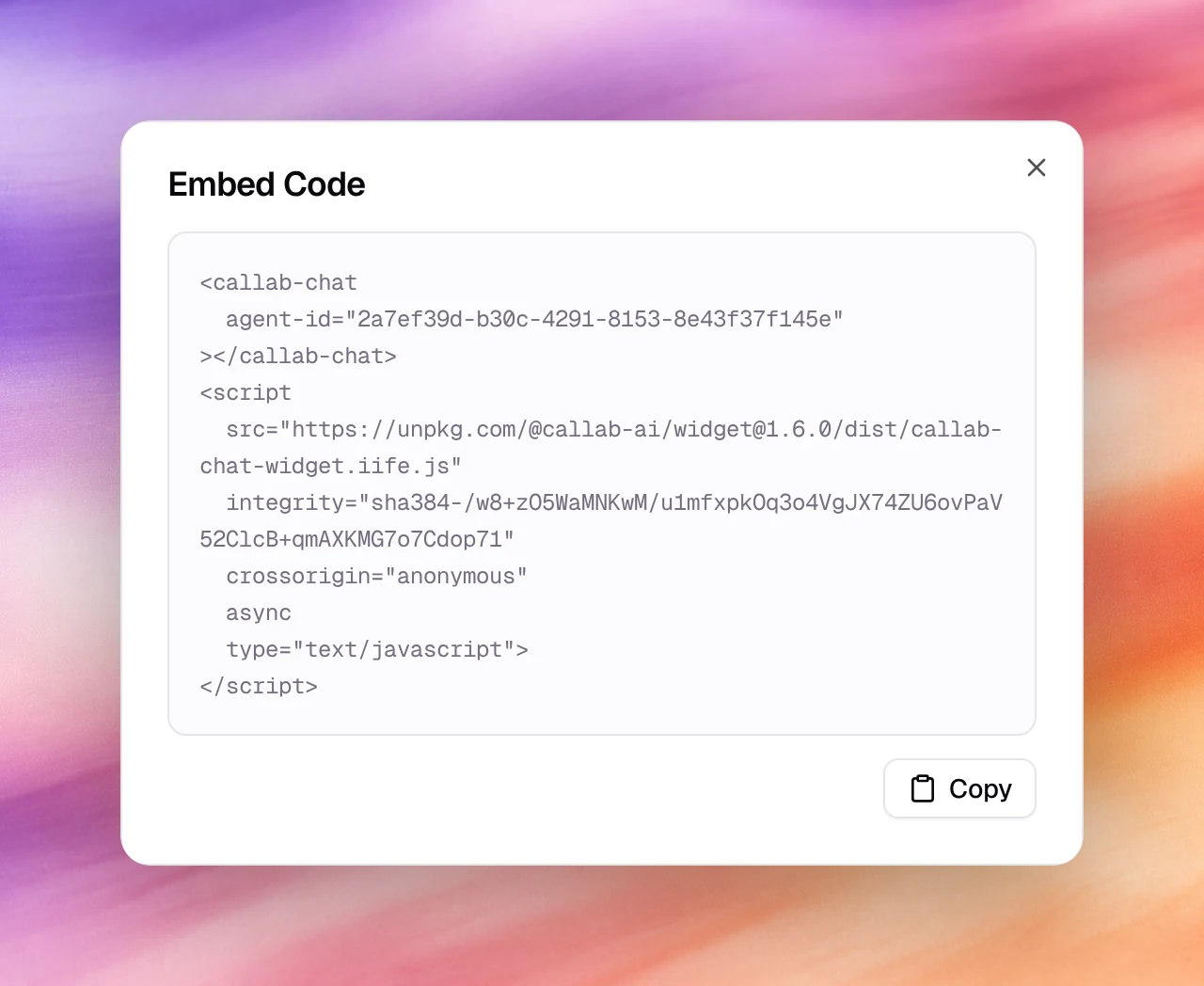
Copy the code
Choose Embed Code, then Copy. It is one custom element and one script
tag. Paste it before the closing body tag of any page.
Make the agent public
An embedded agent has to be reachable without signing in. Choose Share agent at the top of the workspace, then turn on Agent Visibility.
Verify
- Conversations in the main sidebar lists the chat within a few seconds: the agent, the channel (Web), turns, tokens and status.
- Open it to read the thread, the model that answered and the token usage per turn.
Troubleshooting
- The widget loads but the agent does not answer. The agent is still private. Turn on Agent Visibility under Share agent.
- The reply says the model does not exist. The agent still has the model it was created with. Pick one under Model and save.
- The reply is in the wrong language. Set Language under General, and say so in Guardrails as well.