

Outcomes
Structured fields the agent fills once a conversation ends, defined under Outcomes and shown on every call and as columns in Call Logs.
An outcome is a field extracted from a conversation after it ends: a reason for calling, an interest level, a follow-up date. You define the fields once under Outcomes; every call and conversation then carries a value for each, on the call’s page and as a column in Call Logs.
How it works
Outcomes are post-call extraction: once the conversation ends, the model reads the transcript and fills every defined field. A field with Possible Values is constrained to that list; a field without them is free text. Nothing is asked of the caller; the agent does not know the fields exist.
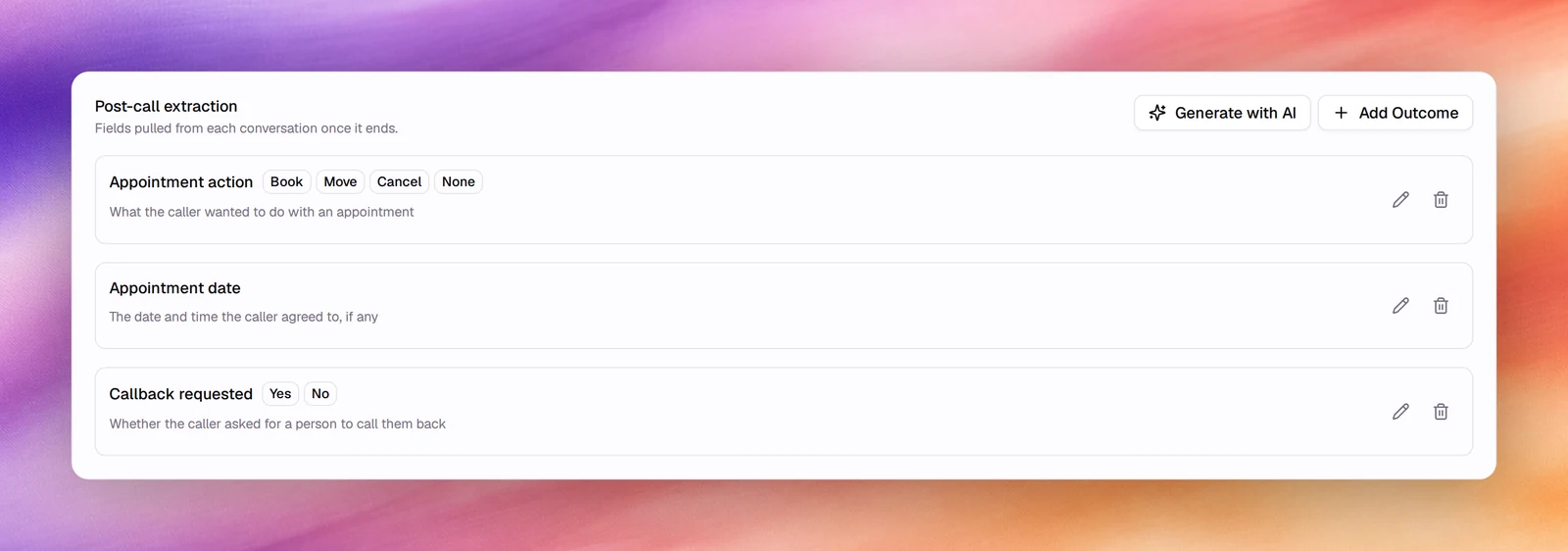
Add an outcome
-
Open the agent and choose Outcomes under Build. The fields are listed under Post-call extraction.
-
Choose Add Outcome (Add Manually while the list is empty). A form opens above the list.
-
Fill it in:
Field Meaning Variable Name The key, such as customer_intent. Used as the column name in Call Logs and in webhook payloads.Label Optional. A human-readable name shown in place of the key. Description What the model should look for, such as Reason for calling. This is the instruction; write it as one.Possible Values (optional) Type a value and press Enter; each value gets a row with an optional Label. With values set, the result is always one of them. Enable Notifications Sends an email when this outcome is captured. Notify To takes the address; Notify When Value Is (optional) limits it to one of the possible values, so add values first to use it. -
Choose Add Outcome in the form, then Save the agent.
Edit on a card reopens the same form; Delete removes the field from future conversations only. Past calls keep their values.
Generate with AI
Generate with AI reads the agent’s prompt and proposes a set of outcomes that fit it. On an empty list it generates straight away. Once outcomes exist, the dialog Generate outcomes with AI asks whether to Append them to the existing list or Replace it. Names must be unique: a generated outcome whose name is already taken is marked Duplicate, and the agent cannot be saved until it is renamed or removed. Review the result before saving: generated descriptions are a good start and generated value lists are often longer than you want.
Behaviour and limits
- Outcomes run for every ended conversation of the agent, in browser tests as well as real calls, and for text agents as well as voice.
- Keys become Call Logs columns automatically. Toggle them under Columns.
- A description that asks two questions yields unreliable answers. One field, one question.
- The built-in outcome card on every call (Task status, Sentiment, Disconnect reason) is separate and always present.
- Outcomes are read from the stored transcript. With Data Storage Preference on Opt-Out of Data Storage the transcript is deleted after 24 hours, and the values go with it.
Verify
Run a Chat or Call test that touches the topic, end it, then open the conversation under Call Logs or Conversations. The outcome values appear under Outcome on the call’s page and in the matching columns of the list.
Troubleshooting
- The value is empty. The conversation did not contain the information, or the description does not say what to look for. Rewrite the description as an instruction.
- The value is not one of my options. Add Possible Values; free-text fields answer in the model’s own words.