

Members
Invite people to your company, set each one's role and permissions, and see who is active. Settings > Members.
Settings > Members lists everyone in the company and lets an owner or admin add and manage people. Members are company-wide: a member sees every workspace, switching with the selector at the bottom of the sidebar.
The Users list
Each entry shows the person’s name, their role, their email, the date they joined, their phone number if they gave one, and their status: Active, Inactive for a disabled member, or Blocked. Use Search users… to filter a long list.
Roles
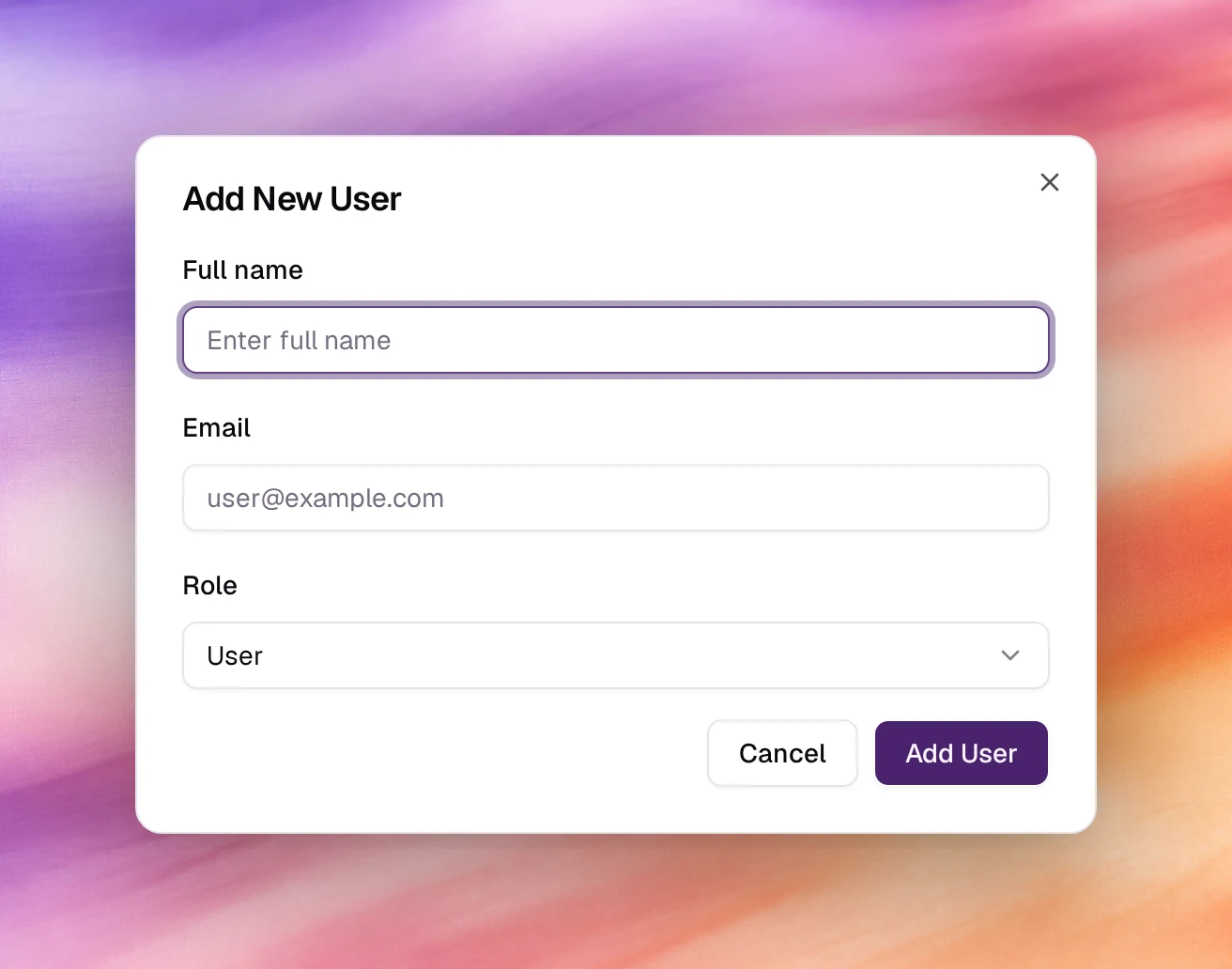
Three roles are offered when you add a user or change a role: User, Agent and Owner. User is the default in the Add New User dialog. Choosing Owner shows the app’s note that owners have full access to the workspace, including billing and team management. The list can also show Admin or Organisation Admin for members who hold those roles; like owners, they see every settings page.
An Agent works only in Human Agent mode, the console for supervising live calls; signing in opens it directly.
Each role comes with a default set of permissions. For a User or Agent, you can adjust them one by one; see Manage a member.
Add a user
Open the dialog
Choose Add User at the top of the Users card.
Fill in the person
Full name, Email and Role. The role defaults to User; open the selector to choose Agent or Owner.
Add
Choose Add User. The person appears in the list and receives an invitation at that email.
Manage a member
Open the menu at the end of a member’s row. It is not shown on your own row.
| Action | What it does |
|---|---|
| Reset Password | Sends the member a password reset email, after you confirm with Send Reset Email. |
| Change Role | Switches the member between User, Agent and Owner. |
| Manage permissions | For a User or Agent only. Lists permissions under Features (such as Agents, Knowledge Bases, Campaigns, Phone Numbers, Contacts and Calls) and Settings. Each is marked Default, Added or Removed against the role. Choose Save changes, or Reset to role defaults. |
| Disable User | Stops the member from signing in. Enable User lets them back in. |
Verify
- The new name is in the Users list with the role you chose.
- The person can sign in and sees AI Agents in their sidebar.
Troubleshooting
- The invitee never got the email. Check the address on the list; if it is wrong, add the person again with the right one and ask them to check spam.
- A member cannot see Settings pages you can. Pages such as Members, Billing, Workspaces, Storage and APIs need a permission their role does not grant. Grant it with Manage permissions, or change their role.