

Storage
Keep recordings on your own S3-compatible bucket: the providers, every field of Add Storage, the credential test and how the secret is encrypted.
Settings > Storage connects your own bucket so call recordings and other files are written there instead of Callab’s storage. It works with Amazon S3, Cloudflare R2, Backblaze B2, Wasabi, DigitalOcean Spaces, MinIO, and any S3-compatible provider.
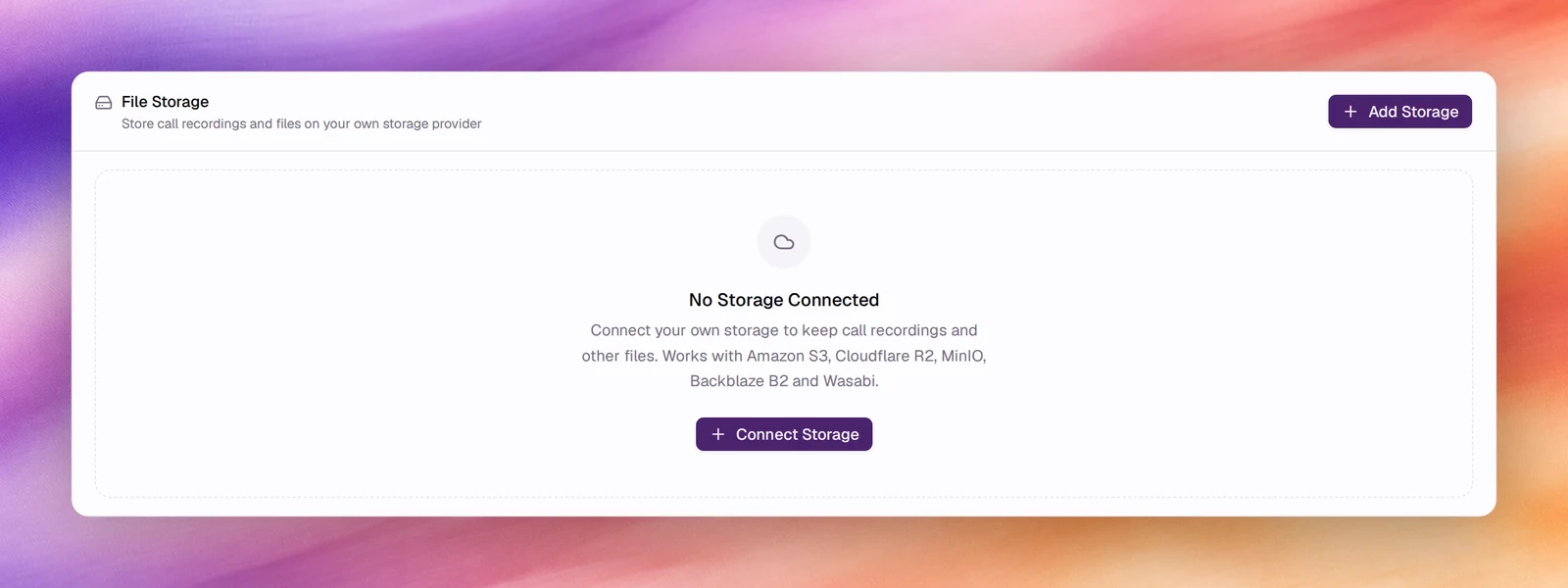
The page opens on File Storage. With nothing connected it shows No Storage Connected and two buttons that open the same dialog, Add Storage and Connect Storage.
Add a storage
You need a bucket and an access key pair with permission to list, read and write it. For a provider other than AWS, you also need its S3 endpoint URL.
Open Add Storage
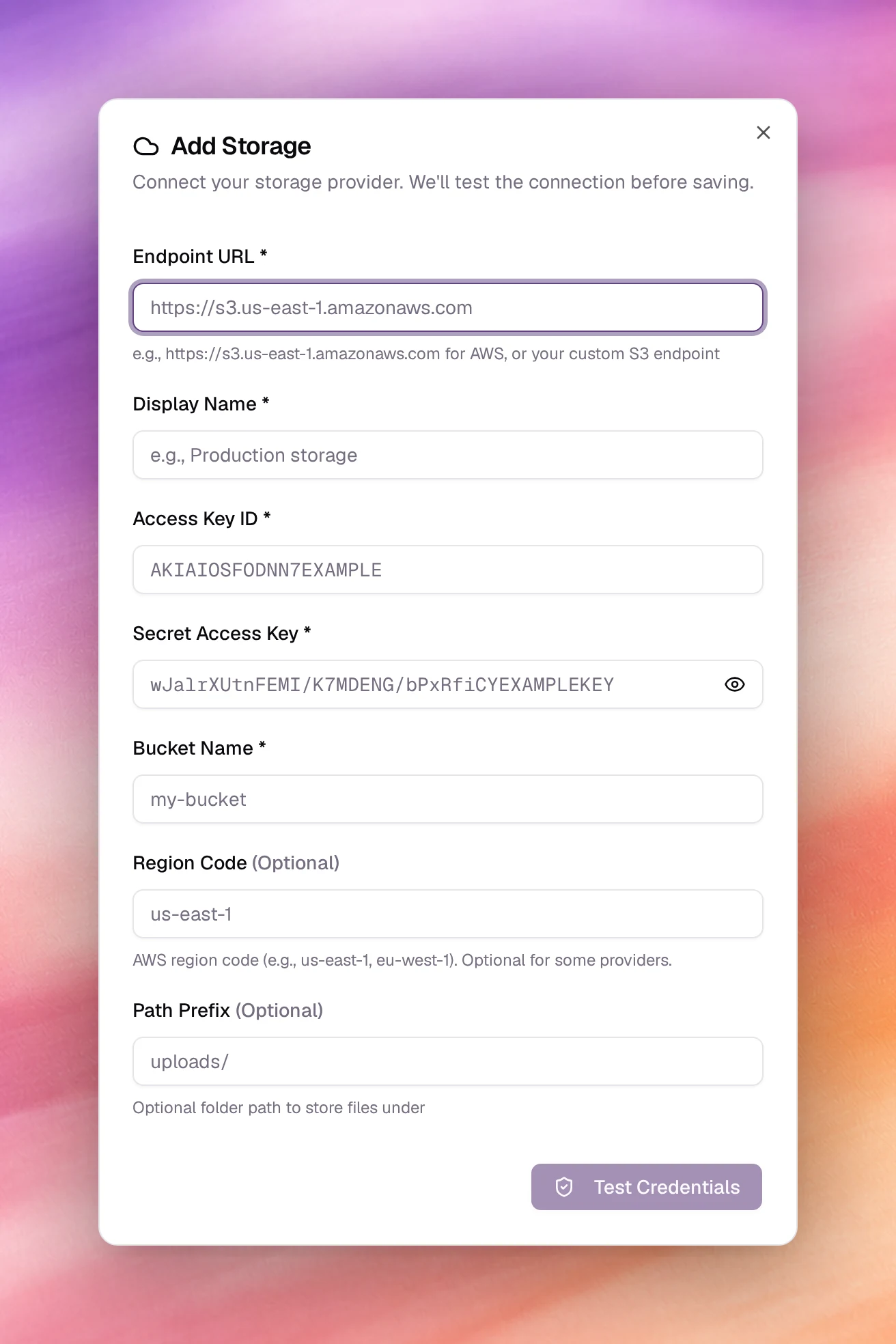
Choose Add Storage. The dialog says the connection is tested before saving.
Fill in the fields
| Field | Required | What to enter |
|---|---|---|
| Endpoint URL | yes | The S3 endpoint, for example https://s3.us-east-1.amazonaws.com for AWS, or your provider’s custom S3 endpoint. |
| Display Name | yes | How the storage is named in the dashboard, for example Production storage. |
| Access Key ID | yes | The key id from your provider. |
| Secret Access Key | yes | The matching secret. A show button reveals it while you type. |
| Bucket Name | yes | The bucket, for example my-bucket. |
| Region Code | no | The AWS region code such as us-east-1 or eu-west-1. Optional for some providers. |
| Path Prefix | no | A folder path to store files under, for example uploads/. |
Test Credentials
Test Credentials is disabled until Endpoint URL, Access Key ID, Secret Access Key and Bucket Name are filled. Choose it; the platform connects to the bucket with what you entered and lists the results under Connection Tests (such as Credentials Valid, Bucket Exists, Bucket is Private and Presigned URLs Work) and File Type Tests. If Some Tests Failed, choose Back to Form, fix the entry and test again.
Save
Once All Tests Passed, choose Confirm & Save; it needs a Display Name. Re-test runs the tests again first. The storage appears on File Storage under its display name.
Manage a storage
Each storage on File Storage shows Verified or Unverified, its provider, bucket, endpoint and path prefix, and three controls:
- Default makes it the default storage for all agents. Only an active storage can be the default.
- Active turns the connection on or off without deleting it.
- Delete removes it, after a confirmation. This cannot be undone.
How the secret is kept
The page states it: your credentials are encrypted at rest using AES-256-GCM, and the secret key is never stored in plain text. Rotate the key at your provider and add the storage again if you suspect a leak.
Verify
- File Storage lists the storage by its display name.
- In an agent’s Advanced section, Storage destination offers it next to Company default.
- After the next call on that agent, a recording object appears in the bucket under your path prefix.
Troubleshooting
- Test Credentials stays disabled. Endpoint URL, Access Key ID, Secret Access Key or Bucket Name is empty. Display Name is needed only to save; region and prefix are optional.
- The test fails. In order of likelihood: the endpoint URL is for another region or has a typo; the key pair lacks write permission on this bucket; the bucket name is wrong or belongs to another account; the provider needs the Region Code filled in. Fix one thing and test again.
- Recordings still land in Callab storage. The agent’s Storage destination is still Company default. Change it under Advanced and save the agent.