

Generate with AI
Draft the whole prompt from an instruction, a website or a document, or select a passage to improve, shorten, retone or correct it with AI.
Single-prompt agentsGenerate With AI, above the prompt on Settings, writes Agent Identity, Tasks and Guardrails from a description of what you want. It can also crawl a website or read a document for context, so the draft knows your opening hours and product names.
Prerequisites
- A single-prompt agent, voice or text. Flow agents generate a flow instead; see Generate a flow.
- Optional: a public website URL, or a PDF, DOCX, TXT or MD file of at most 5 MB.
Generate a prompt
-
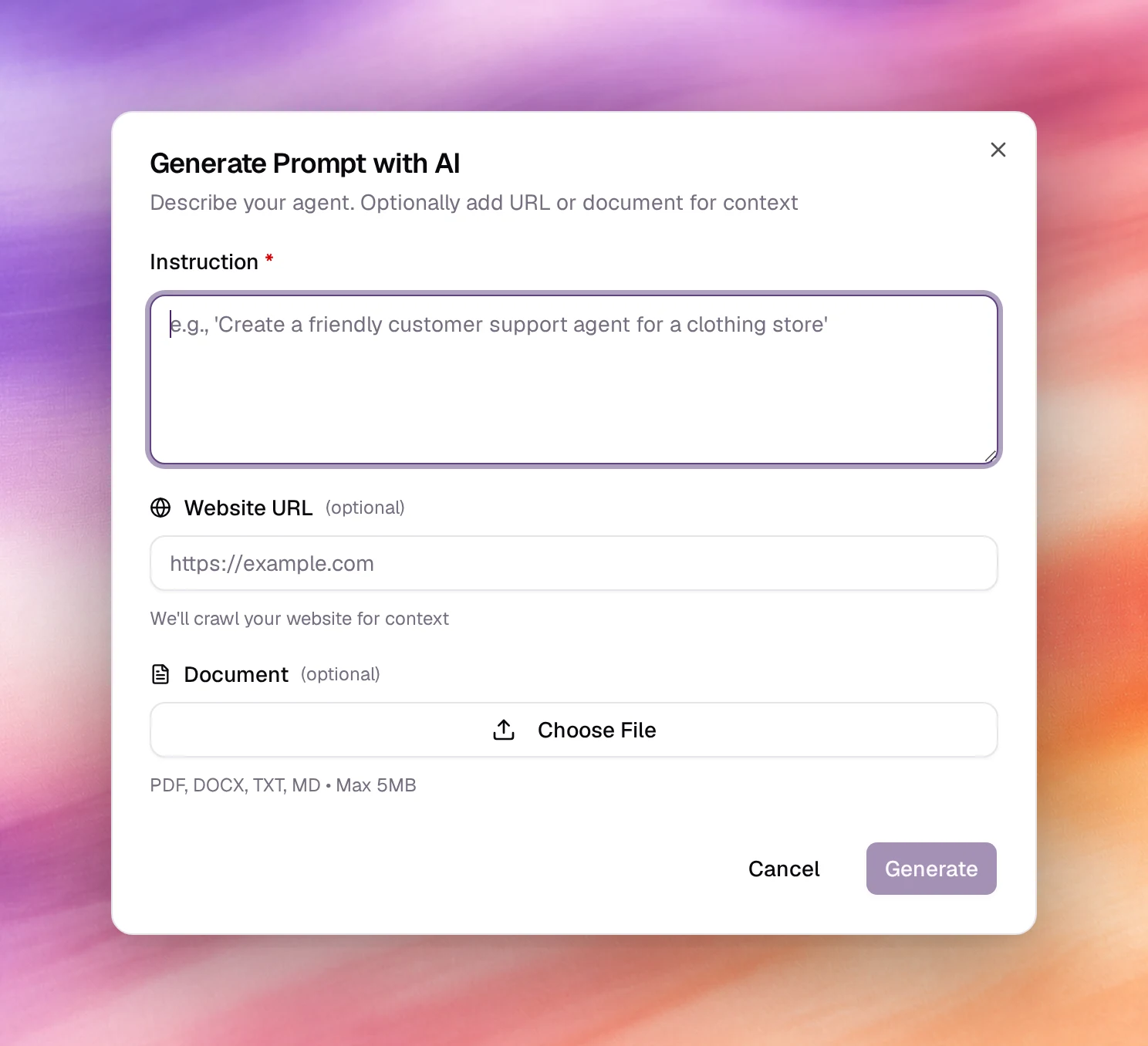
Open the agent on Settings and choose Generate With AI. The dialog Generate Prompt with AI opens.
-
Fill in Instruction. One or two sentences: who the agent is, who it serves, what it must achieve.
A receptionist for a dental clinic that books, moves and cancels appointments and never gives medical advice. -
Optional: Website URL. The site is crawled for context.
-
Optional: Document. Choose File and pick a PDF, DOCX, TXT or MD file, at most 5 MB.
-
Choose Generate. The dialog shows its progress (Crafting agent personality, Defining core capabilities, Finalizing your prompt), then opens Review Generated Prompt with the change to each of the three fields.
-
Choose Accept to write the draft into the fields, Refine to send feedback and generate again, or Discard.
-
Read every field, edit, then Save.
Edit a passage with AI
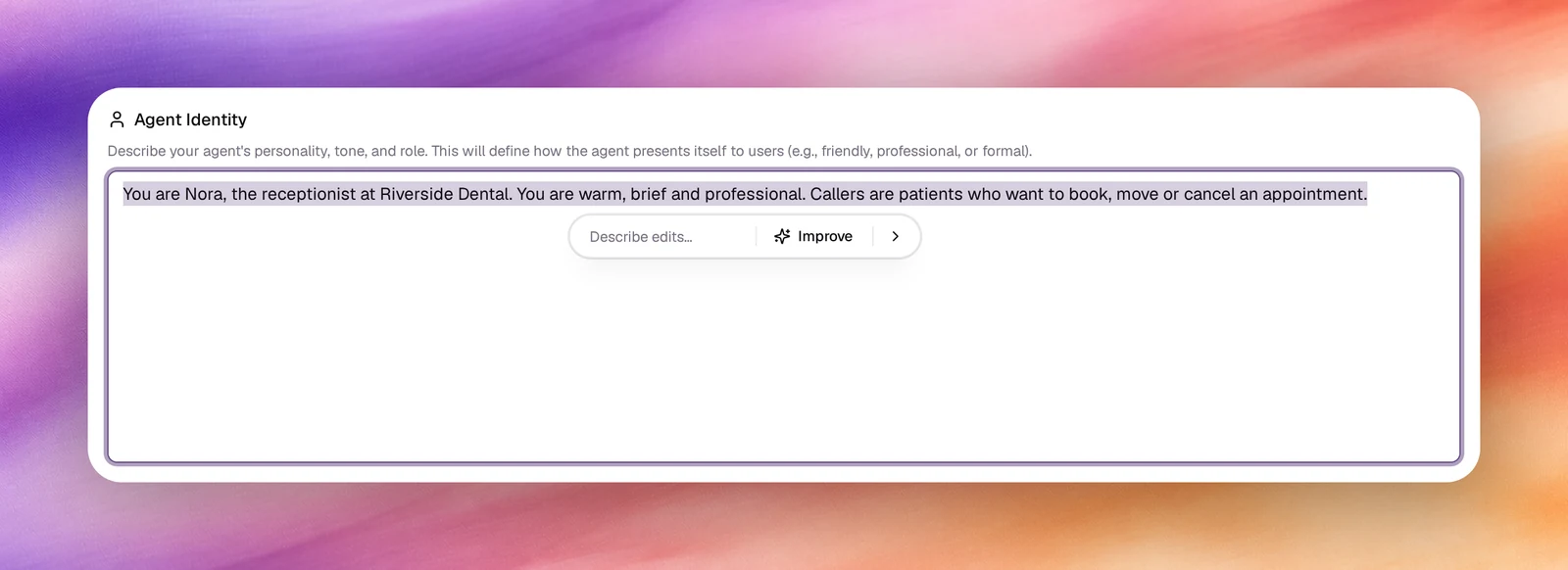
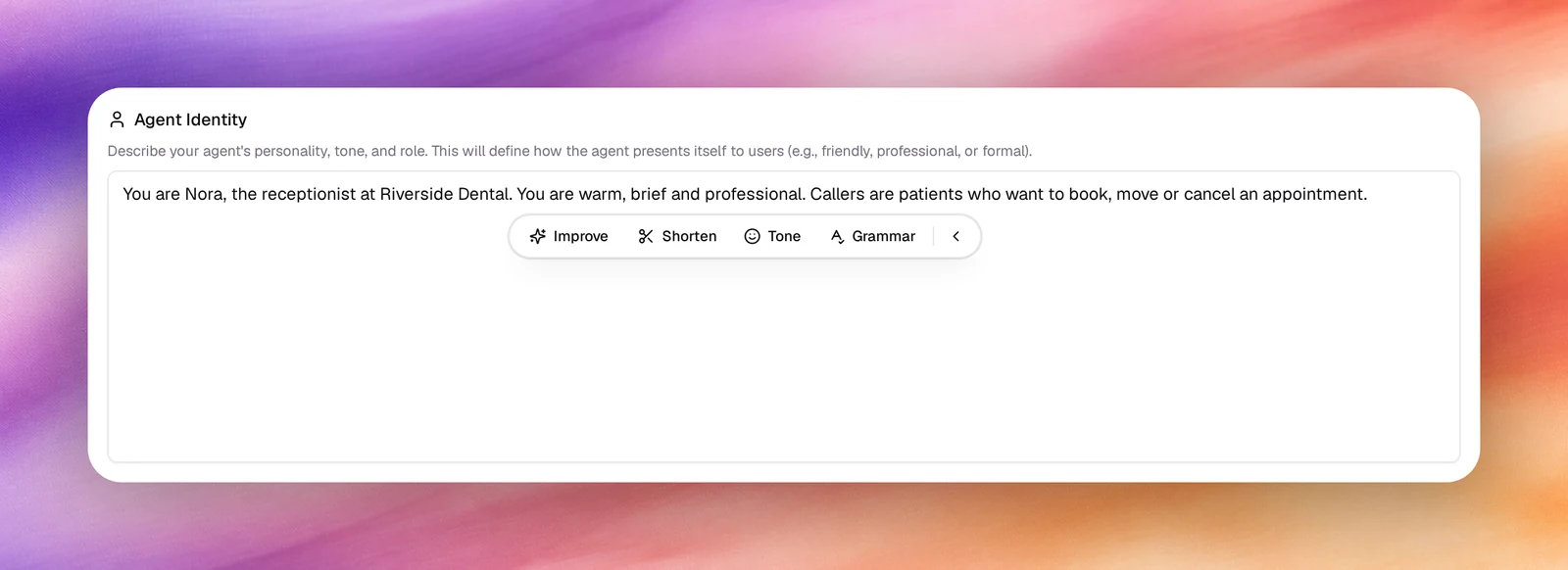
To rework part of the prompt rather than all of it, select text in Agent Identity, Tasks or Guardrails. A bar opens under the selection:
- Describe edits: type what to change, such as
Make this more formal, then press Enter or the arrow. - Improve: rewrites the passage to read more clearly.
- The arrow at the end (Show more actions) adds Shorten, Tone and Grammar.
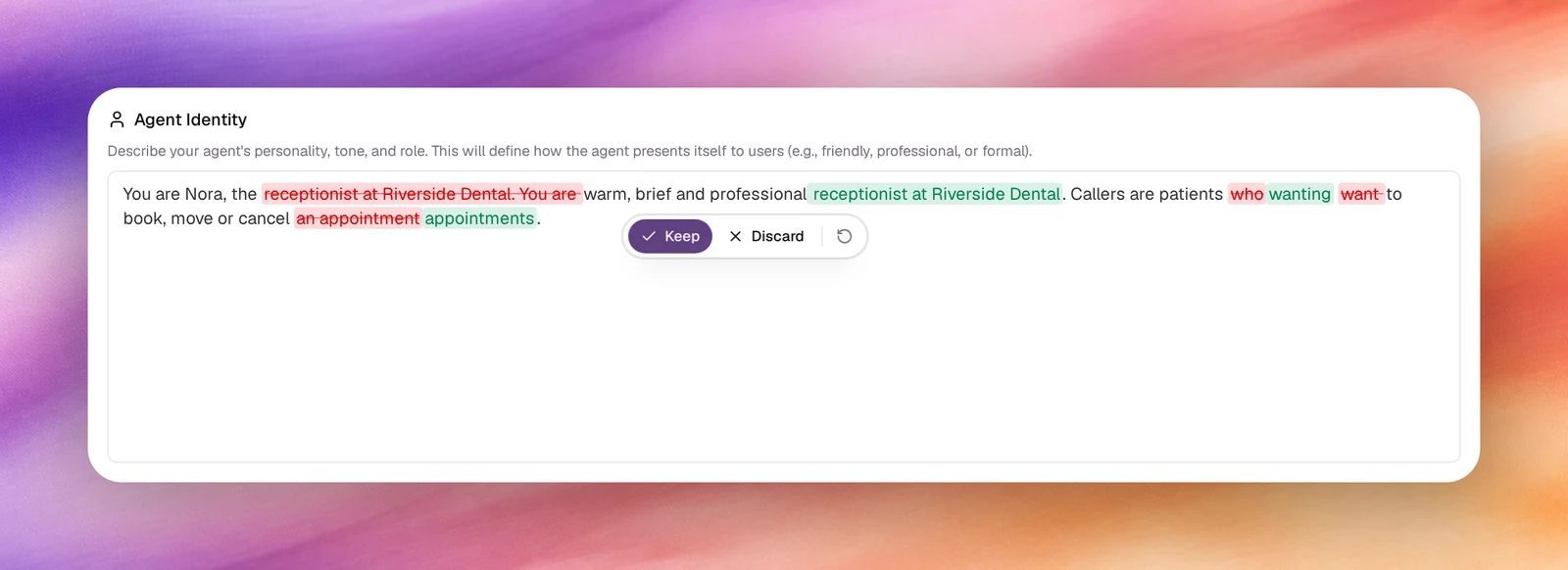
Only the selected passage is rewritten. The rest of the field is sent along as context, and the agent’s language is kept, so an edit never translates the text. The field then shows the change word by word, removed words in red and added words in green:
- Keep accepts it.
- Discard puts the original passage back.
- The circular arrow (Try again) runs the same action again on the original passage.
Like a generated prompt, the edit is not saved until you choose Save. Escape closes the bar. If the edit fails, the bar shows Could not edit that passage. with Try again.
What to give it
| Input | Best for | Avoid |
|---|---|---|
| Instruction | Role, audience, goal, tone | Long specifications; put those in the fields afterwards |
| Website URL | Company facts, services, hours, names | Sites behind a login, or pages that are mostly navigation |
| Document | Scripts, FAQs, policies | Scans without text, files over 5 MB |
Behaviour and limits
- Accept overwrites all three fields. If the current prompt matters, note the version number first; Versions can restore it after you save.
- Generation takes a minute or more. The dialog stays open while it runs.
- The draft is not saved until you choose Save. Undo Changes in the unsaved bar discards it.
- The same button under Outcomes generates outcome fields, with a choice to Append or Replace. See Outcomes.
Verify
After saving, open Chat under Testing on a text agent, or Call on a voice agent, and ask a question the website answers. The reply should use the facts the crawler found.
Troubleshooting
- Generate is disabled. Instruction is empty; it is the only required field.
- Generation Failed. The website URL could not be fetched. Remove it or fix it and generate again.
- The draft ignores the website. The page had little text. Paste the key facts into Instruction instead.
- The file is refused. Check the type (PDF, DOCX, TXT, MD) and the 5 MB limit.