

Connect a SIP trunk
Add a number over your own SIP trunk: pick a carrier, detect the server, set gateway, registration and concurrency, then test that the number answers.
Voice agentsA SIP trunk connects Callab AI to your carrier or PBX over IP. You describe the trunk once, with its gateways and credentials, and attach a phone number to it. Further numbers on the same trunk reuse that configuration.
Add the first number on a new trunk
Choose the type
Under Phone Numbers, choose Add Phone Number, then Custom SIP Trunk.
Pick a carrier
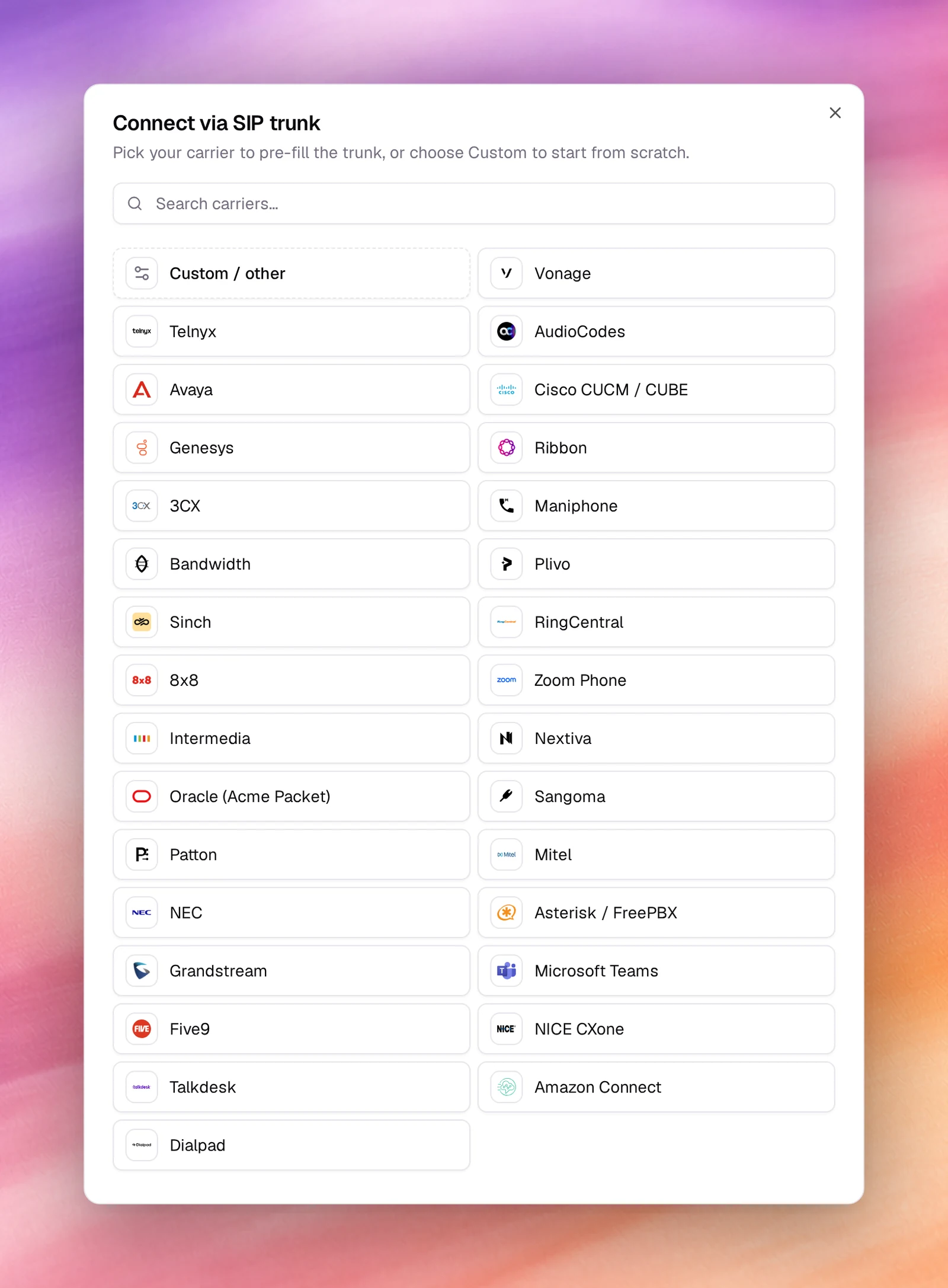
Connect via SIP trunk lists 30 carriers and PBXs with a search box. Pick yours, or Custom / other to start blank. The pick pre-fills the trunk’s Nickname; everything else you enter yourself. See Carriers.
Number
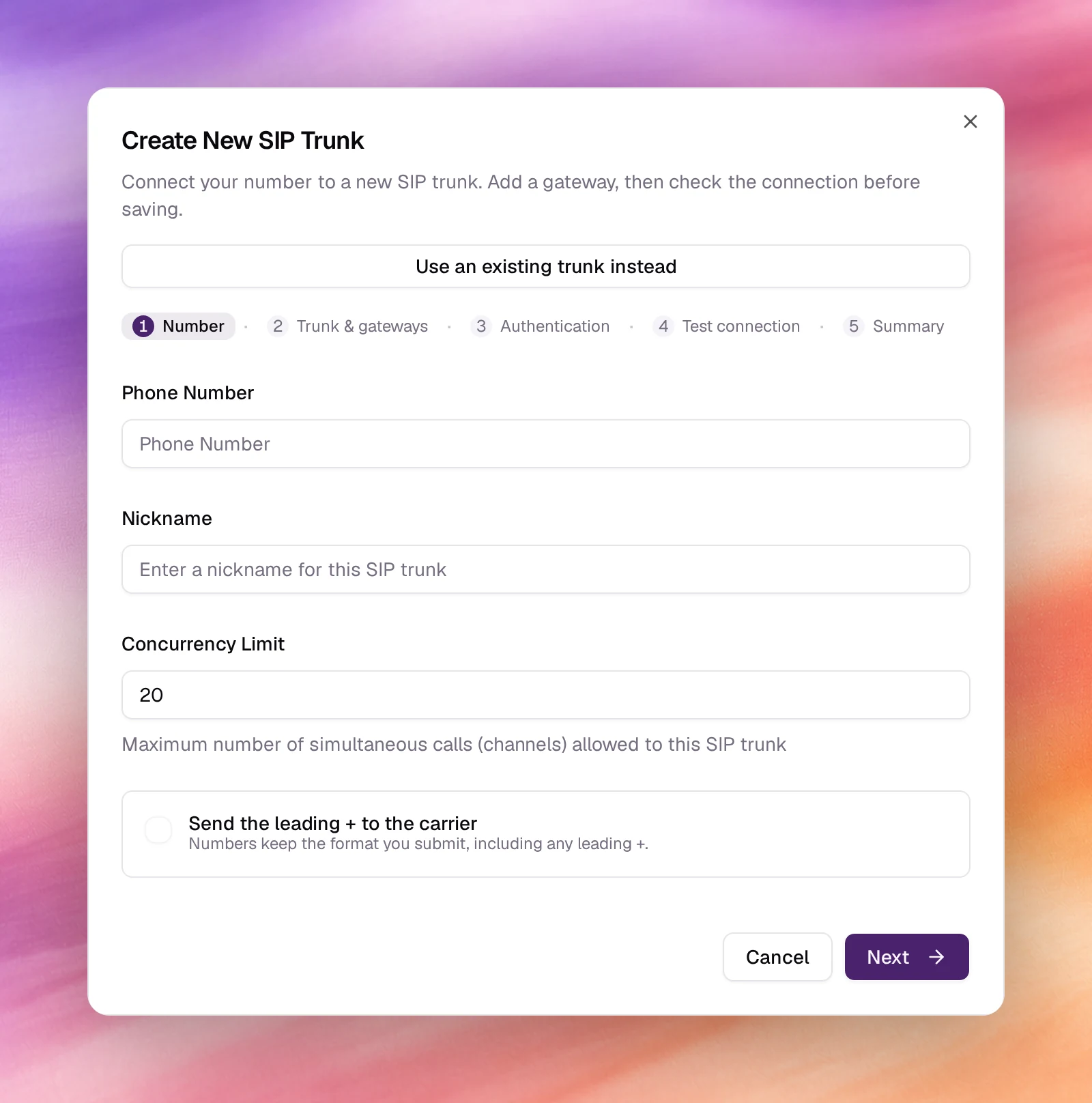
Create New SIP Trunk opens, a wizard in five steps: Number, Trunk &
gateways, Authentication, Test connection and Summary. Type the
Phone Number as the carrier expects it and a Nickname. The nickname is
also the trunk’s carrier name, so spaces and punctuation are dropped on save:
Docs: SIP is stored as DocsSIP; use hyphens instead. Concurrency Limit
is the number of simultaneous calls allowed on the trunk, 20 by default; an
outbound campaign never dials more lines than this. Set Send the leading + to
the carrier here too.
Trunk & gateways
Server type identifies what is on the other end: enter the host and port
you were given and choose Detect. A recognised server picks the provider
template and fills in the first gateway; otherwise choose Skip detection and
pick a template and pick the closest match. Then check Gateways: each
one has an IP Address / Domain, a Port (5060), a Protocol and a
direction. A trunk needs at least one gateway. Add a second for a backup route.
Authentication
Set the SIP Configuration Options in the table below. Tick Requires Register when your carrier authenticates by registration; Registration Settings appear.
Test connection
The test runs as soon as you reach the step: each gateway gets a SIP OPTIONS ping, plus a registration attempt when registration is on. Probe again repeats it. If a gateway fails you can still go on with Continue anyway, but calls through it may fail.
Summary and create
Summary shows what you entered and the Connection test result: Passed, Not run, or failed and saved anyway. Choose Create Phone Number.
Fields
Trunk
| Field | Default | Notes |
|---|---|---|
| Phone Number | The number in the form your carrier routes. | |
| Nickname | Carrier name | Shown in lists and campaign pickers. |
| Concurrency Limit | 20 |
Maximum simultaneous calls on the trunk. |
| Send the leading + to the carrier | Off | On: numbers go out as +15551234567. Off: 15551234567. Match what the trunk expects. |
| Requires Register | Off | The trunk authenticates by SIP REGISTER. Reveals the registration fields. |
| Register Public IP in Contact | Off | Puts Callab AI’s public IP and port in the SIP Contact header. Turn it on when the carrier needs a routable contact; allow that IP on your side. |
| Tech Prefix | Jambonz trunks only. | |
| Diversion Header | Passed through when the trunk enables Diversion. |
Registration Settings
Shown when Requires Register is on.
| Field | Notes |
|---|---|
| Register Username | The SIP username. |
| Register Password | The SIP password. |
| SIP Realm | Optional, for example sip.example.com. |
| From User | Optional override of the From user. |
| From Domain | Optional override of the From domain. |
Gateway
| Field | Default | Notes |
|---|---|---|
| IP Address / Domain | 192.168.1.1 or sip.example.com. |
|
| Port | 5060 |
|
| Protocol | UDP |
UDP, TCP or TLS. |
| Inbound | Off | The gateway sends calls to Callab AI. |
| Outbound | On | Callab AI sends calls to the gateway. |
| Active | On | Untick to keep a gateway configured but unused. |
| Options Ping | Off | Send SIP OPTIONS to check the gateway is up. |
| Pad Crypto | Off | Pads SRTP crypto attributes for gateways that require it. |
Each gateway matches a single address: there is no netmask to widen it. For inbound calls, the host has to be the exact address your carrier sends from; if the carrier sends from several, add a gateway for each.
Add another number to the same trunk
Repeat Add Phone Number, Custom SIP Trunk and a carrier. In Create New SIP Trunk, choose Use an existing trunk instead. In Add New Phone Number to SIP Trunk, type the Nickname and Phone Number, then under Select SIP Trunk pick an existing number whose trunk this one should share. Add to SIP Trunk creates it with the same gateways and credentials.
Verify
- The number is in the list with Provider
Custom SIP Trunkand Statusactive. - Open its details. Gateways lists what you entered; Provider configuration shows Requires register and E.164 leading plus as set.
- Create an inbound campaign on the number and call it from a phone. The call appears in Call Logs and the Concurrency bar on the number’s page moves while it is up.
Troubleshooting
- Calls never connect. Check the gateway host, port and protocol against the carrier’s SIP settings, and that the carrier allows Callab AI’s public IP. If the trunk registers, confirm the credentials and realm.
- The carrier rejects the dialled number. Flip Send the leading + to the
carrier. Carriers are split on whether they want
+15551234567or15551234567. - A campaign dials fewer lines than expected. It is bound by Concurrency Limit on the trunk. Raise it only as far as the carrier allows.
- Inbound calls do not arrive. The gateway needs Inbound ticked, its host must be the exact address the carrier sends from, and an inbound campaign must be running on the number.