

Send Email
Sends an email with a fixed subject and a templated body, filled with dynamic variables, when the agent decides the caller should receive one.
Send Email sends an email to the caller during the conversation. The subject and body are templates you write; the agent fills the variables and triggers the send when the Description says it should.
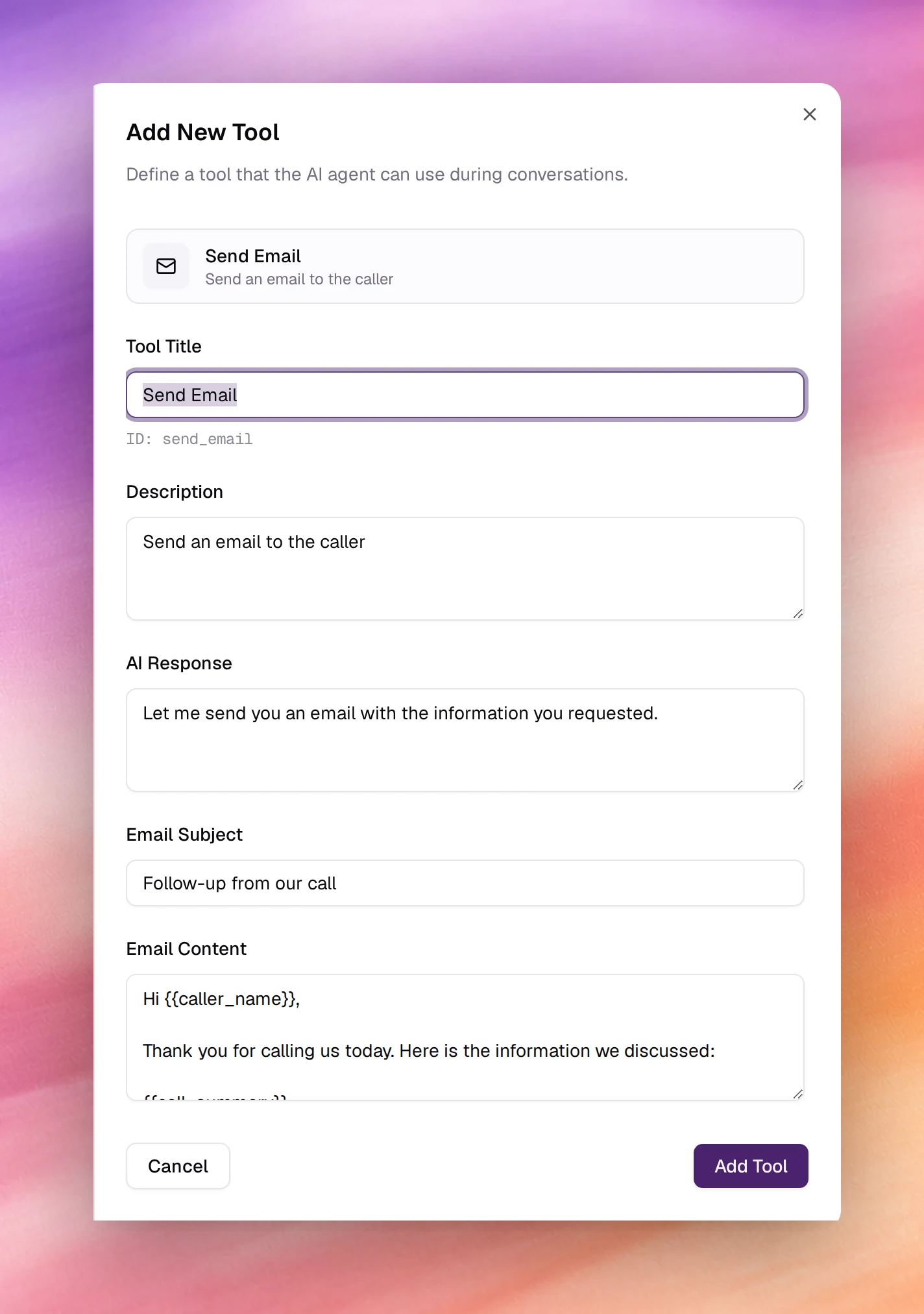
Configuring it
Open Tools under Build, choose Add tool, then Send Email. After the shared fields:
| Field | Type | Default | Notes |
|---|---|---|---|
| Tool Title | Text | Send Email |
Its ID, send_email, is shown under the field. |
| Description | Text | Send an email to the caller |
Add the trigger and what the agent needs first: Send the booking confirmation once the caller has given their email address. |
| AI Response | Text | Let me send you an email with the information you requested. |
|
| Email Subject | Text | Follow-up from our call |
Required, 3 to 100 characters. Plain text. Variables work here too. |
| Email Content | Text | see below | Required, 10 to 5000 characters. The body. Write {{variable}} for values the agent fills. |
The default content shows the pattern:
Hi {{caller_name}},

Thank you for calling us today. Here is the information we discussed:

{{call_summary}}

Best regards,
The Team
{{caller_name}} and {{call_summary}} are filled by the agent from the
conversation; name any other variable in the template and describe it in
Description so the agent knows what to put there. The agent’s
dynamic variables can be used as well.
Choose Add Tool, then Save the agent.
Behaviour and limits
- The recipient is the caller’s address as the agent understood it in the conversation. Ask the agent, in Tasks, to read the address back before sending.
- The body is sent as written. Keep the template short and put the variable parts where the agent can fill them; the agent does not rewrite the surrounding text.
- The send is recorded as a tool call on the call’s page, with the values used. See Call details.
Troubleshooting
- The email goes to the wrong address. The address was misheard. Add to
Tasks:
Spell the email address back letter by letter and confirm it before sending. - A variable arrives as literal braces. The agent did not know what to fill in. Name the variable in Description.