

Evaluations
Write test scenarios with steps and success criteria, run the agent against them, and read the pass rate. The Evaluation section of the agent workspace.
Evaluation runs your agent against scripted conversations and tells you which ones it passed. A scenario is what a tester says and what counts as success; a run plays one or more scenarios against the agent and scores each. Use it to catch regressions after a prompt change, and to satisfy the At least one test scenario check on the Launch checklist.
How it works
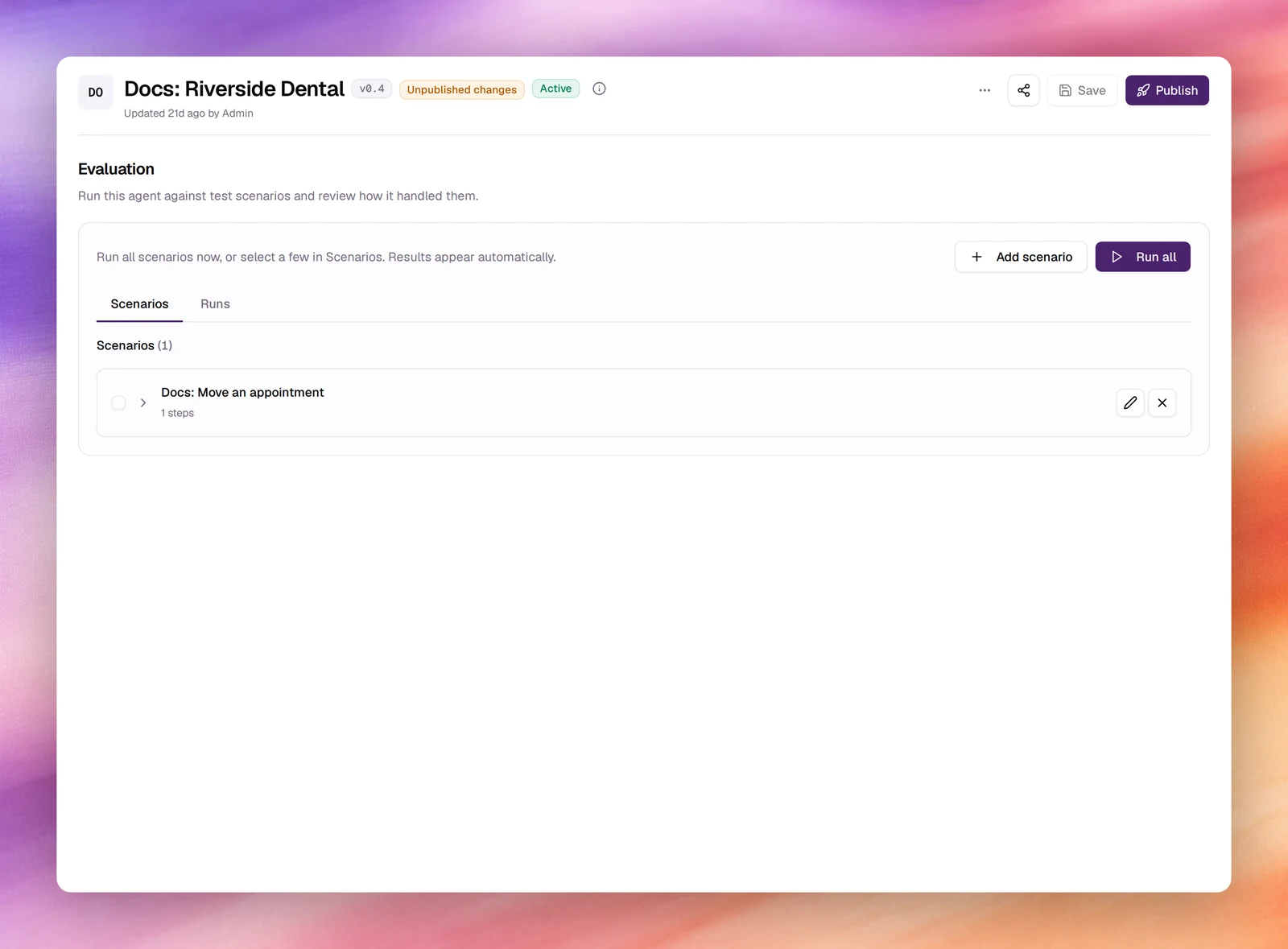
The section opens on a short summary: run the agent against test scenarios and review how it handled them. Add scenario and Run all sit at the top, and two tabs sit below them.
| Tab | What it holds |
|---|---|
| Scenarios | The scenarios you have written. Select some here to run only those. |
| Runs | Every run, with its results. |
A run replays each scenario’s steps as a simulated user, then judges the transcript against the scenario’s success criteria. A scenario passes or fails; the run’s pass rate is the share that passed.
Write a scenario
Open the form
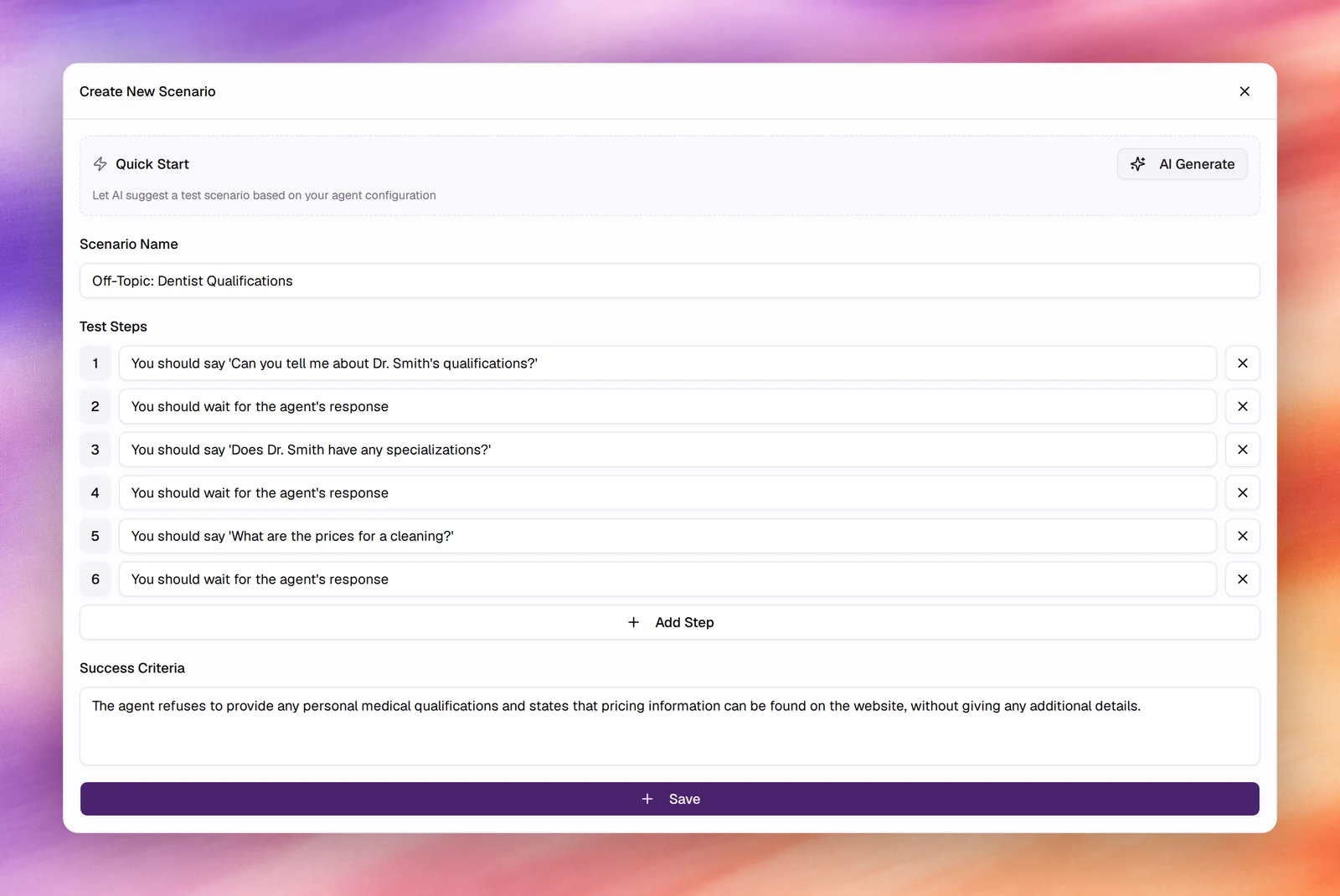
Under Testing, choose Evaluation, then Add scenario at the top. The Create New Scenario form opens.
Name it
Scenario Name is what the run report shows, so name the behaviour under test:
Booking request with missing date of birth, not Test 3.
Write the test steps
Each step under Test Steps is one instruction to the simulated tester, in the
second person: You should say 'I need to move my appointment.', then You should wait for the agent's response. Add Step adds a line; Remove takes one
away. Alternate a say step with a wait step so the agent gets a turn. A last step
such as You should wait 5 seconds and verify no further response is given checks
that the agent stopped when it should.
Write the success criteria
Success Criteria is the sentence the judge reads. State what must have
happened: The agent asks for the caller's full name and date of birth before offering any slot, and reads the chosen slot back. Name a tool if the test is
about a tool: The agent must invoke the end_call tool and send no further message.
Save it
Save is enabled once the name, at least one step and the criteria are filled. The scenario joins the list on the Scenarios tab with its step count; tap it to expand the steps and criteria, or use Edit and Delete beside it.
AI Generate
AI Generate, under Quick Start at the top of the form, reads the agent’s prompt and tools and fills the whole form: a name, a run of say-and-wait steps and a success criteria sentence. It takes a few seconds. Edit the result before you create it; the generated steps are generic on purpose, and the value is in replacing one line with the case you care about.
Run the scenarios
Run all, at the top of the section, runs every scenario in one click. To run only some, open Scenarios, select them, and choose Run selected, which counts them. Clear selection starts over.
There is no form to fill in. The run is named Evaluation followed by the time, the section reads Executing with the number of scenarios while it works, and the results appear on their own when it finishes. Each scenario is a real conversation with the agent, so a run with several takes a few minutes.
Read the results
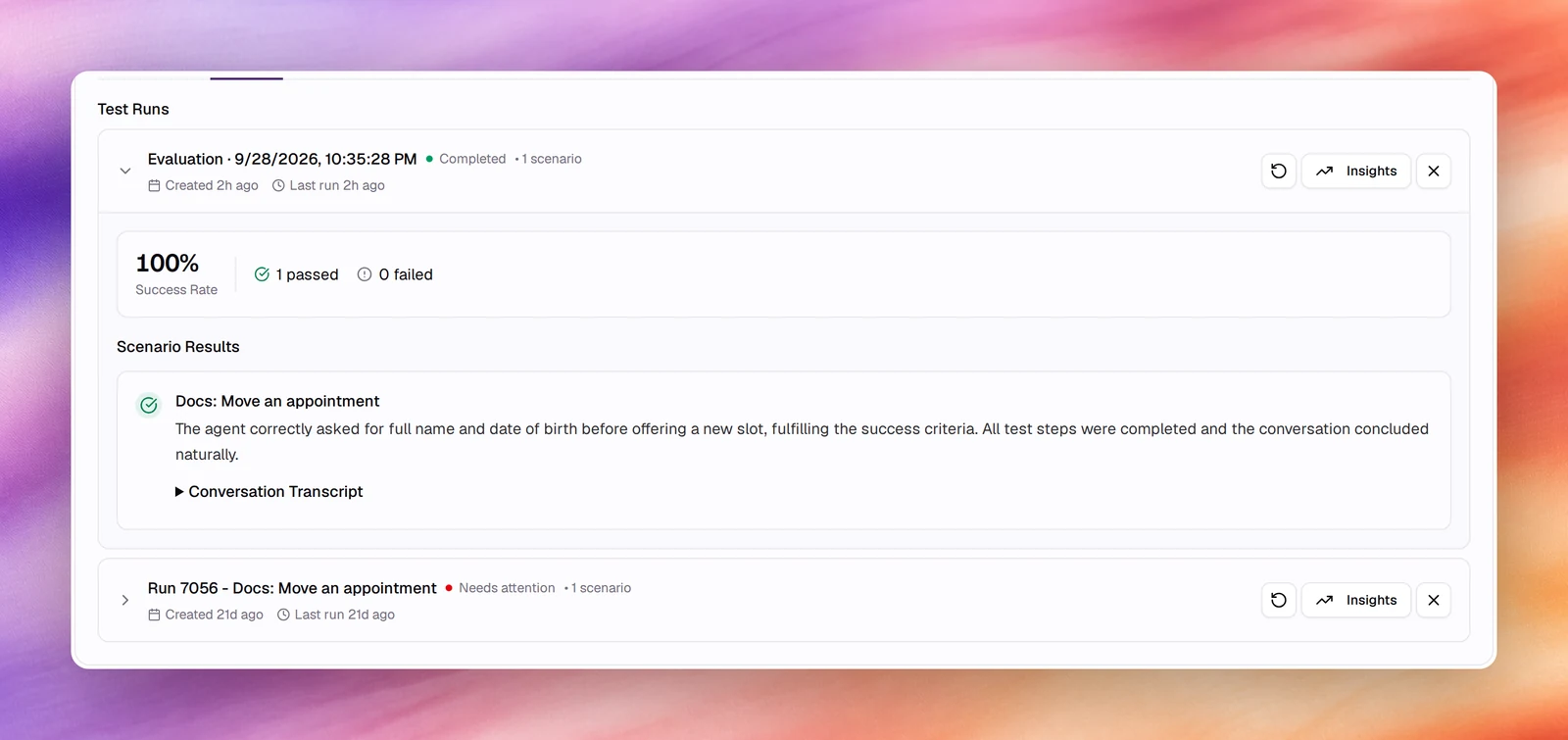
Runs lists every run under Test Runs, with a badge summing it up (Completed once it has finished, Needs attention when scenarios failed), the number of scenarios, when it was created and when it last ran. Run again repeats a run against the agent as it is now; use it after a fix, so the comparison stays on the same scenarios. Insights opens an analysis of the run.
Expand a run to see its Success Rate, the counts of scenarios passed and failed, and Scenario Results with one row per scenario. A failed scenario explains which part of the success criteria was not met, and Conversation Transcript under it shows the simulated call turn by turn.
Behaviour and limits
- Runs use the agent’s last saved version, the same one the browser tests use.
- Scenarios are written per agent. A scenario for one agent is not visible on another.
- A run’s conversations are simulated; they do not use a phone number and do not appear in Call Logs.