

Choosing a voice
Pick the voice a voice agent speaks with: the voice picker, its filters and previews, and how the language limits the list.
Voice agentsA voice agent speaks with one voice, chosen in the General card of Settings. The picker offers the voices that fit the agent’s language and model, each with a preview, and can be changed at any time.
Configuring it
- Open the agent on Settings.
- In General, open the voice selector under Language. It shows the current
voice with its flag, locale and gender, for example Adam Stone,
en-GB, male. - Narrow the list: type in Search by name, language, accent, or label, or use the Gender buttons (Female, Male) and, when the list holds more than one locale, the Language buttons.
- Choose Play preview on a voice to hear it.
- Click the voice to select it, then Save.
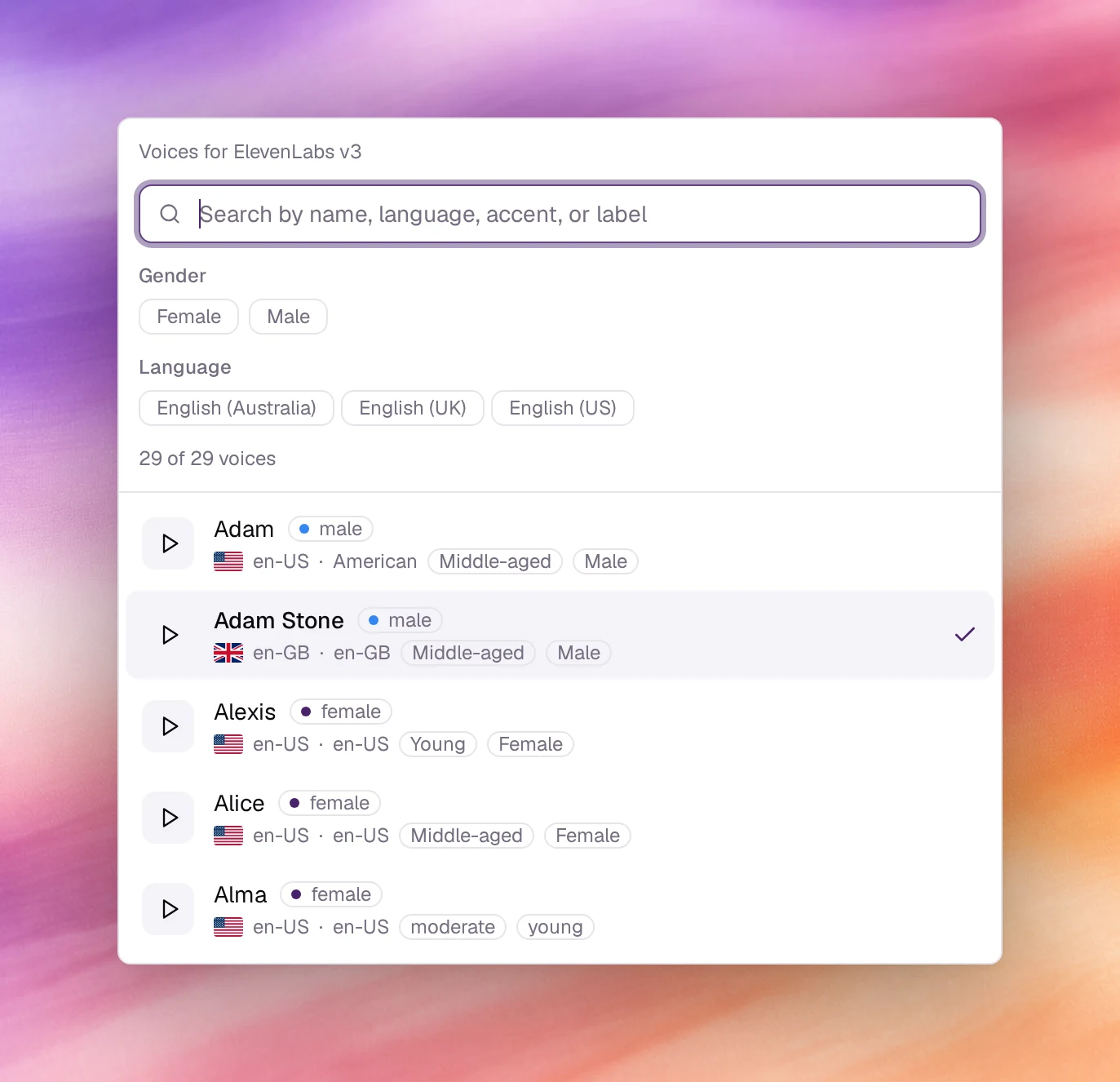
Reading a voice entry
Each entry shows the name, the gender, a flag, the locale (en-US, fr-FR,
ar-SA), an accent or label (American, Australian), Multilingual where
the voice can speak other languages, and an age label such as Young,
Middle-aged or Old. The counter reads how many of the offered voices match
the filters, for example 12 of 12 voices before any filter is applied.
A few voices have no preview and their Play preview button is disabled. They can still be selected; test them with Call.
Voices and the model
The voice agent’s text-to-speech model, set under Model controls in the header of General (see LLM configuration), decides which voices can be produced. The picker only offers those, and names the model at the top: Voices for followed by the model’s name. If a model change leaves the selected voice unusable, it is switched for one the model can speak and a note under the picker names both; changing the model back restores it. A voice the model cannot produce is flagged The selected voice is not available on this model.
Voice settings, the button beside the picker, holds the fine controls the current model exposes for the voice. They differ from model to model; Reset to defaults restores them, and a model with none shows No tunable settings for this model.
Choosing well
- Match the locale to the callers. A
en-GBvoice on a US line sounds foreign to callers even when the words are right. - Multilingual voices keep their identity when the agent switches language mid call. Prefer them for lines that serve more than one language.
- Test in Call, not only Preview. The preview is a studio sample; the call test runs the voice through the same pipeline as a real call.
- Age and pace are part of the brand. Play three candidates to the people who own the phone line before settling.
Behaviour and limits
- One voice per agent. Two voices means two agents.
- Changing the voice is a saved change: a new version, with rollback.
- The voice speaks the First message and every reply; it does not affect transcription, which follows Language.
- Background audioBackground audioAn ambient sound played under the agent's voice, such as a call-centre room tone, so the call sounds like a place rather than a vacuum.See the glossary is separate; see Background audio.
Verify
Open Call under Testing and start a call. The first messageFirst messageWhat the agent says when it speaks first.See the glossary is spoken in the new voice.
Troubleshooting
- The picker is disabled. No voice exists for the selected Language. Pick a language from the list on Languages.
- The voice I want is missing. The current text-to-speech model cannot produce it. Change the model under Model controls.
- The preview does not play. The voice has no sample. Use the call test.